
Photon is a networking engine and multiplayer platform that handles all communication on its own servers. In a typical multiplayer setup, you implement the core application (gameplay) logic within your UNIGINE project, while Photon manages the networking layer.
This sample includes two Photon products:
- Photon Realtime - real-time communication between multiple players over the network. Suitable for multiplayer shooters, racing games, and other latency-sensitive applications.
- Photon Chat – public/private in-game chat system.
The sample includes the following functional elements:
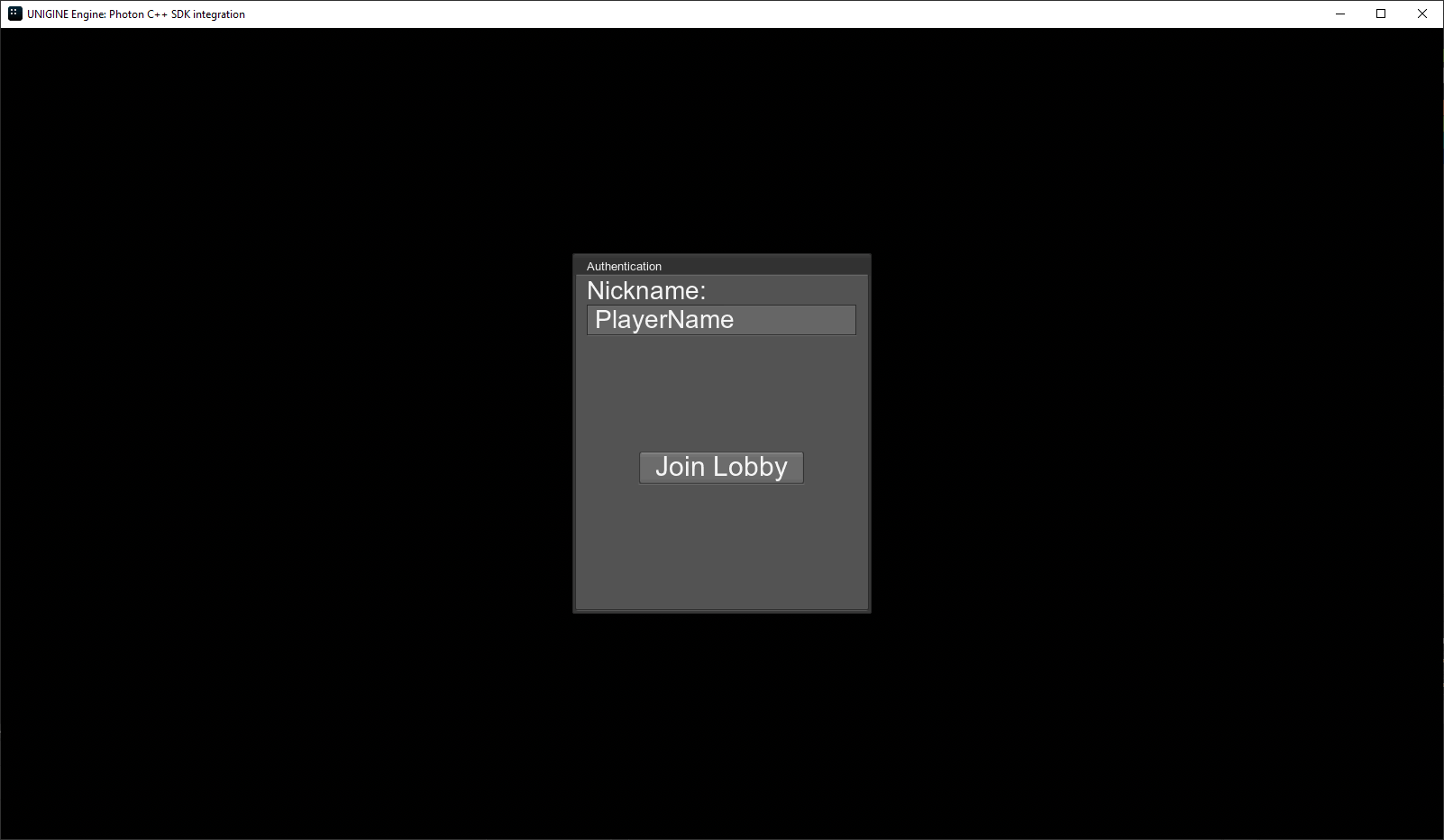
- Authorization Window – Simple login interface where users enter a nickname; extendable to include more advanced authentication (e.g., passwords).
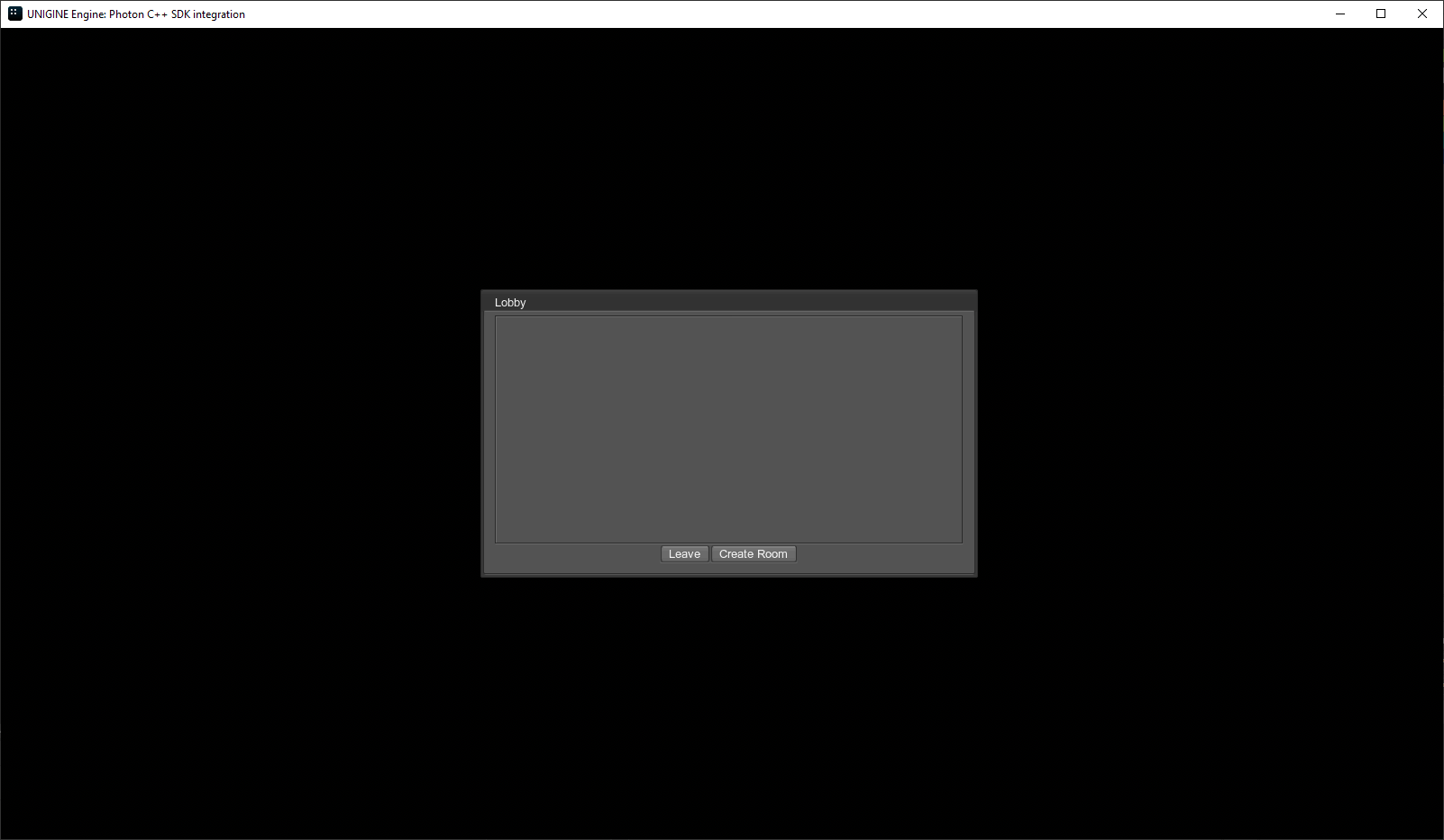
- Lobby Window – A UI to create rooms and browse the list of available rooms to join.
- Gameplay World – The main interactive scene where objects can be manipulated in real time + chat panel.
This gives a solid foundation for for building your own UNIGINE-based multiplayer applications using Photon's networking services. From there, you can explore and integrate additional Photon products as needed.
Photon doesn’t natively support UNIGINE types. To send such data over the network, it must be serialized before transmission and deserialized upon receipt. This sample provides utility code for that, including:
- Common data types supported by Photon - listed here under Common-cpp.
- More complex data types (e.g. transformation matrices) requiring explicit registration for custom serialization.
- UNIGINE SDK Browser (latest version)
- UNIGINE SDK
- Visual Studio 2022 (recommended)
To get started with the Photon C++ Sample:
-
Clone or download the sample.
-
Open SDK Browser and make sure you have the latest version.
-
Add the sample project to SDK Browser:
-
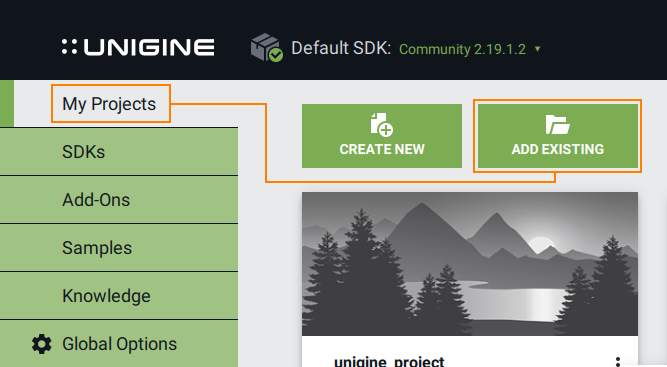
Go to the My Projects tab.
-
Click Add Existing, select the
.projectfile from the cloned folder (matching your OS -*_win_*/*_lin_*, edition, precision), and click Import Project.
-
-
Repair the project:
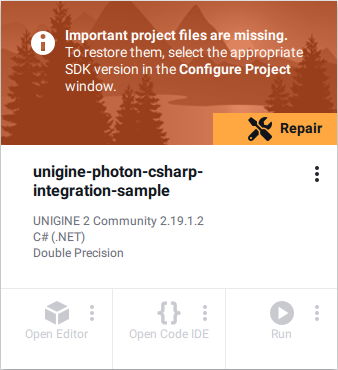
- After importing, you'll see a Repair warning - this is expected, as only essential files are stored in the Git repository. SDK Browser will restore the rest.
- Click Repair and then Configure Project.
-
Download Photon Realtime C++ Windows SDK (v5.0.14 Build 3) from photonengine.com. If you don’t have an account, you’ll need to register first.
- Copy Photon SDK files:
- From downloaded SDK’s
/source, copy the following folders into your project’ssource/PhotonSDK:Chat-cppCommon-cppLoadBalancing-cppPhoton-cppPhotonVoice-cpp.
- From downloaded SDK’s
Tip
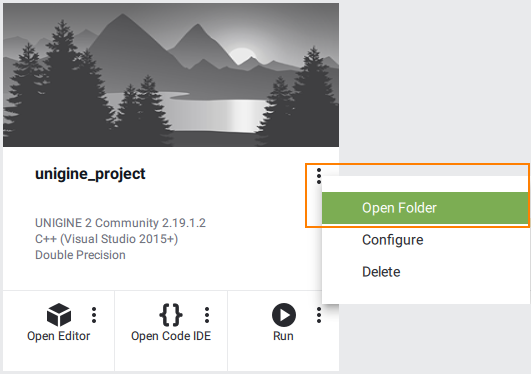
You can quickly access your project via SDK Browser by clicking the three dots next to your project's name and selecting Open Folder.
-
Create App IDs in Photon Dashboard:
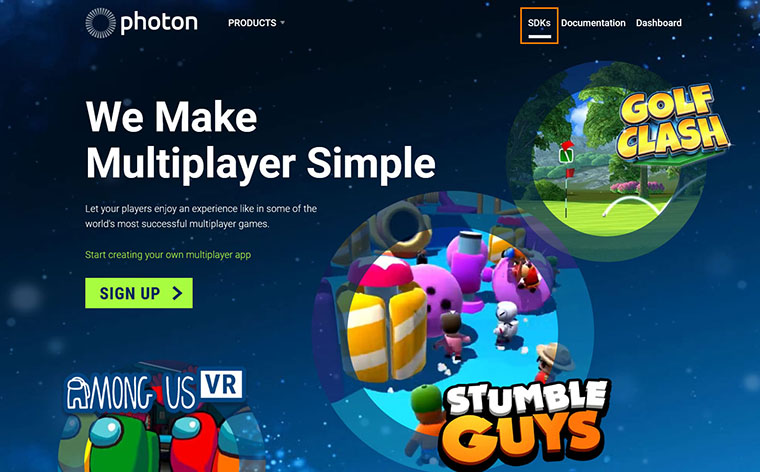
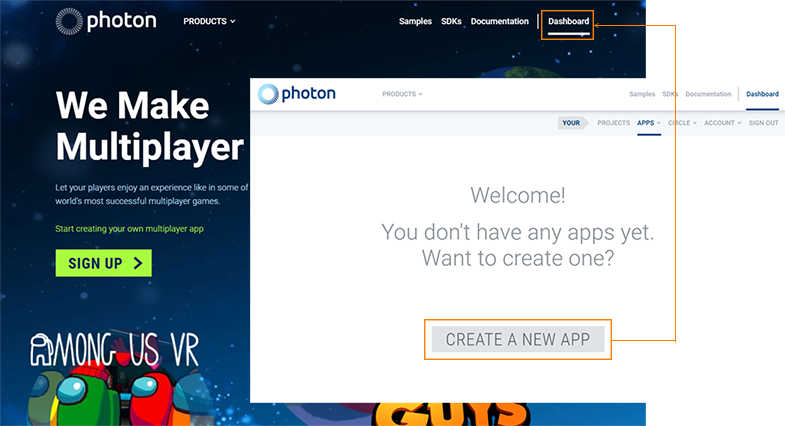
- Go to the Dashboard at photonengine.com (the tab in the top right corner) and click CREATE A NEW APP.
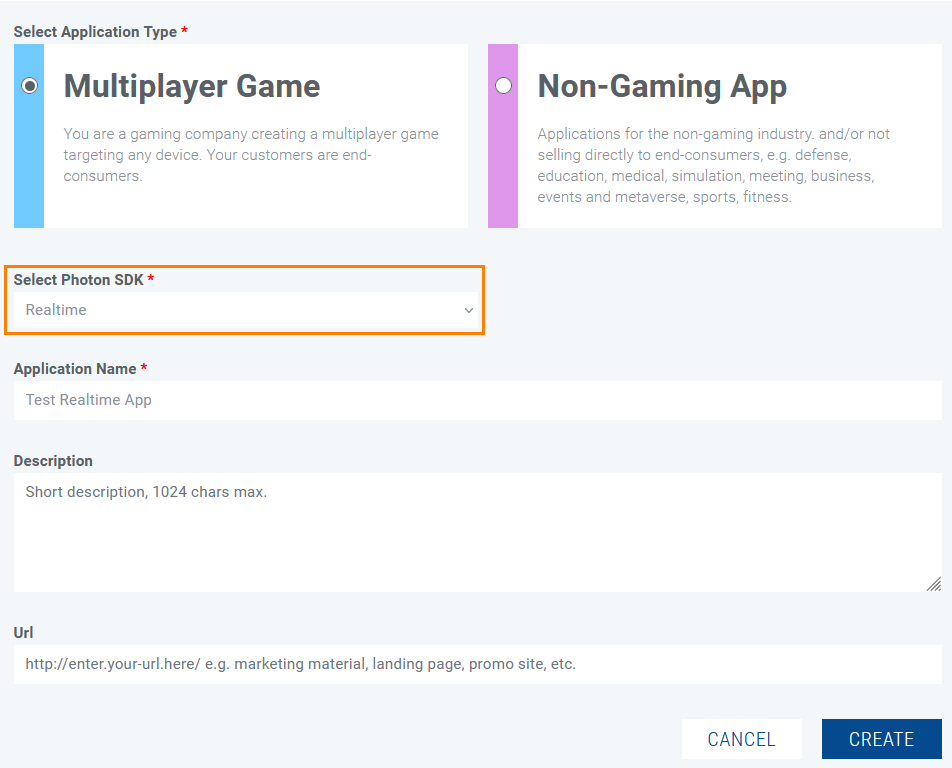
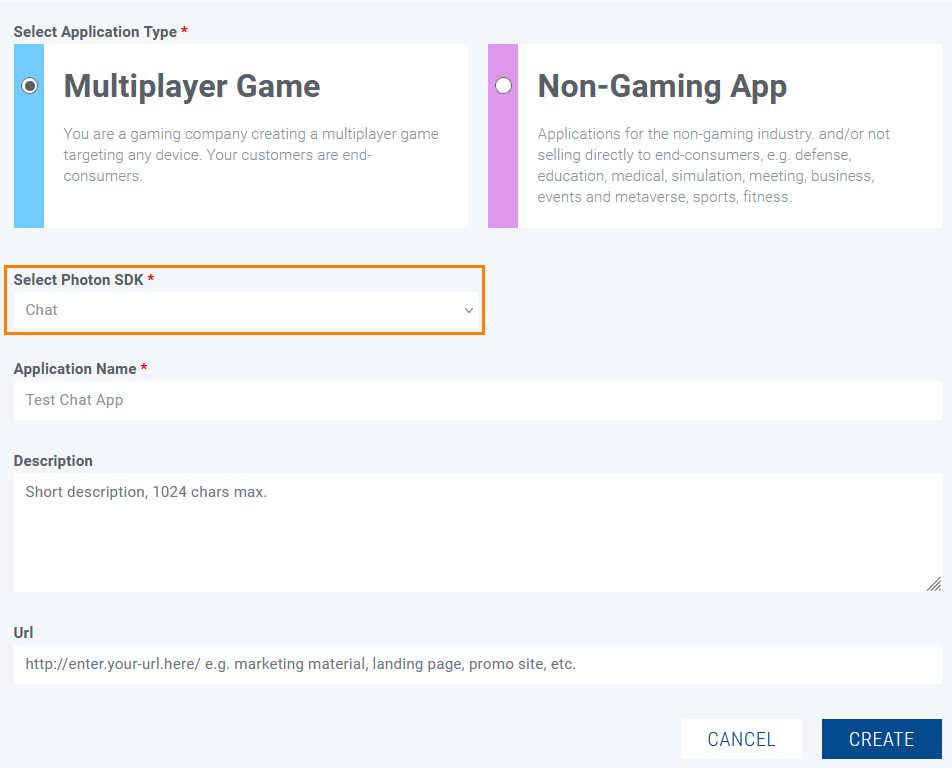
- Create two apps: Realtime Photon SDK and Chat Photon SDK.
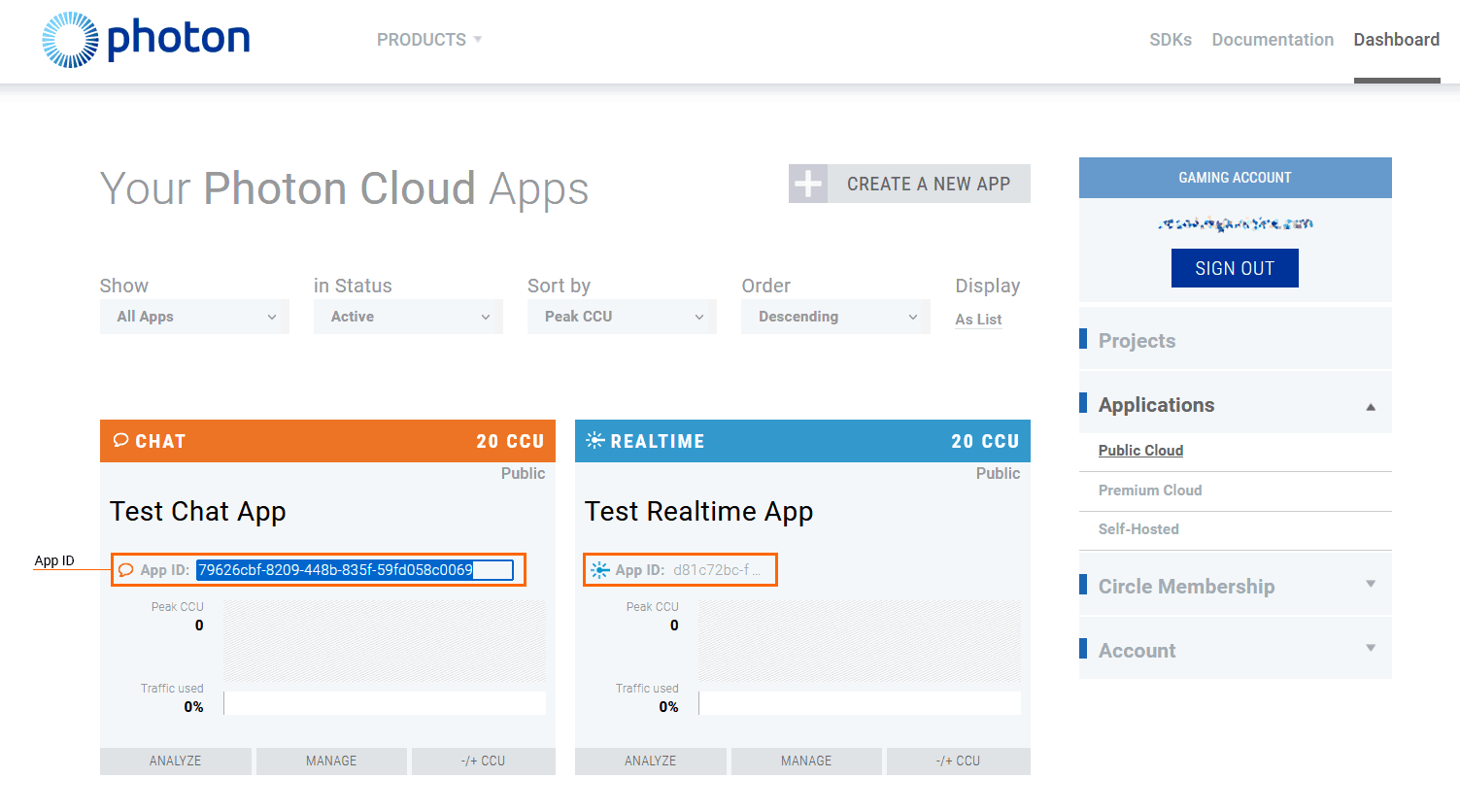
Creating a Realtime Photon App Creating a Chat Photon App - Copy the generated App IDs in your sample project. The same ID is used for every instance (i.e. other participants don't need to create their own apps).
-
Add App IDs to the sample project: open
data/application_params.jsonin your project/datafolder and paste IDs:{ "realtime_application_id": "YOUR_REALTIME_ID", "realtime_application_version": "1.0", "chat_application_id": "YOUR_CHAT_ID", "chat_application_version": "1.0" } -
Open the project in your IDE:
- Launch the recommended Visual Studio 2022 (other C++ IDE with CMake support can be used as well).
- Load the folder containing
CMakeLists.txt. If everything is set up correctly, theCMakeLists.txtfile will be highlighted in bold in the Solution Explorer window, indicating that the project is ready to build.
Warning
By default, the project uses single precision (float). To enable double precision, modify CMakeLists.txt:
- set(UNIGINE_DOUBLE False CACHE BOOL "Double coords")
+ set(UNIGINE_DOUBLE True CACHE BOOL "Double coords")
Make sure this setting matches the .project file you selected (e.g., *_double.project for double precision builds).
- Build and Run the project.
- Double-check all setup steps above to ensure nothing was skipped.
- Check that
UNIGINE_DOUBLEinCMakeLists.txtmatches the current build type (double/float). - Use the correct
.projectfile for your SDK edition/platform. - Verify your SDK version is not older than the project's specified version.
- If CMake issues occur in Visual Studio, right-click the project and select: Delete Cache and Reconfigure and then Build again.
- Run the sample and enter a nickname in the authorization form → click Join Lobby.
- If no rooms exist, create one (Create Room).
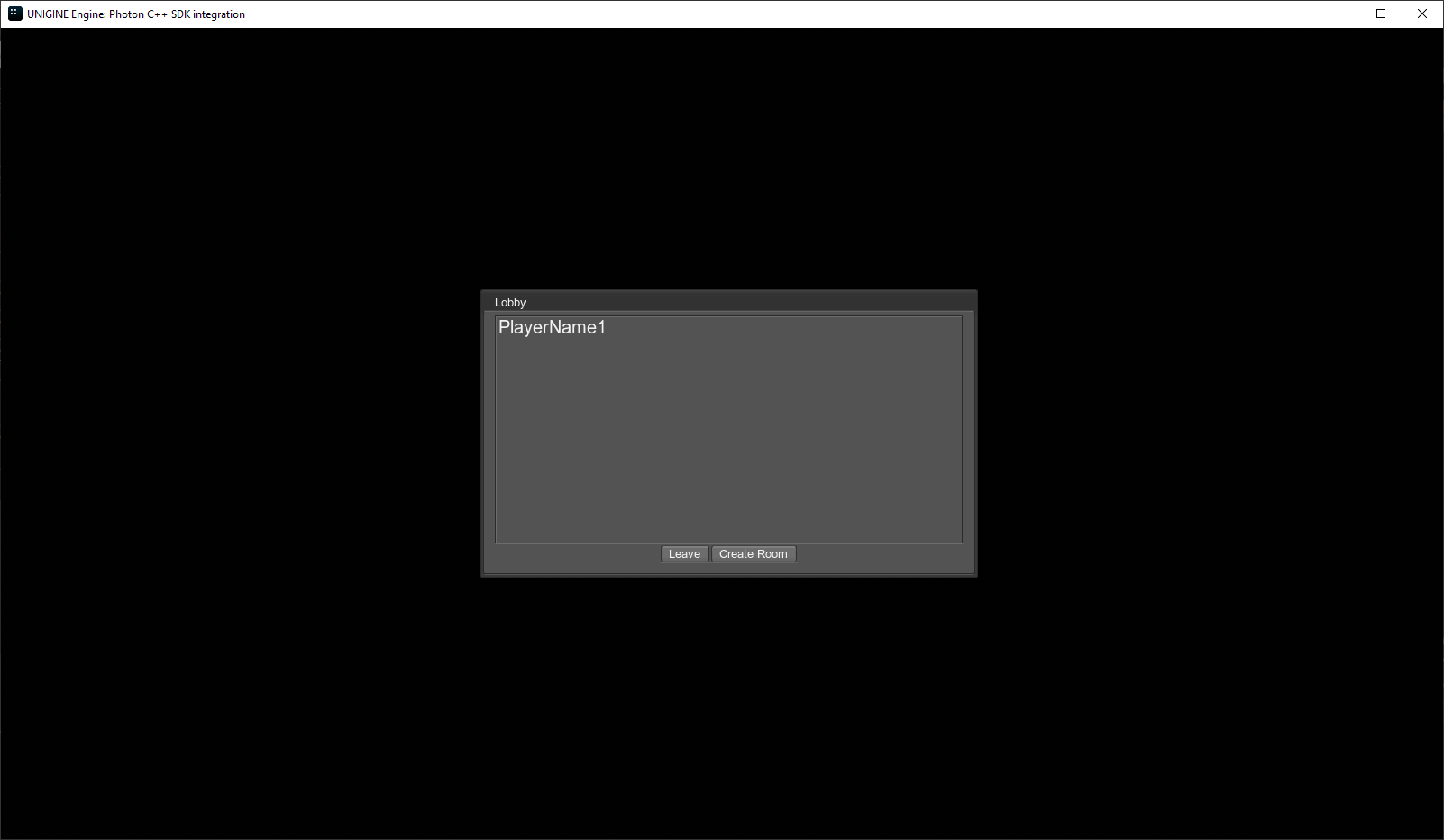
- Other users with the same App IDs in
data/application_params.jsonwill see and can join it.
-
Double‑click the room name to enter.
-
In the world, control the material ball with:
- WASD to move
- QE to rotate
- Left click to shoot.
-
Use the chat panel:
- Send global messages
- Send private messages by typing
@username.
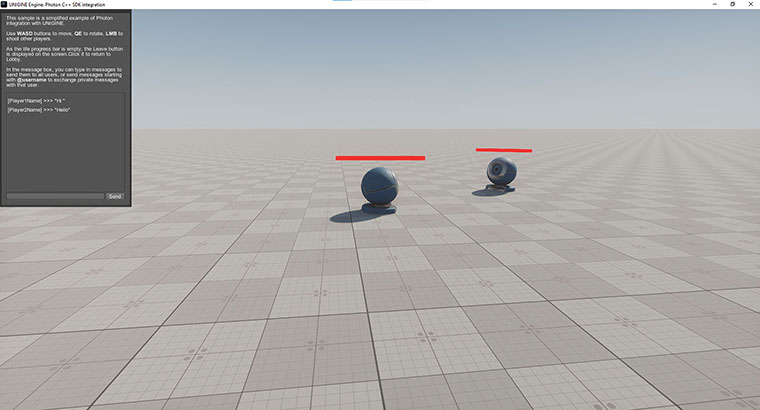
- As the health bar is empty, click Leave to return to Lobby.