Make it easier to find regressions by comparing your HAR files. Test it out https://compare.sitespeed.io.

We couldn't have built compare without the support or inspiration from the following people:
- Thank you Patrick Meenan 🙇. The waterfall is rendered with Pat's waterfall-tools, and the WebPageTest HAR compare viewer is what inspired the blend slider.
- Thank you Michael Mrowetz 🙇. Earlier versions of compare used Michael's PerfCascade and it carried us for years.
If you like our project, please give them also some extra love :)
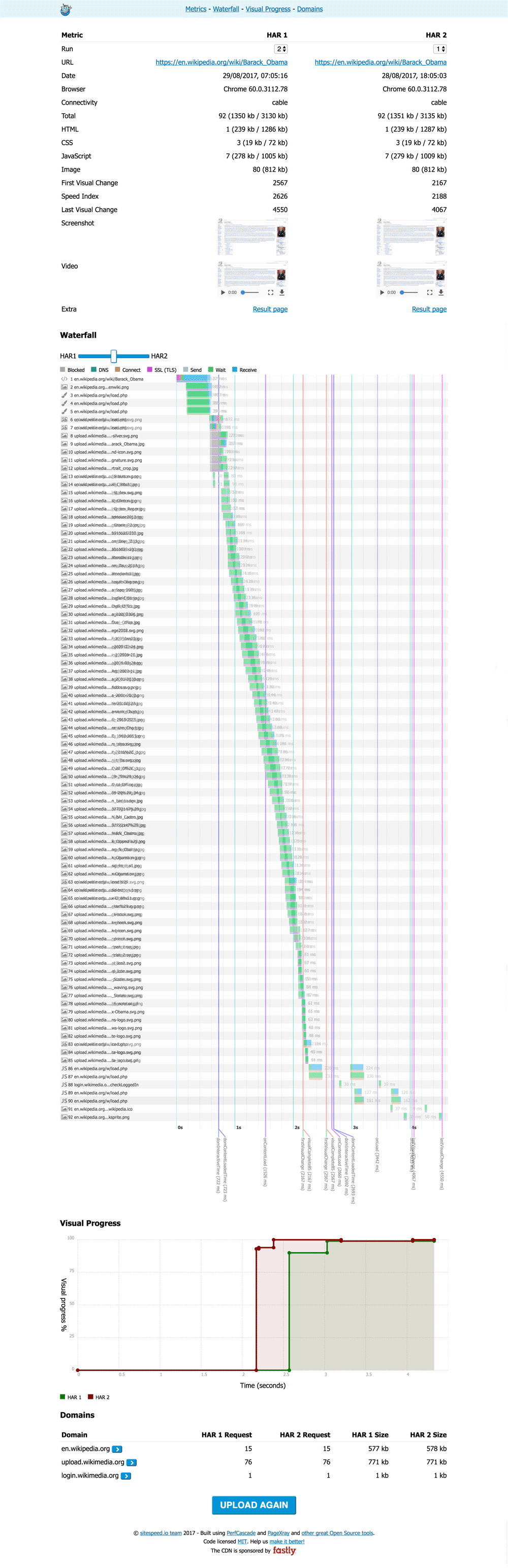
As long as your HAR files follow the HAR specification you can use them in compare. Standard HARs give you the basics; HARs from WebPageTest and sitespeed.io/Browsertime unlock the extras.
The result page is the same for every HAR — sections that don't apply silently stay hidden, so a plain Chrome HAR doesn't show a half-empty "filmstrip" or "CPU" block.
- A stacked waterfall rendered by waterfall-tools. Both HARs share the same time axis so widths are comparable at a glance. A blend slider fades HAR2 over HAR1, and a per-result toggle switches between side-by-side and overlay. Hovering a request highlights its peer in the other waterfall.
- A Page X-ray table (powered by PageXray) grouped into sections — Content, Render blocking, Visual metrics, Core Web Vitals, CPU and First/Third party. A Δ column shows the HAR2−HAR1 delta with regressions in red and improvements in green. An "Only differences" toggle hides rows where the two HARs match.
- A request/response diff when both HARs are for the same URL — added requests, removed requests, and (per-request) size, status and timing changes. Tick "Strip version parameters" on the start page (or set
"stripVersion": truein your config) to ignore cache-busting query strings. - A domains breakdown.
- Chrome HARs with priority hints also produce a Render blocking row (blocking / potentially blocking / in-body parser blocking).
.harand.har.gzare both accepted on drag/drop and via URL.
SpeedIndex, FirstVisualChange and, if the run was captured on Chrome with the CPU profile enabled, CPU timings.
- Visual progress chart with a line per HAR and vertical timing markers (First Visual Change, FCP, LCP and Speed Index) so a regressed metric shows up as two side-by-side guide lines.
- A filmstrip section sampled from the VisualProgress change points, with a lightbox for full-size frames, plus a small thumbnail strip under the visual-progress chart.
- The full set of visual metrics (FirstVisualChange, LargestImage, Logo, Heading, Speed Index, LastVisualChange, Visual Readiness).
- Core Web Vitals: First Contentful Paint, Largest Contentful Paint, Total Blocking Time, Cumulative Layout Shift.
- CPU details when sitespeed.io ran Lighthouse: Long Tasks, Total Blocking Time, Max Potential FID.
If you deploy your sitespeed.io result with --resultBaseURL, compare will pick up the screenshot, video and a link to the result page.
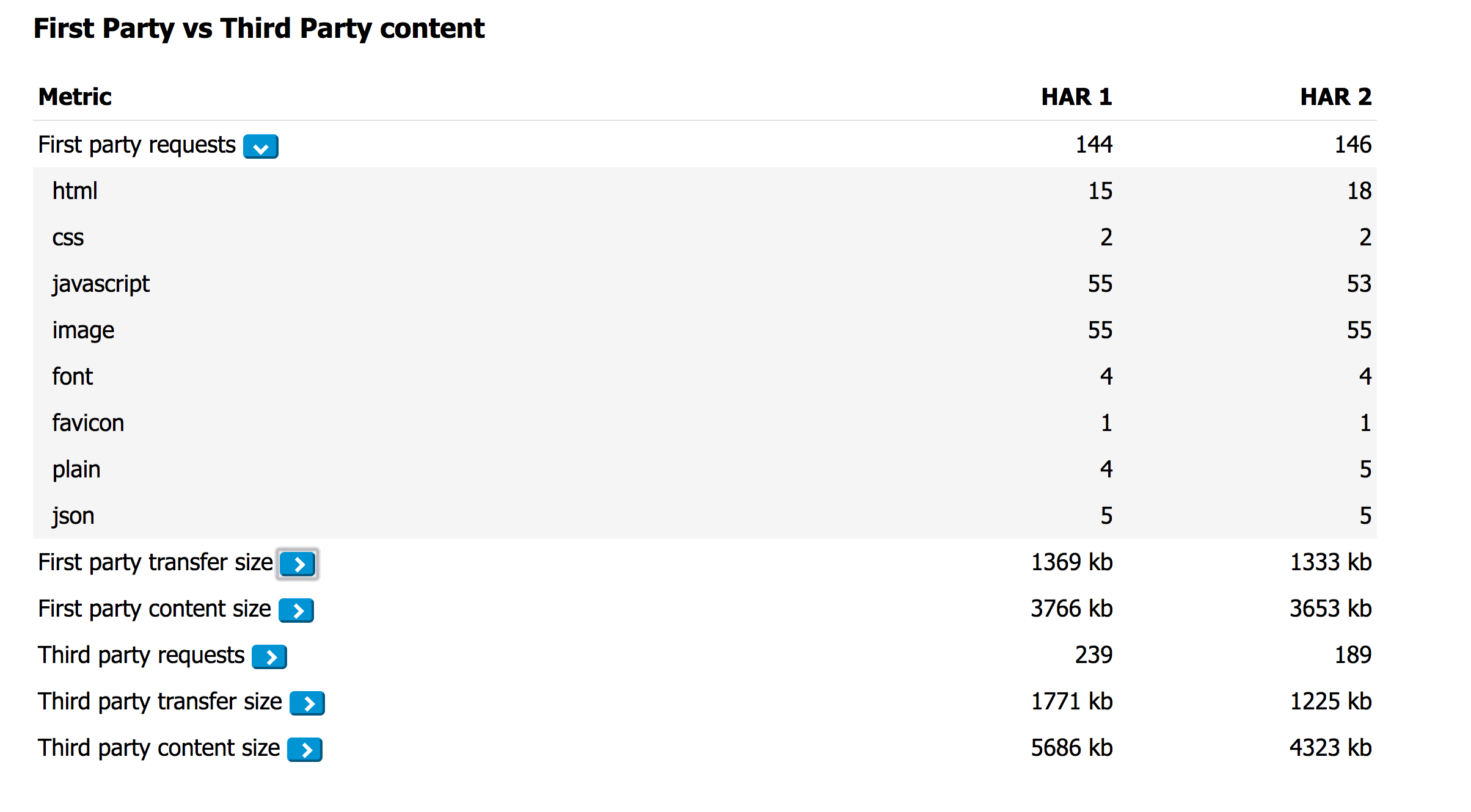
PageXray auto-detects first-party hosts from the page URL. If you want to override it (e.g. multi-domain sites), pass a regex via --firstParty when running sitespeed.io, or set "firstParty" in the config below; the result page then shows a first-vs-third party breakdown.
You can either upload two HAR files (drag/drop) or give the URL to two URLs hosted online. If your HAR got multiple pages/runs, you can use just one HAR file.
Or you can just copy/paste your HAR file into the start page of compare.sitespeed.io.
If you host your sitespeed.io result pages, you can copy/paste the URL to a page or to a specific run and Compare will automagically find the URL to the HAR file.
You can use a configuration JSON to choose which HAR files that will be tested. The minimal configuration needed:
{
  "har1": {
    "url": "https://www.url.com/page1.har"
  },
  "har2": {
    "url": "https://www.url.com/page2.har"
  }
}
But you can also add some extra sugar. All the extras are optional:
{
  "har1": {
    "url": "https://www.url.com/page1.har",
    "label": "Before change",
    "run": 1
  },
  "har2": {
    "url": "https://www.url.com/page2.har",
    "label": "After change",
    "run": 2
  },
  "title": "The page title used in the title bar",
  "firstParty" : " (.*wikipedia.*||.*wikimedia.*)", // RegEx that defines first party requests
  "stripVersion": true, // ignore query-string version params when diffing requests
  "comments": {
    "intro": "Extra information put at the top of the page",
    "waterfall": "Text displayed at top of the waterfall",
    "visualProgress": "Text displayed at the top of visual progress",
    "domains": "Text displayed at the top of domains",
    "requestDiff": "Text displayed at the top of request/response diff",
    "firstParty": "Text displayed at the top of first/third party"
  }
}
And then you can use your configuration file in different ways. You can copy/paste the configuration into the start page of compare.sitespeed.io.
Or you can use it like this: https://compare.sitespeed.io/?config=https://URL_TO_THE_CONFIG_FILE
Make sure that your server has correct CORS settings so that compare.sitespeed.io can get the HAR file.
You can also use host your configuration file on a Github gist and use the gist id https://compare.sitespeed.io?gist=GIST_ID to get the configuration file.
You can checkout out our example: https://gist.github.com/soulgalore/94e4d997a78e03b32b939fcea63eae8e
You can also copy/paste gist id (or the full URL to the gist) into compare.sitespeed.io.
Thank you Matt Hobbs for sharing the gist idea!
You can also compare two HAR files on the fly without using a configuration file.
Add the parameters ?har1=FULL_URL1&har2=FULL_URL2&compare=1 and the two HAR files will be compared.
The project is built with Vite. Compare uses a small Vite-bundled entry (src/main.js, which pulls in the CSS and the waterfall-tools wrapper) plus a set of classic-script modules in public/js/compare/ that share globals on window. Vite serves public/ verbatim in both dev and production, so editing a file under public/js/compare/ is a hard reload away from running.
Run the dev server:
npm run develop
Send us a PR / create an issue. If you have a big change coming up, please discuss it with us in an issue first.
Deploying your own version is easy:
- Clone the repo:
git clone git@github.com:sitespeedio/compare.git - Build:
cd compare && npm install && npm run build - Copy everything in
dist/to your server.
The build version-stamps the classic compare scripts so a new deploy invalidates any stale copies cached by visitors.
We take your privacy really serious: We do not use any tracking software at all (no Google Analytics or any other tracking software) in compare.sitespeed.io. The page do no call home.
And you can deploy your own version of compare.sitespeed.io if you want to be 100% in control.
If you deploy your own version: please keep the original logo and the link to the project. We have spent a lot of our free time to work on this!
The compare logo (and the rest of the sitespeed.io logos) are made by Mochamad Arief, you can find his stuff at http://www.mochawalk.com/.