
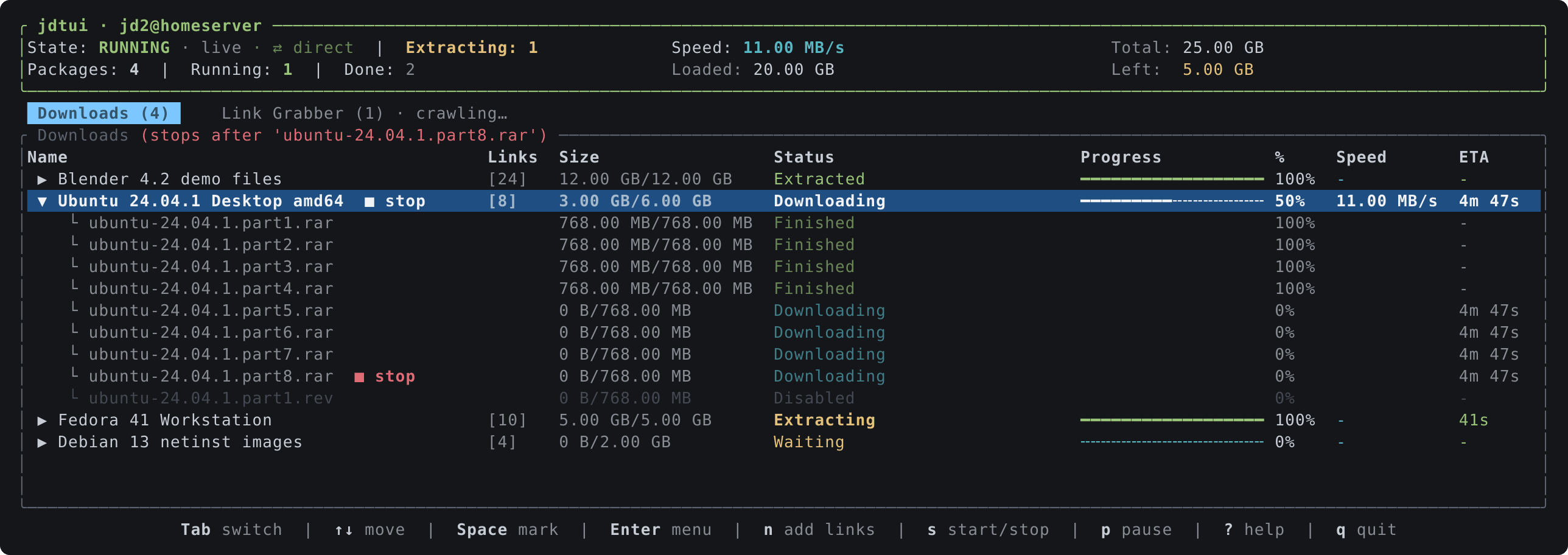
A terminal UI for JDownloader 2, talking to it through the My.JDownloader API.
Sign in once with your My.JDownloader account and jdtui shows the same tree as the
desktop GUI: packages with their links, split across a Downloads and a
Link Grabber tab. Nothing to enable on the JDownloader side, and it works
from anywhere the account does, with as many JDownloader instances as you have
connected to it.
Companion: jdsend, a browser extension that sends links, selections and container files to the same JDownloader from the right-click menu, and shows it at a glance from the toolbar.
Download the binary for your machine from the latest
release — Linux, macOS and
Windows, on Intel and ARM — put it somewhere on your PATH, and run it.
Or build it yourself:
cargo install jdtuiEither way it is a single binary: no runtime, no Python, no local API to switch on. The Linux builds are statically linked against musl, so they run on any distribution whatever its glibc.
Every release asset is signed with an SSH key that lives on the maintainer's
machine and never goes near the build runners. The public half is
.github/allowed_signers, fingerprint
SHA256:A8FoTqTFZrY18WXrAuT1mA2xnmoc4xTDCNIzkQPRjdA.
# Check that the file you downloaded is the file that was built,
curl -LO https://github.com/rylos/jdtui/raw/main/.github/allowed_signers
ssh-keygen -Y verify -f allowed_signers -I rylos78@gmail.com -n file \
           -s SHA256SUMS.sig < SHA256SUMS
# and that its checksum is the one that was signed.
sha256sum --check --ignore-missing SHA256SUMS
Each asset also carries its own .sig, verified the same way. The commits
and tags are signed with the same key.
jdtui asks GitHub once a day whether a newer one has been released, and says
so in the About panel (D, then About) and once in the footer. Opening the panel asks
GitHub there and then, whatever the cache holds, because that is the moment
somebody is reading the answer; everywhere else the once-a-day timer applies,
and the panel says when it last looked. It is the
only thing jdtui says to anyone but My.JDownloader and the JDownloader
itself: one unauthenticated request, answered from a cache on most runs, on
its own thread, silent when it fails. update_check = false in the config
turns it off for good.
jdtuiYou are asked for your My.JDownloader email and password. After the first
successful sign in they are saved to the config file (mode 0600) and not asked
again unless they stop working. If the account has more than one JDownloader,
you pick one; the choice is remembered. Press d at any time to switch to
another one, or start with jdtui --choose-device.
The header shows the state of the download controller (running, paused,
stopped), the total speed as JDownloader reports it, how much is loaded and
left, and anything that is waiting on you: captchas to solve, archives being
extracted. s starts and stops the downloads, p pauses and resumes them.
The Status column says what jdtui makes of a row rather than repeating
JDownloader's own sentence: Downloading, Waiting, Queued, Finished,
Offline, Disabled, Skipped, and for archives Extracting, Extracted,
Extraction failed. JDownloader writes its sentences in whatever language it
runs in — a JD set to Italian says Caricamento mirror filestore.me — they
are often longer than the column, and they are not states: the one that reads
"an error occurred!" appears while a hoster makes JDownloader wait its turn,
and the package starts normally a minute later. jdtui works the state out from
the flags, the extraction queue, the package the row belongs to and whether
the downloads are running at all.
What JDownloader wrote is one keypress away, in full, under i, next to the
state jdtui derived.
While an archive is being unpacked the ETA column counts that down too: JDownloader stops reporting a wait for the package then and puts one on each of its links instead, so jdtui takes the longest of those. There is no percentage to be had — the API reports no extraction progress at all, only the time left.
The colour of that column follows the state rather than the words, for the same reason: green for what is done with, cyan for what is moving, grey for what is switched off. A finished link and a downloading one no longer look alike whatever language they are written in.
The footer lists the frequent keys; ? opens the full reference.
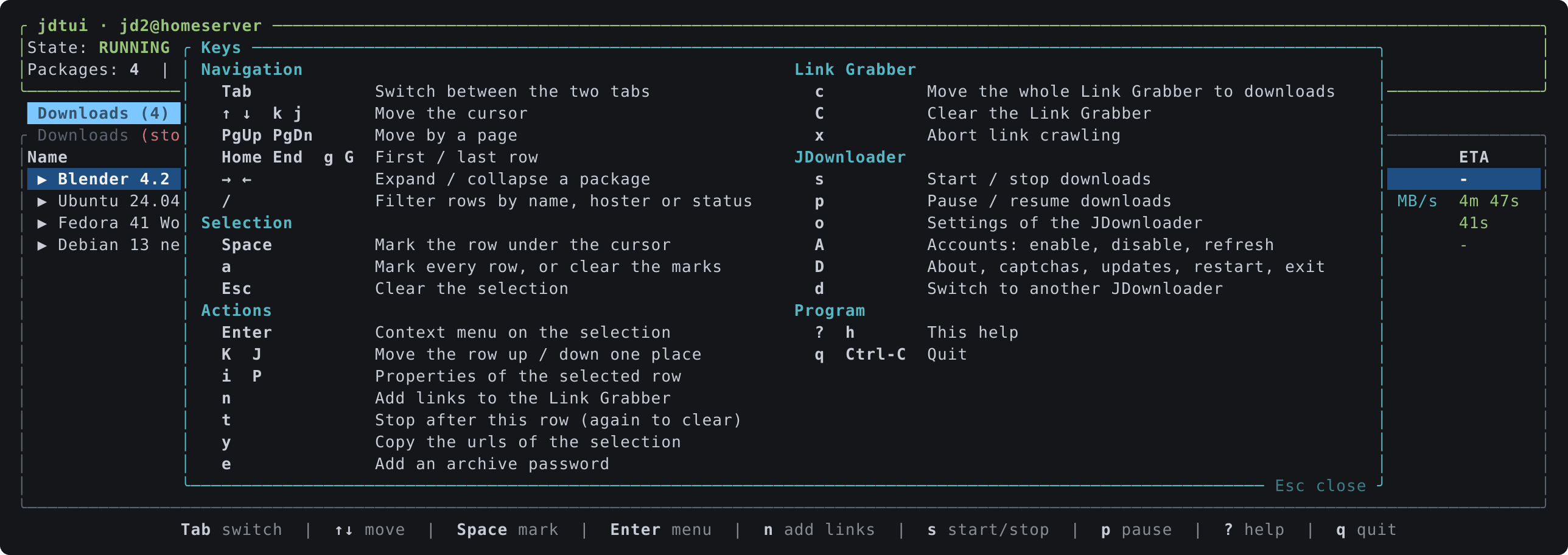
Space marks rows, a marks them all, Enter opens the context menu on the
selection. Every entry acts on all marked rows at once, so a dozen links can be
forced, resumed, reset, disabled, moved or removed in a single action.
Destructive entries ask for confirmation first.
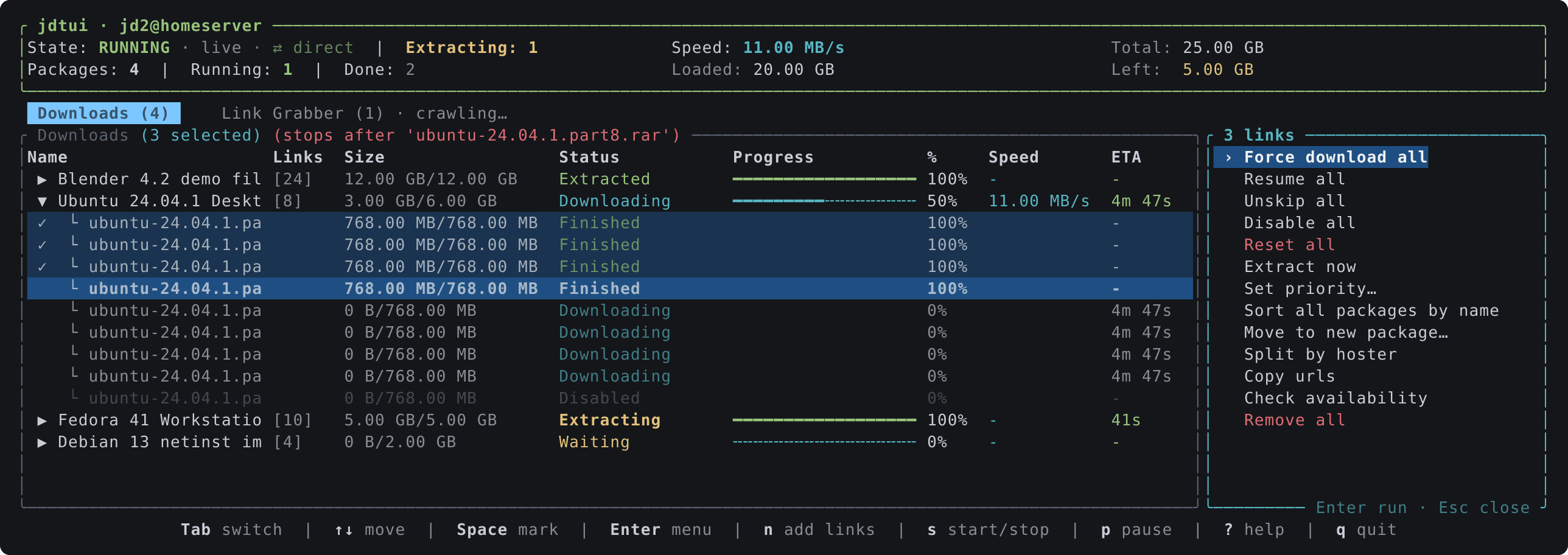
What the menu offers, depending on the tab and the selection:
-
Force download, Resume, Unskip, Reset, Enable / Disable
-
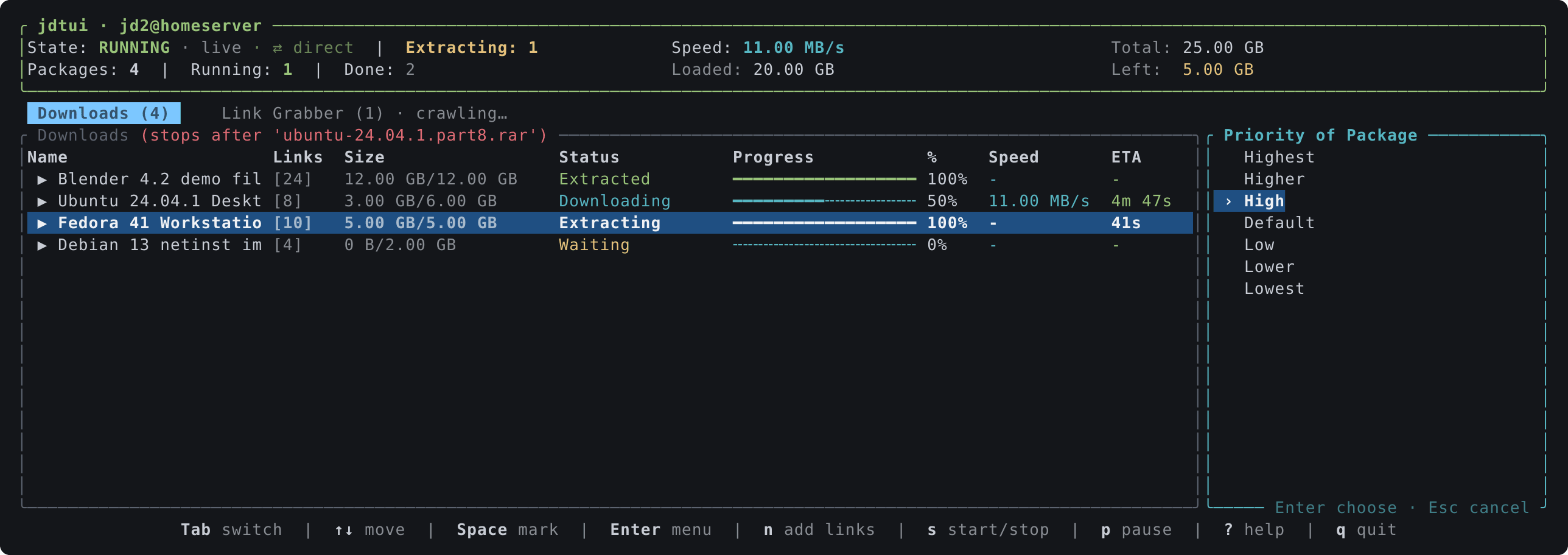
Set priority…, from highest to lowest
-
Rename… a package or a link, Set download folder… for packages
-
Move up, Move down one place (
KandJdo it without the menu, and the cursor follows the row), Move to top, Move to bottom for packages, Sort all packages by name, with numbers read as numbers so episode 2 comes before episode 10 -
Move to new package…, Split by hoster
-
Copy urls: shows the urls of the selection and puts them on the clipboard, through the terminal (OSC 52), so it also works over SSH
-
Check availability, Extract now, Delete finished links
-
Stop after this: the download list stops once this row is done;
tdoes the same without opening the menu, and again on the same row clears it -
Choose variant… on a Link Grabber link that offers several, such as the qualities of a video
-
Remove, Move to download list on the Link Grabber tab
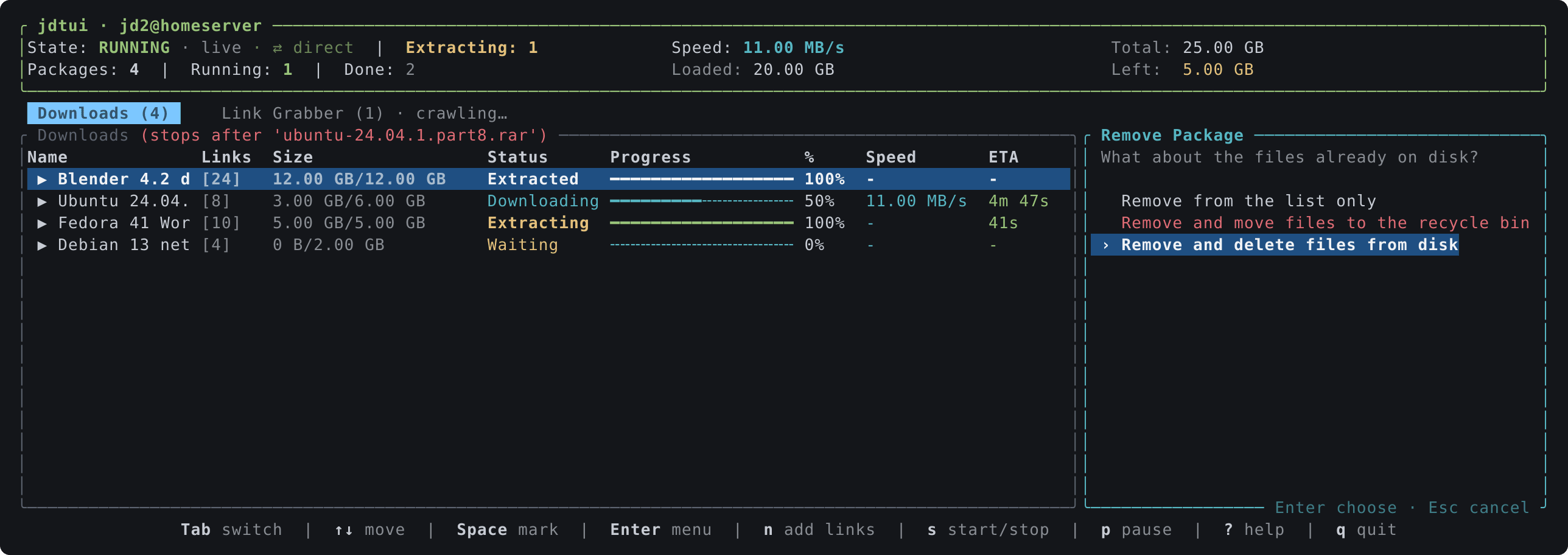
Removing from the Downloads tab asks what should happen to the files already on disk, the same three choices the desktop GUI offers: leave them, move them to the recycle bin, or delete them. The two that touch data ask again before running.
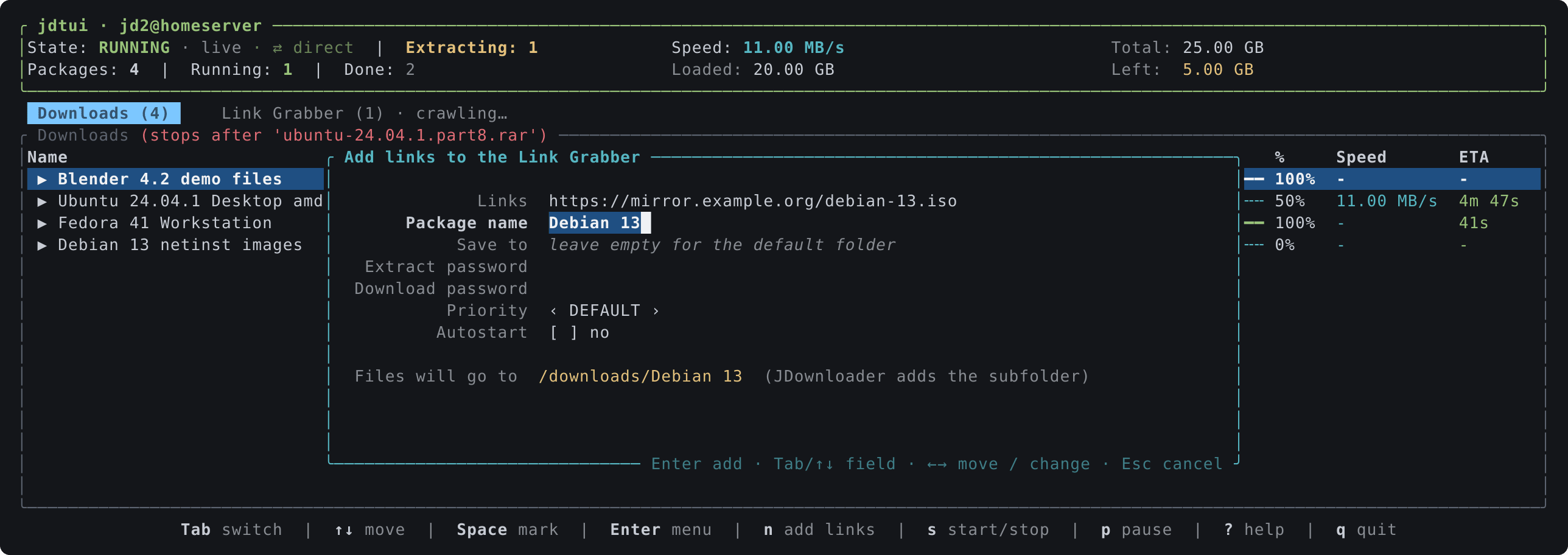
n opens the same form as the GUI's add dialog: urls, package name, destination
folder, extract and download passwords, priority and autostart. Pasting a list
of urls works; newlines become separators. A line under the fields says where
the files will end up: jdtui reads JDownloader's default folder and whether the
packagizer's "create subfolder by package name" rule is on, so /data shows as
/data/<package name> when JDownloader will add the subfolder itself, and a
<jd:packagename> placeholder in the path is never doubled. On the folder
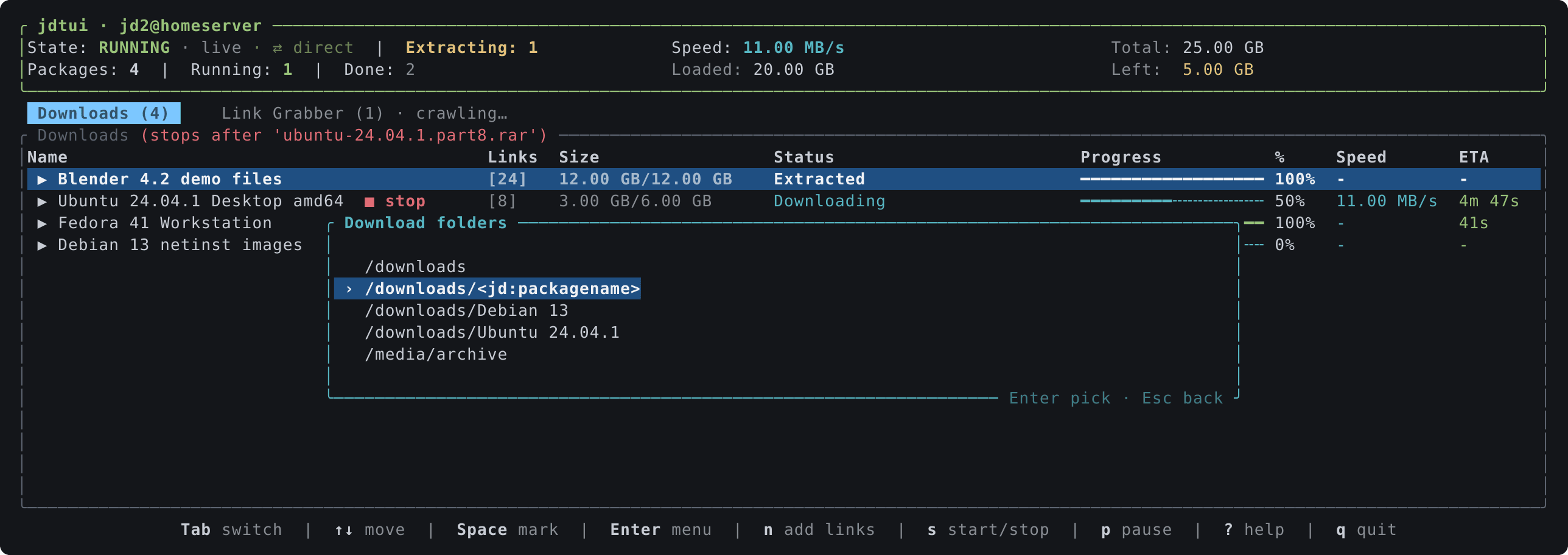
field, Ctrl-F lists
the folders JDownloader used lately (the same list as the GUI's combo,
<jd:packagename> placeholders included), the folders of the packages in the
lists and the mount points; pick one and edit it. The same picker serves the
download-folder and new-package forms.
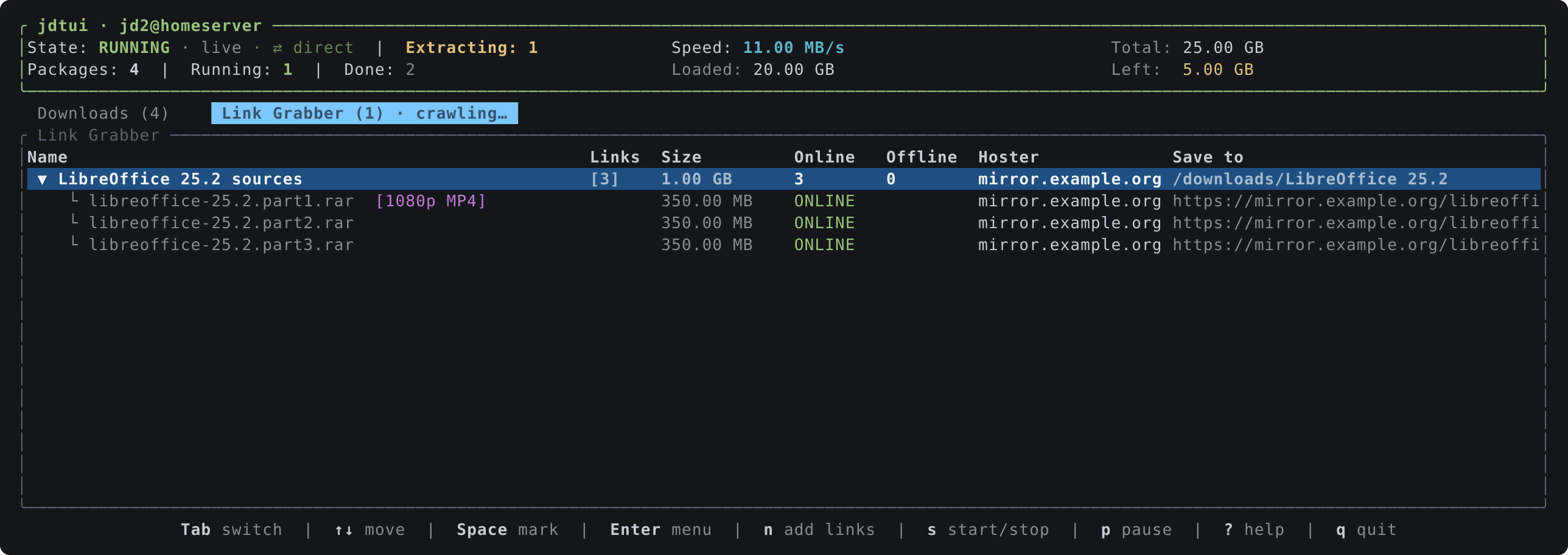
The Link Grabber tab shows what is waiting to be confirmed, with the
availability and hoster of every link, and says so while JDownloader is still
crawling what you added. c moves the whole list to the downloads, C clears
it, x aborts the crawling. e adds a password to the list JDownloader tries
on every archive.
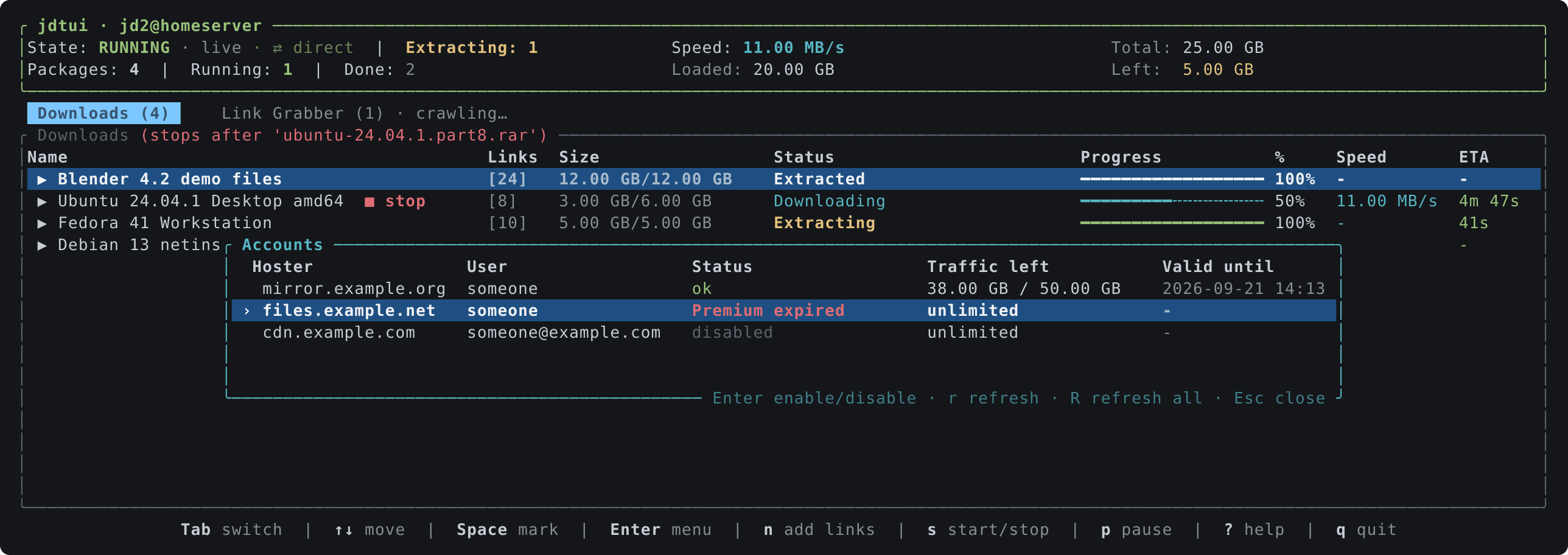
A lists the premium accounts of the JDownloader with their traffic and
expiry, and lets you enable, disable or refresh them.
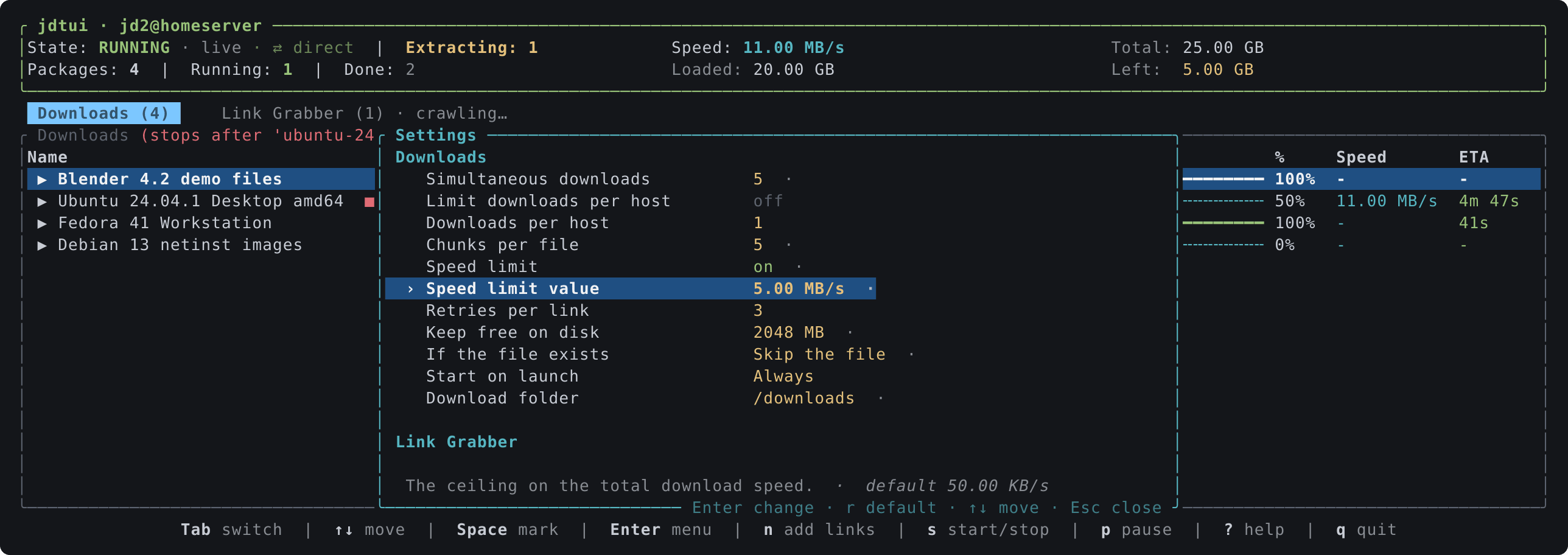
o opens the settings of the JDownloader you are connected to. Not all of
them: its advanced configuration holds over two thousand entries across more
than two hundred interfaces, most of them belonging to a single hoster plugin,
and mirroring that in a terminal would help nobody. What is here is the
twenty-odd that get touched while downloads are running — how many files at
once, how many per host, chunks, the speed limit, what happens when a file is
already there, where packages land, and what the extraction does with archives
once it has unpacked them.
The type, the value and the default come from the device, so a setting the
JDownloader does not have simply does not appear, and one that has been
changed from the default carries a ·, with the default itself named at the
foot of the panel. The wording of a list of choices is jdtui's own:
JDownloader translates its labels into the language it runs in and leaves
them out for some settings entirely, so taking them would make the panel part
English and part something else. Enter changes the setting under the cursor — a
toggle flips, a number or a path opens a field, a choice opens a list — and
r puts it back to what JDownloader ships. Every change is written and then
read back, so what you see is what JDownloader kept, not what was asked for.
For anything outside this list, use JDownloader's own settings; jdtui does not try to replace them.
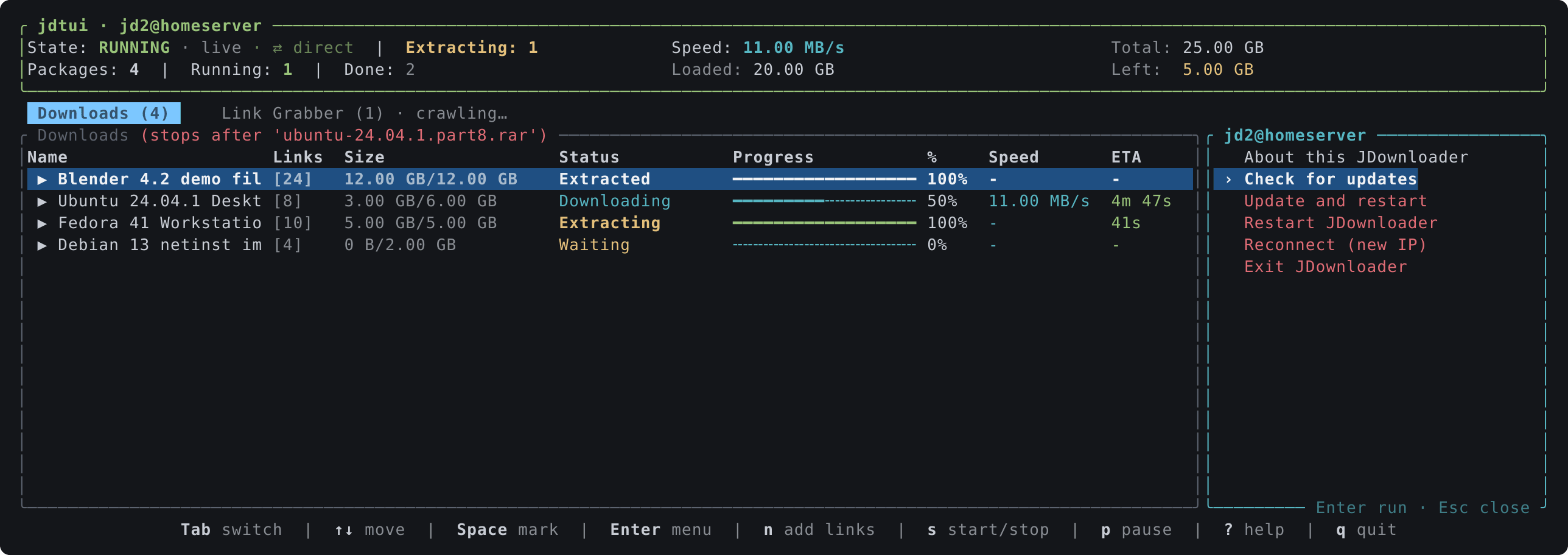
D opens a menu on the JDownloader you are connected to: about it, check for
updates, restart, reconnect for a new IP, exit. Installing an update is offered only
when JDownloader reports one. Nothing that touches the host machine (shutdown,
standby) is there.
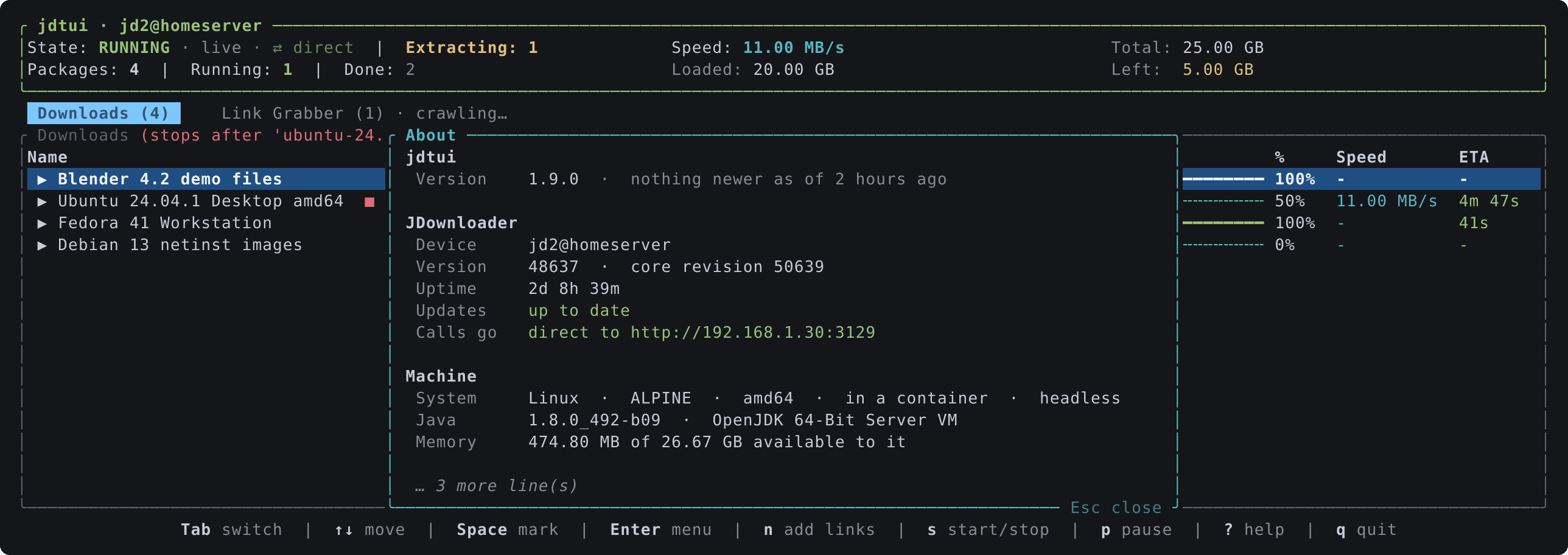
Its first entry, About, describes that JDownloader and the machine under it: version and core revision, how long it has been up, whether an update is waiting, whether calls reach it directly or through the relay, the operating system and architecture, whether it runs in a container, its Java and its heap, and the free space of every path it can write to. It answers the questions worth asking when something looks wrong.
| Key | Action |
|---|---|
Tab |
Switch between Downloads and Link Grabber |
↑ ↓ (or k j) |
Move the cursor |
PgUp PgDn |
Move by a page |
Home End (or g G) |
First / last row |
→ ← |
Expand / collapse a package |
K J |
Move the row under the cursor up / down one place |
/ |
Filter the rows by name, hoster or status; Esc clears it |
Space |
Mark the row under the cursor |
a |
Mark every row, or clear the marks |
Esc |
Clear the selection |
Enter |
Open the context menu on the selection |
i (or P) |
Properties of the selected row |
n |
Add links to the Link Grabber |
t |
Stop downloads after the row under the cursor; again to clear |
y |
Show the urls of the selection and copy them to the clipboard |
e |
Add a password to the list tried on every archive |
c |
Move the whole Link Grabber to the download list |
C |
Clear the Link Grabber |
x |
Abort link crawling |
s |
Start / stop downloads |
p |
Pause / resume downloads |
o |
Settings of the JDownloader |
A |
Premium accounts: enable, disable, refresh |
D |
The JDownloader itself: captchas, updates, restart, reconnect, exit |
d |
Switch to another JDownloader of the account |
? |
Show every key |
q |
Quit |
Given a command, jdtui answers it on stdout and exits instead of drawing:
jdtui status                    # what the download controller is doing
jdtui downloads                 # the download list
jdtui grabber                   # what is waiting to be confirmed
jdtui devices                   # the JDownloaders on the account
jdtui start | stop | pause | resume
jdtui add https://example.com/file --package Ubuntu --folder /data --autostart
jdtui add links.dlc             # a container, sent to JDownloader whole
jdtui add jobs.crawljob         # read here, sent as the jobs it describes
cat urls.txt | jdtui add        # reads stdin when given no urls
--json prints the same thing as JSON, so the rest is jq:
jdtui status --json | jq -r '"\(.device): \(.state)"'
jdtui status --json | jq -e .running >/dev/null && echo "busy"
jdtui downloads --json | jq -r '.[] | select(.finished) | .name'
--autostart on its own means yes, and it also takes an answer:
--autostart no, or yes, true, false, on, off, 1, 0, so a
script can pass whatever is in a variable. Left out, the links wait in the
Link Grabber. An answer given on the command line also overrules what a
crawljob asked for.
An argument that names a file on this machine is sent as a file rather than
as a url: .dlc, .ccf and .rsdf containers go to JDownloader whole, and
a .crawljob is read here and sent as the jobs it describes, with the
options above filling in whatever the job leaves unsaid.
--device picks the JDownloader by name or id, whatever the config says.
Nothing is ever asked interactively, so the account has to be in the config
file already, which it is after the first run of the interface. A failure
prints to stderr and exits non-zero.
jdtui watch <folder> keeps an eye on a folder on this machine and hands
what lands in it to JDownloader: .crawljob files, in either shape Folder
Watch accepts, and .dlc, .ccf and .rsdf containers, which JDownloader
opens itself.
jdtui watch ~/jd-inbox                 # until Ctrl-C, looking every 5 seconds
jdtui watch ~/jd-inbox --interval 30
jdtui watch ~/jd-inbox --once          # sweep and exit, for cron
jdtui watch                            # the folder named in the config
Naming the folder in the config as watch_folder does two things: jdtui watch takes it when you give it none, and the interface watches it too
while it is open, so a file dropped in it is picked up within a few seconds
without a second program running. watch = false stops that without making
you delete the path.
Each file is moved to processed beside it once JDownloader has taken it, or
to failed if it would not, so nothing is ever sent twice. A file is left
alone until it stops growing, and it is claimed by moving it before it is
read, which on Windows also skips whatever another program still holds open.
Files written with CRLF, with a byte order mark, or saved as UTF-16 are read
all the same, and the metadata files macOS leaves next to a copy are ignored.
JDownloader has a Folder Watch of its own, and when the folder is on the
machine JDownloader runs on, that one is the better tool: it needs no client
running at all. This is for a folder on your own machine, which JDownloader
cannot see. Note that a downloadFolder named inside a job is a path on the
JDownloader machine, not on this one.
~/.config/jdtui/config.toml (print the exact path with jdtui --config-path).
You never have to write it by hand: jdtui creates it after the first sign in
and keeps the credentials and the chosen device up to date, with mode 0600.
Everything else is optional and has a working default.
email = "you@example.com"
password = "…"
# device id chosen last time; remove it to be asked again
device = "…"
# refresh period in milliseconds (default 1000)
refresh_ms = 1000
# listen to JDownloader's event channel (default true); --no-events for one run
events = true
# talk to JDownloader directly when it answers (default true); --no-direct
direct = true
# a folder on this machine to watch for .crawljob files and containers
watch_folder = "/home/you/jd-inbox"
# stop watching it without forgetting the path (default true)
watch = true
# ask GitHub once a day whether a newer jdtui is out (default true)
update_check = true

# addresses JDownloader cannot report for itself, such as a container's host,
# keyed by device name so each one is tried for the machine it belongs to
[direct_addresses]
"jd2@docker" = ["192.168.1.30:3129"]
config.example.toml is the same file with every key explained: what it does, what it defaults to, and when you would change it.
The My.JDownloader protocol is implemented natively (src/myjd.rs): request ids,
HMAC-signed server calls, AES-CBC encrypted device calls, session and regain
tokens. The unit tests pin the key derivation, signature and cipher output
against the reference Python client, byte for byte.
Calls go to JDownloader directly when they can, as in the web interface:
jdtui asks JDownloader for the addresses it can be reached at (its "direct
connection" setting, LAN or WAN), pings them all at once and keeps the
best that answers: IPv6 before IPv4, then the quickest. IPv6 comes first not
for speed but because an IPv4 address is often behind carrier-grade NAT,
where the address JDownloader believes it has may not lead back to it. The payload is encrypted the same way either side of
the relay, so nothing changes on the wire but the host. The header says
⇄ direct or ⇢ relay; a direct route that stops answering falls back to
the relay on the spot and is looked for again fifteen seconds later,
doubling up to five minutes for a JDownloader that is really out of reach. A
JDownloader in a container only knows its own address, so direct_addresses
in the config adds the ones it cannot see, such as the Docker host; keyed by
device name when the account has several, since an address belongs to one
machine.
Refreshes run on a background thread so the interface never waits on the network. A refresh is four round trips through the relay (state, speed, the two lists); what changes rarely (stop mark, crawling, extraction queue, captchas) is fetched every fifth refresh and right after an action. Actions you trigger are sent immediately and force an early refresh.
A second thread subscribes to JDownloader's event channel (/events) with a
session of its own and long-polls it. Anything that changes the lists, the
controller state, the captchas or the extraction queue wakes the refresh at
once, so a link added from the browser or another client shows up within a
second or two. While the channel is up and nothing is downloading, the
periodic refresh stretches to thirty seconds: the events cover the changes,
and the relay sees a fraction of the calls. The header says live while the
channel is up; if it drops, polling carries on at the configured period and
the channel is reopened every ten seconds.
The images above are generated, not captured: cargo run --example screenshots
draws the real interface into a test buffer and writes docs/*.svg, converting
each to a PNG for this page. They cannot drift from the code, and the data in
them is invented.
.github/workflows/release.yml runs on a pushed tag: format, clippy and the
tests, then a build for each of the five targets, on a pinned toolchain so a
release cannot start failing because a runner picked up a newer Rust. It
creates the release from the tag's own message and uploads the archives with
their SHA256SUMS.
The signing key is not there. It stays on the maintainer's machine, and
scripts/sign-release.sh vX.Y.Z downloads what the runners built, checks it
against those checksums, signs it and uploads the signatures.
See CHANGELOG.md.
Started as a rewrite of jdsh, whose interactive mode I had been extending in Python before moving to a single binary.
If jdtui saves you a trip to the browser now and then, a beer is welcome. ETH, USDT or any other token, on Ethereum or any EVM chain, to:
0xF4dd2D015b913E30429974c2b82e15df5b92fB19
MIT