
The workspace manager macOS should've shipped with.
⌘Tab shows every running app, your workspace's first. ⌥Tab cycles just the workspace you're in. Press P in either to pin an app to that workspace, N to start a new one with it. One keystroke later your whole setup — apps, windows, layout — is where you left it. Free and open source; HopTab Pro makes the switching automatic for $5 one-time.


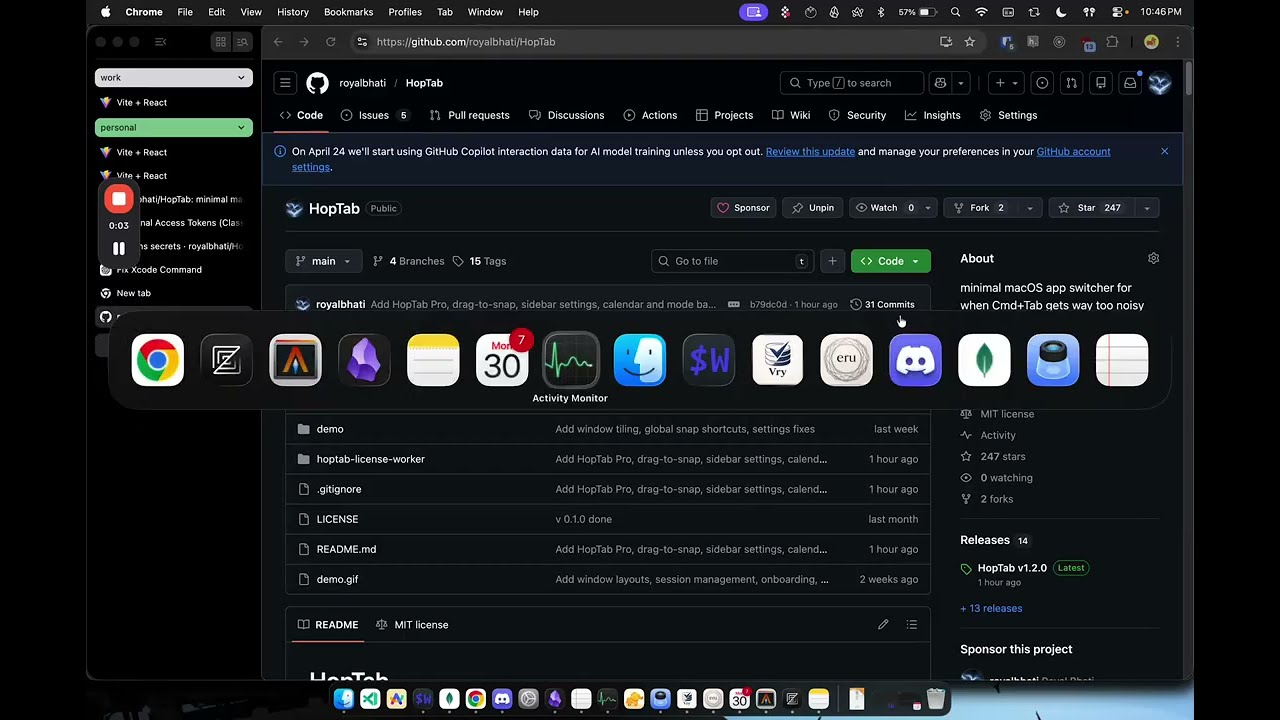

Click the image to watch the full demo on YouTube
brew tap royalbhati/tap
brew install --cask hoptab- Download the latest HopTab-x.y.z.zip from Releases
- Unzip it
- Drag HopTab.app into your Applications folder
Or from the terminal:
curl -sL "$(curl -s https://api.github.com/repos/royalbhati/HopTab/releases/latest \
  | grep -o '"browser_download_url": *"[^"]*"' \
  | head -1 | cut -d '"' -f 4)" -o /tmp/HopTab.zip \
  && unzip -o /tmp/HopTab.zip -d /Applications
Signed and notarized. HopTab is signed with an Apple Developer ID certificate (Team
GP4Y23ZTR6) and notarized by Apple, so it opens normally on first launch. You do not need to clear the quarantine flag, right-click → Open, or change any security setting. If macOS ever refuses to open it, the download is damaged or tampered with — re-download it rather than working around Gatekeeper.Verify a download against the SHA-256 published in the release notes:
shasum -a 256 HopTab-x.y.z.zip
- Grant Accessibility permission when prompted
- HopTab builds your first workspace from the apps already running
- Press ⌘Tab for every app, or ⌥Tab for just that workspace
⌘Tab, all apps. HopTab replaces the macOS switcher. Your workspace's apps come first, every other running app follows in most-recently-used order. This is where you build workspaces: P pins the highlighted app to the current one, 1–9 to any, N creates a new workspace with it, ⌫ unpins. The icon slides between groups. You never open Settings for this.
⌥Tab, this workspace. Cycles only the apps in the workspace you're in. Nothing else on the list, nothing to scan past.
In both: Space drills into the app's windows, ⌘Q / ⌘H / ⌘M quit, hide or minimize it, arrow keys snap it. Prefer the native ⌘Tab? Leave "Replace ⌘Tab" off and only ⌥Tab is HopTab's.

A workspace (profile) is a named set of apps with its own layout, hotkey, desktop and saved window session. ⌥ + ` switches between them; release and HopTab launches what's missing, applies the layout, moves to the right Space. The menu bar lists every workspace with its icons — one click to switch, one click to make a new one from whatever is open right now.
3 workspaces free, unlimited with Pro.

Global keyboard shortcuts snap any window to halves, thirds, quarters, or fullscreen. Works anytime — no switcher needed.
Press the same direction again to cycle sizes: 1/2 → 1/3 → 2/3. Undo any snap with one shortcut.

Drag any window to a screen edge or corner and a translucent preview overlay shows where it will land. Release to snap.
- Edges: left/right half, top to maximize, bottom for bottom half
- Corners: quarter snap (top-left, top-right, bottom-left, bottom-right)
- Works with all apps. Toggle on/off in Settings → Snapping. Enabled by default.
Five built-in layouts: 50/50 split, IDE 60/40, three columns, 2×2 grid, and fullscreen. Assign apps to zones and apply with one click.
Works with stubborn apps — Chrome, Zed, Wezterm, Electron. Multi-retry positioning with dual strategies for GPU-rendered windows.

Save every window's position, size, and z-order per profile. Restore it instantly. Close everything, come back tomorrow, pick up exactly where you left off.
Define rules like "Chrome always snaps to left half on launch." Free tier includes 2 window rules; Pro unlocks unlimited.

Every shortcut is configurable: the switcher key, the workspace key, every snap direction, per-workspace hotkeys. The everyday snaps show first; sixths, ninths and move-to-edge sit under "Rectangle extras" and import straight from a Rectangle setup.

Everything above is free. HopTab Pro ($5 one-time via Polar, or GitHub Sponsors) does one thing: it switches your workspace for you.

| Trigger | What happens |
|---|---|
| Calendar | "Daily Standup" starts → Meeting workspace. Detects Zoom / Teams / Meet links, fullscreen reminder with a Join button. |
| Time of day | "7 PM → Entertainment", with day-of-week filters. |
| macOS Focus mode | Turn on "Work" Focus → Work workspace. |
| Displays | Dock the laptop → Desk workspace. Undock → Laptop workspace. |
| App launch / focus | Window rules: "Chrome always left 60%". Free has 2, Pro unlimited. |
Pro also removes the 3-workspace limit, unlocks custom layouts with exact zone percentages, and adds multi-level window undo.
Included with Pro but not the product. Clearly marked in Settings → Automation → Labs: BSP auto-tiling.
Student or can't afford it? Email rawyelll@gmail.com for a free Pro key. No questions asked.
| Free | Pro | |
|---|---|---|
| Price | Free & open source | $5 one-time via Polar or GitHub Sponsors |
| ⌘Tab / ⌥Tab switcher with in-switcher pinning | Yes | Yes |
| Workspaces (profiles) | 3 | Unlimited |
| Window tiling, drag-to-snap, size cycling, undo | Yes | Yes |
| Move between monitors | Yes | Yes |
| Layout templates (5 built-in) | Yes | Yes |
| Session save/restore | Yes | Yes |
| Window rules | 2 | Unlimited |
| Custom layouts (exact %) | — | Yes |
| Calendar auto-switch | — | Yes |
| Time-based scheduling | — | Yes |
| Focus mode integration | — | Yes |
| Display auto-profiles | — | Yes |
| Multi-level window undo | — | Yes |
| Labs (time tracking, Pomodoro, tiling, dimming, …) | — | Experimental |
| Action | Shortcut |
|---|---|
| All running apps, workspace first | ⌘ + Tab (turn on "Replace ⌘Tab" in Settings or onboarding) |
| Only this workspace's apps | Option + Tab (configurable) |
| Cycle backward | Shift + the same combo |
| Switch to selected | Release the modifier |
| Cancel | Escape |
| Action | Shortcut |
|---|---|
| Pin / unpin highlighted app in current workspace | P |
| Toggle it in workspace 1–9 | 1 … 9 |
| New workspace containing it | N |
| Unpin from current workspace | ⌫ |
| Show the app's windows | Space |
| Quit / Hide / Minimize | Cmd+Q / Cmd+H / Cmd+M |
| Snap left / right / top / bottom | ← → ↑ ↓ |
| Action | Shortcut |
|---|---|
| Left / Right / Top / Bottom half | Ctrl+Opt + ← → ↑ ↓ |
| Quarters (TL / TR / BL / BR) | Ctrl+Opt + U I J K |
| First / Center / Last third | Ctrl+Opt + D F G |
| First / Last two-thirds | Ctrl+Opt + E T |
| Maximize | Ctrl+Opt + Return |
| Center | Ctrl+Opt + C |
| Undo snap | Ctrl+Opt + Z |
| Action | Gesture |
|---|---|
| Left / Right half | Drag to left / right edge |
| Maximize | Drag to top edge |
| Bottom half | Drag to bottom edge |
| Quarter snap | Drag to any corner |
A translucent preview overlay appears at the target zone. Toggle in Settings → Snapping.
| Action | Shortcut |
|---|---|
| Next monitor | Ctrl+Opt+Cmd + → |
| Previous monitor | Ctrl+Opt+Cmd + ← |
| Action | Shortcut |
|---|---|
| Switch profile | Option + ` |
| Cycle backward | Shift + Option + ` |
All shortcuts are fully configurable in Settings → Shortcuts.
| Profile | Pinned Apps | Desktop | Hotkey |
|---|---|---|---|
| Coding | Zed, Wezterm, Chrome, TablePlus | Desktop 1 | Ctrl+1 |
| Design | Figma, Safari, Preview | Desktop 2 | Ctrl+2 |
| Research | Chrome, Notion, Obsidian | Desktop 3 | Ctrl+3 |
Swipe to Desktop 1 → workspace auto-switches → ⌘Tab shows Zed, Wezterm, Chrome, TablePlus first, everything else after.
Press Ctrl+3 → session saved, Research profile restored with all windows back in position.
Requires Xcode 15+ and macOS 14+.
git clone https://github.com/royalbhati/HopTab.git
cd HopTab
bash scripts/generate-pro-stub.sh   # required — see below
open HopTab.xcodeproj
# Cmd+R to build and runEverything in the free tier is in this repository. HopTab Pro is closed source
and lives in a separate private repo, so the HopTabPro/ Swift package that
HopTab.xcodeproj references is not checked in here.
scripts/generate-pro-stub.sh writes a compile-only stub package in its place.
The stub matches the real module's public API but every entry point is inert
(isLicensed is always false, services never start, Pro settings sections
render a short "not available in this build" notice), so the open-source build
produces a fully working free-tier app with Pro disabled.
- Run it once after cloning. CI runs it automatically before every
xcodebuild. - It never overwrites an existing
HopTabPro/directory — if you have the real private package checked out, the script exits without touching anything. - The generated directory stays gitignored.
Without this step the build fails with The folder "HopTabPro" doesn't exist.
Release builds are signed with an Apple Developer ID certificate (Team
GP4Y23ZTR6), built with the hardened runtime, notarized by Apple and stapled —
see .github/workflows/release.yml, which fails the build rather than publishing
an unsigned or unnotarized app.
Entitlements live in HopTab/HopTab.entitlements
(calendar access only, for Pro's calendar auto-switch; HopTab is deliberately
not sandboxed because CGEvent.tapCreate and the Accessibility APIs are
unavailable inside the App Sandbox).
Known drift:
HopTab.xcodeprojstill hasCODE_SIGN_ENTITLEMENTS = ""andCODE_SIGN_STYLE = Automatic. The release workflow passes the entitlements file and manual signing on thexcodebuildcommand line to compensate. The project setting should be pointed atHopTab/HopTab.entitlementsso local and CI builds agree.
- CGEvent tap to intercept global shortcuts (session-level, head-insert)
- AXUIElement API for window positioning with multi-retry and dual strategies
- AXEnhancedUserInterface enabled before window queries (fixes Chrome, Electron, Zed)
- NSPanel non-activating overlay at
.screenSaverlevel - Sidebar settings — four panes: Workspaces, Shortcuts, Pro, General
- No App Sandbox — required for
CGEvent.tapCreate - CGSGetActiveSpace private API for desktop-to-profile mapping
- Cycle tracker — same-direction snaps within 1.5s cycle through sizes
- Undo stack — per-window frame saved before each snap
- Discord — feature requests, support, feedback
- GitHub Issues — bug reports
- Website — docs and download
MIT. See LICENSE.