Using the dashboard
The platelet dashboard lets coordinators and riders see and navigate tasks that have been assigned to them. In this article, you'll learn how to use some features of the dashboard.
Each task is represented by a card, which contains a summary of information about it.
- The Priority.
- The rider role (East area in the highlighted card).
- Where from and where to.
- The time of call.
- Avatars of any user assigned to the task (except for yourself).
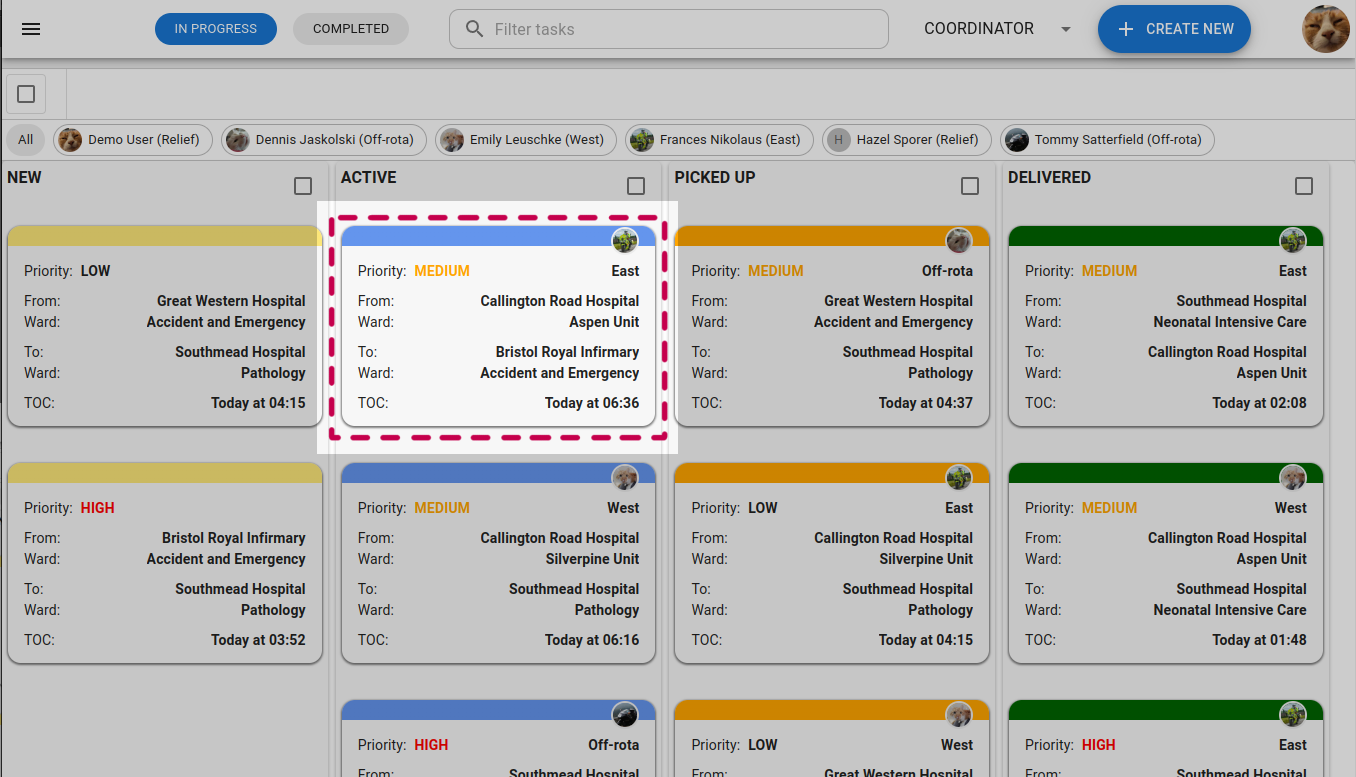
To see more detail about a task, you can tap or click the card.
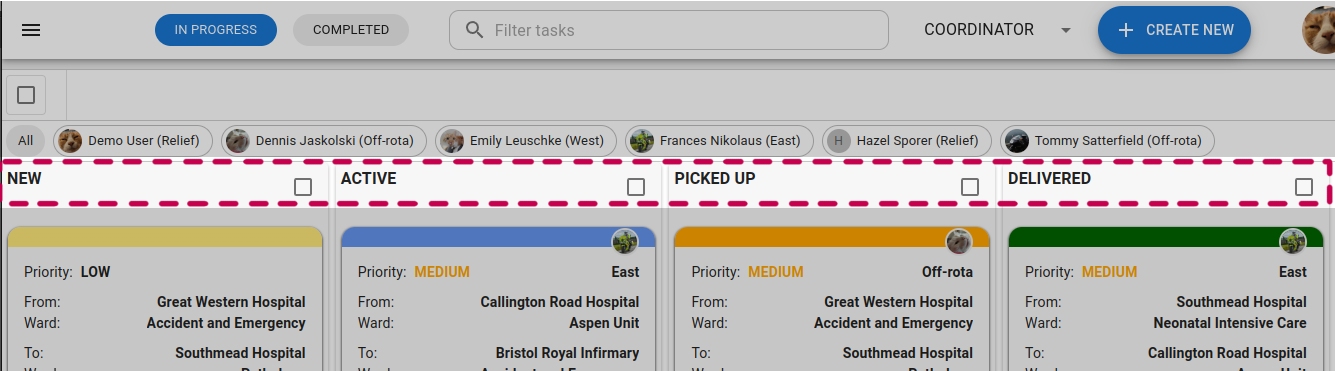
Tasks are automatically categorised into different columns.
- NEW tasks have not been assigned to a rider.
- ACTIVE tasks have been assigned to a rider.
- PICKED UP and DELIVERED are for tasks that have been picked up or delivered.
You can switch between in progress and completed tasks using the chips up here.
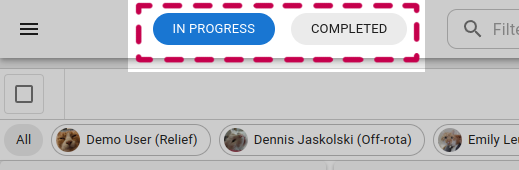
Four more categories will be shown.
- COMPLETED are for when the item is delivered and rider back home.
- CANCELLED are for any cancelled tasks.
- ABANDONED are for any picked up tasks that were cancelled.
- REJECTED are for any rejected tasks.
You can filter tasks using the search at the top of the dashboard. This will search the rider role, priority, and deliver and pick up addresses. You can combine terms to narrow down what you're looking for.
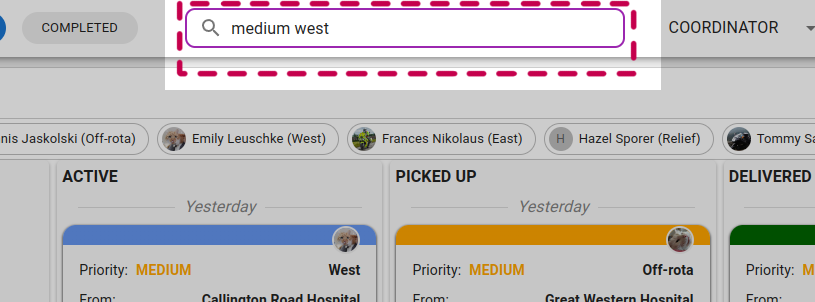
Click the chips with rider's names to filter tasks to only those assigned to that rider.
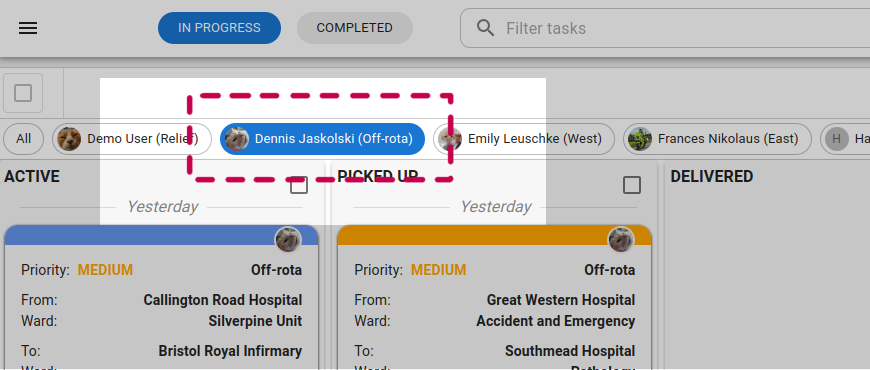
Click the chip again to clear it and show all tasks. You can combine search terms with the rider chip to narrow down tasks even further.
If you have both the coordinator and rider role, you must choose the right role view before starting to use the dashboard.
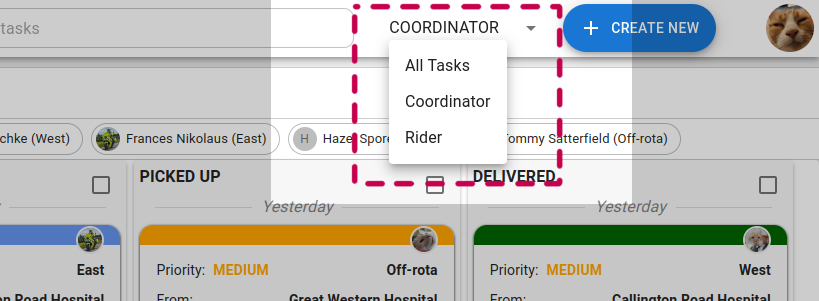
- All Tasks will show all tasks on the system (only available to coordinators).
- Coordinator will let you create tasks and assign them to riders.
- Rider will let you see tasks that have been assigned to you as a rider.