

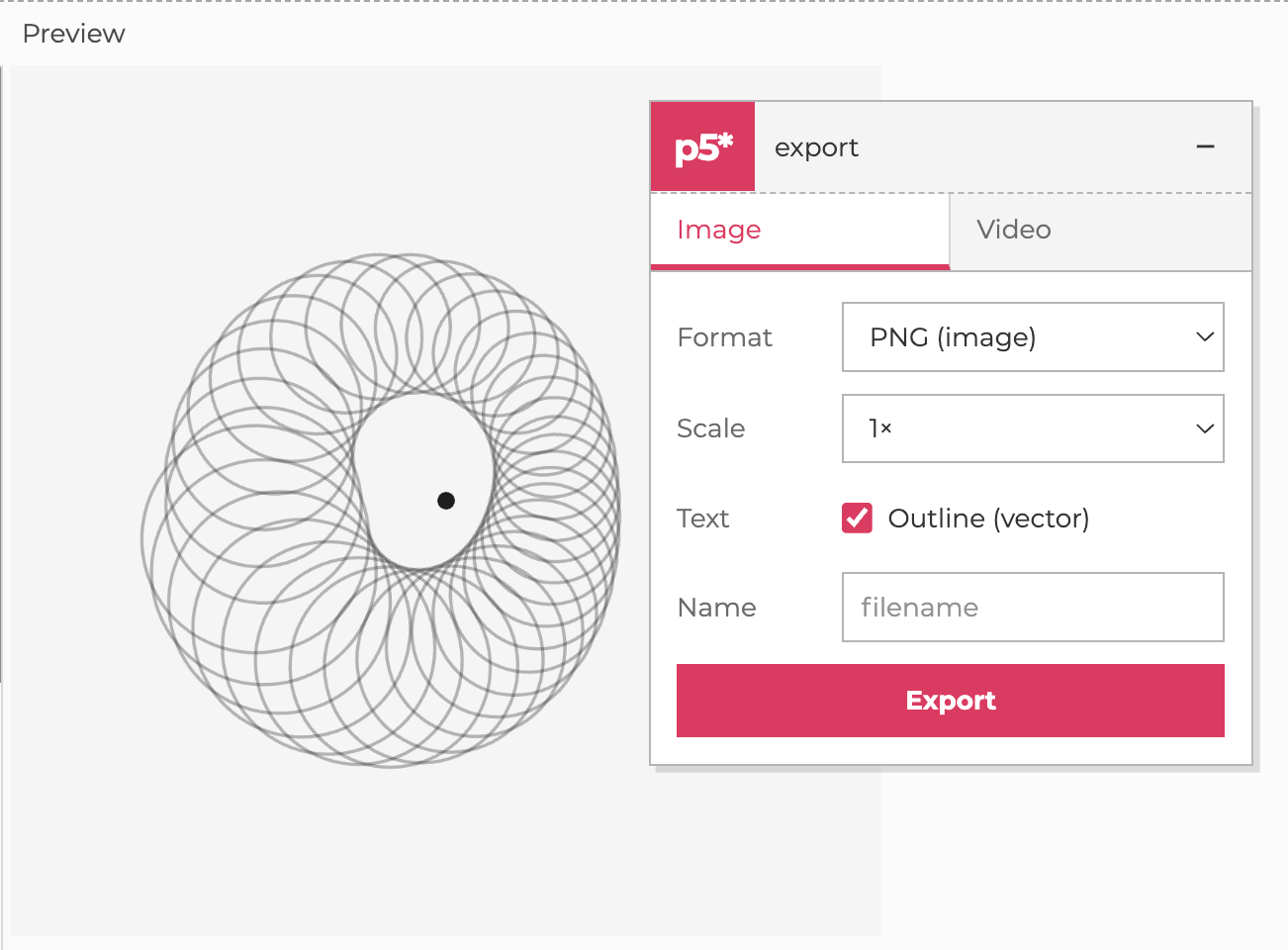




A p5.js add-on for one-line exports — PNG, JPG, WebP, animated WebP, GIF, MP4, WebM, SVG, PDF, STL, OBJ — with an optional floating GUI panel.
Works with p5.js 1.x and 2.x. p5 is brought by you (CDN or bundler); this package only ships the add-on.
<script src="https://unpkg.com/p5@latest/lib/p5.min.js"></script>
<script src="https://unpkg.com/@munusshih/p5.export@latest"></script>
<script src="sketch.js"></script>
@latest follows npm's current latest release. For a reproducible production
site, replace it with the exact version shown by the npm badge above, for
example:
<script src="https://unpkg.com/@munusshih/p5.export@0.1.0-beta.8/dist/p5.export.min.js"></script>npm install @munusshih/p5.exportimport 'p5'; // however you bring p5 onto the page
import '@munusshih/p5.export'; // auto-registersThis auto-registers even under bundlers: p5 2.x's ESM build never assigns
window.p5, so the add-on falls back to resolving p5 as a module. For
guaranteed registration order (recommended for instance-mode sketches or
strict bundlers), register explicitly instead:
import p5 from 'p5';
import { register } from '@munusshih/p5.export';

register(p5);   // before you create the sketch / define setup()
That's it. The GUI auto-mounts after setup() runs. Disable it with window.p5ExportConfig = { autoGUI: false } declared before this script loads, or remove it later with removeExportGUI().
Every export attaches to the p5 prototype, so the calls work like any other p5 function — global mode or instance mode.
savePNG('artwork')            // 'artwork.png'
saveJPG('artwork', { quality: 0.9 })
saveWebP('artwork')
saveImage('png', 'artwork', { scale: 2 })   // any of png/jpg/webp/jpeg

// `scale` re-renders at 1×–4× pixelDensity. Trails / fade overlays are
// preserved by replaying the recorded draw history (no `redraw()` reset).
savePNG('big', { scale: 4 })saveSVG('artwork')
saveSVG('artwork', { forceVector: true }) // skip raster-fallback threshold
saveSVG('artwork', { raster: true }) // embed canvas PNG inside an SVG
saveSVG('artwork', { silent: true }) // skip the fallback confirm dialog
saveSVG('artwork', { outlineText: false }) // keep text() as editable <text> (default is outlined)
savePDF('artwork')
savePDF('artwork', { scale: 2 })saveSVG() records every Canvas2D draw call as the sketch runs and replays them onto an SVG context. Trails, fade rects, blend modes, gradients (linear / radial — emitted as native SVG gradients), and drawingContext.setLineDash all survive. WebGL renderers can only be embedded as a single raster <image>; the function prompts before doing so unless { silent: true } or { raster: true } is passed.
By default text() is exported as vector glyph outlines, which render identically everywhere with no fonts installed. This is the default because fonts loaded via loadFont() are drawn by p5 in a way canvas2svg can't capture as <text> — they'd otherwise drop out of the SVG entirely. Outlining works for fonts loaded from an uncompressed .ttf/.otf (p5 can't read glyph data from .woff2); system/string fonts have no outline data and fall back to <text>.
Pass { outlineText: false } to keep text as editable <text> instead (font-family reference; the font must be available wherever the SVG is opened, or it falls back).
saveSVG('poster', { outlineText: false });  // per-call, keep editable <text>
setSVGTextMode('text');                      // make editable <text> the default for this sketch
// also: window.p5ExportConfig = { svgTextOutlines: false } before the sketch loads
In the export GUI, pick SVG (vector); Outline (vector) is ticked by default — untick it for editable <text>. See examples/fonts/ for a multi-typeface demo.
For dense sketches whose vector replay would balloon past 2 million ops, the export falls back to raster-in-SVG and asks the user to confirm. To force vector regardless of size, pass { forceVector: true }.
Mark expensive sections of your draw so they get rasterised inside the otherwise-vector SVG:
function setup() {
  createCanvas(800, 800);
  // …vector shapes…
  beginRasterRegion();
  for (let i = 0; i < 8000; i++) {
    fill(random(255), random(255), random(255), 80);
    rect(random(width), random(height), 2, 2);
  }
  endRasterRegion();
  // …more vector shapes on top…
}// Starts immediately. By default, export timing follows the rate set by
// frameRate(), so a frameRate(1) sketch remains one frame per second.
const buffer = createVideoBuffer({ duration: 3 });
// Record a sharper 2× render. Set fps only when you intentionally want to
// override the sketch's target frame rate.
const hiResBuffer = createVideoBuffer({ duration: 3, scale: 2, fps: 30 });
// later, after the buffer auto-stops or you call `stopVideoBuffer()`:
await exportVideoBuffer(buffer, { format: 'mp4', filename: 'clip' });
await exportVideoBuffer(buffer, { format: 'webm', filename: 'clip' });
await exportVideoBuffer(buffer, { format: 'webp', filename: 'clip' }); // animated WebP
await exportVideoBuffer(buffer, { format: 'gif', filename: 'clip' });Frames are captured in real RGBA at the sketch's target frame rate. Set scale from 1–4 to render the recording at that pixel density instead of enlarging the encoded pixels afterward. exportVideoBuffer() is re-callable on the same buffer — no re-recording — so users can pick the format they want from the GUI without losing the take.
You can also do a one-shot recordVideo({ format: 'mp4', duration: 3, filename: 'clip' }) if you don't need the multi-format buffer.
const myModel = buildGeometry(() => sphere(50));
saveSTL(myModel, 'sphere.stl');
saveSTL(myModel, 'sphere.stl', { binary: true });

// Or pass a callback that p5 will run inside buildGeometry for you:
saveSTL(() => { sphere(50); cone(20, 40); }, 'scene.stl');
saveOBJ(() => { sphere(50); }, 'scene.obj');
These delegate to p5.js 2.x's native p5.Geometry.saveStl / saveObj, so the encoded files match what p5 itself produces.
The panel auto-mounts post-setup. You can also drive it manually:
createExportGUI({ title: 'my sketch', filename: 'artwork', collapsed: false });
removeExportGUI();
Drag from the header to move it. The two tabs (Image / Video) share the same compact form. The Video tab includes a 1×–4× recording scale and shows a low-res preview with a scrubbable timeline before you commit to encoding.
| Feature | Chrome | Firefox | Safari |
|---|---|---|---|
| PNG / JPG / WebP image | ✓ | ✓ | ✓ (WebP 16+) |
| SVG (vector replay) | ✓ | ✓ | ✓ |
| ✓ | ✓ | ✓ | |
| GIF | ✓ | ✓ | ✓ |
| Animated WebP | ✓ | ✓ | ✓ (16+) |
| MP4 (WebCodecs / MediaRecorder) | ✓ | partial | partial |
| WebM (WebCodecs / MediaRecorder) | ✓ | ✓ | partial |
| STL / OBJ (p5 2.x WEBGL) | ✓ | ✓ | ✓ |
MP4 falls back to WebM automatically if the browser's MediaRecorder can't encode H.264.
- p5 1.x: image, GIF, WebM/MP4, PDF, SVG, and the GUI all work. The SVG path uses a getter-based rebind on the prototype globals so
p5.patternand similar 1.x add-ons keep working through the recorder. - STL/OBJ require a
p5.Geometry, which only exists in p5 2.x's WEBGL renderer. - The GUI's status row uses the
hiddenattribute, so empty messages take no vertical space. - The vector SVG recorder caps at 60 frames of draw history by default. Override with
setSVGRecordingFrames(n)(useInfinityto keep everything; expect memory growth on long-running sketches).
npm install
npm run build           # writes dist/p5.export.js + dist/p5.export.min.js
npm run dev             # Vite dev server; opens the live GUI preview
npm run dev:gui         # explicitly open /test/manual/gui-preview.html
npm run test:sketches   # headless harness over examples/ — exports each format
npm run test:svg-path2d # p5 2.3+ vector primitive regression
npm run test:webp       # sanity test for the animated WebP encoder
Every push to main finds the highest published 0.1.0-beta.N, publishes the
next beta number, and assigns it to npm's latest tag. The workflow then reads
@munusshih/p5.export@latest back from npm and fails unless it matches the
version just published. Publishing uses npm Trusted Publishing (OIDC), with no
long-lived npm token. Configure the package's trusted publisher on npmjs.com
with these exact values:
- Provider: GitHub Actions
- Organization or user: munusshih
- Repository: p5.export
- Workflow filename: publish-npm.yml
- Environment: leave blank
- Allowed action: npm publish
The workflow filename is matched exactly by npm and lives at
.github/workflows/publish-npm.yml.