
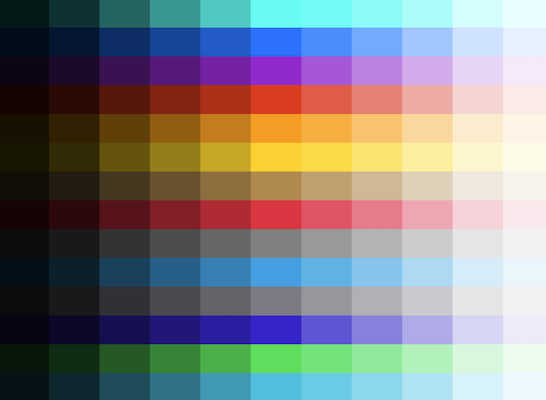



ContrastKit is a Swift library designed to facilitate colour contrast handling within iOS, iPadOS, macOS, tvOS, and visionOS applications.
It provides developers with tools to automatically generate colour shades from any base colour and determine the most readable contrast colours according to established accessibility standards (AA Large, AA, and AAA).
This package is particularly useful for UI/UX designers and developers focusing on accessibility and readability in their applications.
Important
This release contains breaking changes. Please read this section before upgrading.
These are not API changes, but they change the values several existing APIs return — treat them the same as a breaking change when upgrading:
- The lightness ramp (
level(_:for:),level(_:),level50…level950) now uses a real RGB→HSL conversion. The previous implementation read HSB saturation (viaUIColor/NSColorgetHue(_:saturation:brightness:)) and fed it into an HSL reconstruction formula, which are different colour models. Any saturated colour's generated shades will look slightly different — more correct, but different — after upgrading. Achromatic (grey) colours are unaffected. - Luminance and contrast calculations now convert to sRGB first. Display P3 (and other wide-gamut) asset catalog colours previously had their raw components read directly and pushed through the sRGB-only WCAG formula, producing a confidently wrong number that grew with saturation. If your asset catalog colours are in Display P3 — the Xcode default — every ratio and derived colour involving them will change to the correct value.
- Contrast levels (
ContrastLevel) are now floors, not bands.AAno longer rejects a candidate for having too high a contrast ratio (previously capped at6.99), and neither doesAA Large(previously capped at4.49). A colour that meetsAAAalso meetsAAandAA Large, per the WCAG spec. This changes which candidateaaContrastLevelandaaLargeContrastLevelselect.
-
highestRatedContrastLevel,aaaContrastLevel,aaContrastLevel, andaaLargeContrastLevelnow returnColor?instead ofColor. Previously, if no candidate met the requested level, these silently returned.whitewithout ever checking whether white itself qualified. They now returnnilwhen nothing in the candidate set meets the level.// Before let contrastColor: Color = shadeColor.highestRatedContrastLevel // After guard let contrastColor = shadeColor.highestRatedContrastLevel else { // Nothing met AAA against this background — pick a fallback deliberately. return }
-
ContrastLevel.ratio(the internal(min, max)band) is replaced byContrastLevel.minimumRatio: Double. There is no replacement for the upper bound — see "Contrast levels are now floors" above.
ContrastKit previously had no way to answer "what is the contrast ratio between these two colours" — every API picked a colour for you. These are new, additive APIs:
// The actual ratio — what an accessibility test asserts against.
let ratio = accent.contrastRatio(with: onAccent)          // 1...21
#expect(ratio >= ContrastLevel.aaa.minimumRatio)

// A direct pass/fail check.
#expect(accent.meets(.aaa, against: onAccent))

// Relative luminance on its own.
let luminance = accent.relativeLuminance                  // 0...1

// Composite a translucent colour over a backdrop before measuring contrast —
// WCAG contrast is only defined for opaque colours.
let flattened = scrim.flattened(over: background)

// Derive a readable foreground from a small candidate set, instead of hand-tuning it.
let onAccent = accent.mostReadableForeground(from: [.white, .black], meeting: .aaa)Dynamic colours (asset catalog colours, UIColor { traits in ... }, etc.) only have one
concrete value once resolved against a specific trait collection or appearance — resolving
against whatever is ambient is unpredictable in tests and wrong outside the screen the call
happens to run on. Every contrast API above has a trait-aware overload:
// UIKit — also covers Increase Contrast, which is its own trait, not just light/dark.
let highContrastDark = UITraitCollection(traitsFrom: [
    UITraitCollection(userInterfaceStyle: .dark),
    UITraitCollection(accessibilityContrast: .high)
])
let ratio = accent.contrastRatio(with: onAccent, compatibleWith: highContrastDark)

// AppKit
let ratio = accent.contrastRatio(with: onAccent, compatibleWith: NSAppearance(named: .darkAqua)!)| Platform | Before | After |
|---|---|---|
| Swift | 5.9 | 6.0 |
| iOS | 14.0 | 17.0 |
| macOS | 11.0 | 14.0 |
| macCatalyst | 14.0 | 17.0 |
| tvOS | 14.0 | 17.0 |
| watchOS | 7.0 | 10.0 |
| visionOS | 1.0 | 1.0 |
The no-argument level(_:) and all shorthand properties (level50…level950) now return a ColorLevelStyle, which conforms to ShapeStyle. This allows them to automatically adapt to the current colour scheme at render time — no @Environment capture needed.
// Before
let shade: Color = brandColor.level(.level300)

// After — use ShapeStyle APIs
Text("Hello").foregroundStyle(brandColor.level(.level300))
Rectangle().fill(brandColor.level300)
If you need a concrete Color value (e.g. for UIKit, contrast calculation, or storage), use the explicit overload:
// Explicit Color — use the `for:` label
let shade: Color = brandColor.level(.level300, for: .light)
let darkShade: Color = brandColor.level(.level300, for: .dark)The old scheme: parameter label is gone and the parameter is no longer optional.
// Before
brandColor.level(.level300, scheme: colorScheme)

// After
brandColor.level(.level300, for: colorScheme)  // returns Color
// — or, for automatic adaptation —
brandColor.level(.level300) // returns ColorLevelStyle, no @Environment neededThe ContrastKit package uses Swift Package Manager (SPM) for easy addition. Follow these steps to add it to your project:
- In Xcode, click
File > Add Packages. - In the search bar, type
https://github.com/markbattistella/ContrastKitand clickNext. - Specify the version you want to use. You can select the exact version, use the latest one, or set a version range, and then click
Next. - Finally, select the target in which you want to use
ContrastKitand clickFinish.
Or add it to your package manifest:
dependencies: [
  .package(url: "https://github.com/markbattistella/ContrastKit", from: "26.2.20")
]Remember to import the ContrastKit module:
import ContrastKitGenerating a shade and finding its best contrast colour:
import ContrastKit

// Resolved Color — use when you need a concrete value
let baseColor = Color.purple
let shadeColor = baseColor.level(.level100, for: .light)

// `highestRatedContrastLevel` returns `Color?` — `nil` means nothing in the candidate
// set met AAA against this background, so pick a fallback deliberately.
let contrastColor = shadeColor.highestRatedContrastLevel ?? .black

// In SwiftUI, use level(_:) directly — adapts to the environment automatically
Rectangle()
    .fill(baseColor.level(.level100))
.foregroundStyle(baseColor.level900)Use level(_:) or the shorthand properties directly in any SwiftUI modifier that accepts a ShapeStyle. The colour scheme is resolved automatically — no @Environment required.
import SwiftUI
import ContrastKit

struct ContentView: View {
    private let baseColor = Color.green

    var body: some View {
        VStack {
            // Automatically adapts to light / dark mode
            Text("Adaptive themed text")
                .foregroundStyle(baseColor.level700)
                .background(baseColor.level100)

            // Highest contrast foreground over a fixed background
            let bg = baseColor.level(.level200, for: .light)
            Text("Accessible text")
                .foregroundStyle(bg.highestRatedContrastLevel ?? .black)
                .background(bg)
        }
    }
}For UIKit, resolve a concrete Color first using level(_:for:), then bridge to UIColor:
import UIKit
import ContrastKit
import SwiftUI

class ViewController: UIViewController {
    override func viewDidLoad() {
        super.viewDidLoad()
        let baseUIColor = UIColor.systemBlue
        let contrastKitColor = Color(baseUIColor)
        let highContrastUIColor = UIColor(contrastKitColor.highestRatedContrastLevel ?? .black)

        let label = UILabel()
        label.text = "High Contrast Label"
        label.textColor = highContrastUIColor
        label.backgroundColor = baseUIColor
        label.frame = CGRect(x: 20, y: 100, width: 300, height: 50)
        label.textAlignment = .center

        self.view.addSubview(label)
    }
}import AppKit
import ContrastKit
import SwiftUI
class ViewController: NSViewController {
override func loadView() {
self.view = NSView()
let baseNSColor = NSColor.systemRed
let contrastKitColor = Color(baseNSColor)
let highContrastNSColor = NSColor(contrastKitColor.highestRatedContrastLevel ?? .black)
let textField = NSTextField(labelWithString: "High Contrast Text")
textField.textColor = highContrastNSColor
textField.backgroundColor = baseNSColor
textField.frame = CGRect(x: 20, y: 20, width: 300, height: 50)
textField.isBezeled = false
textField.drawsBackground = true
self.view.addSubview(textField)
}
}ContrastKit provides two core enums to assist in designing UIs with appropriate colour contrast: ColorLevel and ContrastLevel. These enums help developers standardise the visual accessibility of their applications.
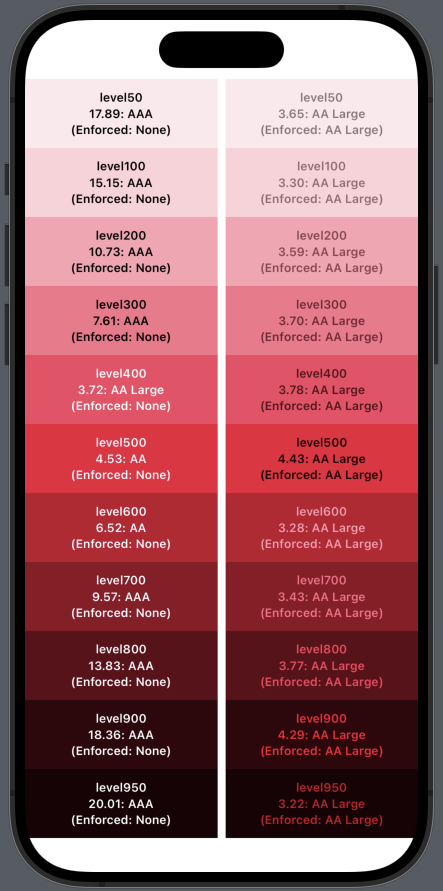
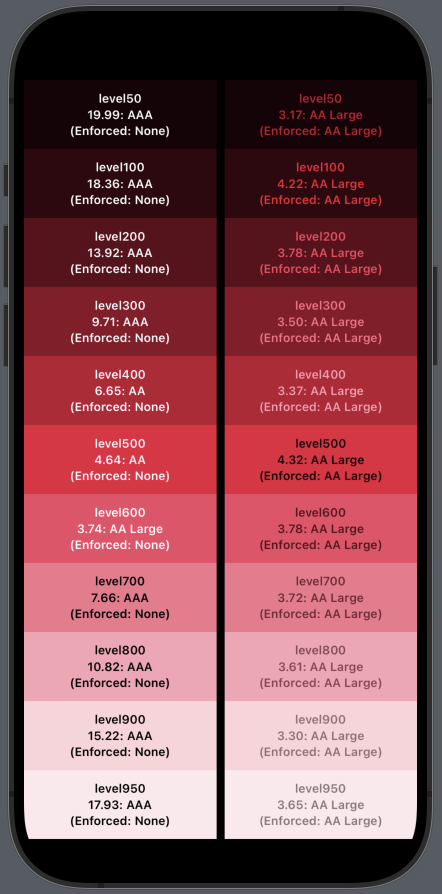
The ColorLevel enum defines different levels of lightness for colours, which can be used to generate various shades from a single base colour. These shades range from very light (near white) to very dark (near black), suitable for different UI elements like backgrounds, text, and interactive elements.
| Level | Lightness | Description |
|---|---|---|
level50 |
0.95 |
Very light shade, almost white. |
level100 |
0.90 |
Very light shade. |
level200 |
0.80 |
Lighter shade, for subtle backgrounds. |
level300 |
0.70 |
Light shade, good for hover states or secondary buttons. |
level400 |
0.60 |
Medium light shade. |
level500 |
0.50 |
Neutral base shade, often used for the primary variant of a colour. |
level600 |
0.40 |
Medium dark shade. |
level700 |
0.30 |
Darker shade, suitable for text. |
level800 |
0.20 |
Very dark shade, often used for text or active elements. |
level900 |
0.10 |
Very dark, closer to black. |
level950 |
0.05 |
Extremely dark, almost black. |
| Light mode | Dark mode |
|---|---|
 |
 |
The ContrastLevel enum specifies the minimum contrast ratio for three accessibility standards: AA Large, AA, and AAA, based on the WCAG 2.1 guidelines. These are floors, not bands — a ratio that meets AAA also meets AA and AA Large; there is no upper bound on "too much contrast".
| Level | Minimum Ratio (minimumRatio) |
Description |
|---|---|---|
| AA Large | 3.0 |
Suitable for large text, offering basic readability. |
| AA | 4.5 |
Standard level for normal text size, providing clear readability. |
| AAA | 7.0 |
Highest contrast level, recommended for the best readability across all contexts. |
level(_:) and all shorthand properties return a ColorLevelStyle — a ShapeStyle that uses ShapeStyle.resolve(in:) to read the environment's colour scheme at render time. You get full light/dark mode adaptation with no @Environment boilerplate.
struct ThemedView: View {
    private let brand = Color.indigo

    var body: some View {
        VStack {
            // level(_:) — automatically mirrors the level in dark mode
            Rectangle().fill(brand.level(.level100))
            Rectangle().fill(brand.level(.level900))

            // Shorthand — identical behaviour
            Rectangle().fill(brand.level100)
            Rectangle().fill(brand.level900)
        }
    }
}
When the device switches colour schemes, each level mirrors to its counterpart:
| Level | Light mode | Dark mode equivalent |
|---|---|---|
level50 |
0.95 |
0.05 |
level100 |
0.90 |
0.10 |
level200 |
0.80 |
0.20 |
level300 |
0.70 |
0.30 |
level400 |
0.60 |
0.40 |
level500 |
0.50 |
0.50 |
level600 |
0.40 |
0.60 |
level700 |
0.30 |
0.70 |
level800 |
0.20 |
0.80 |
level900 |
0.10 |
0.90 |
level950 |
0.05 |
0.95 |
When you need a concrete Color — for contrast calculations, UIKit bridging, or storage — use the explicit overload:
let lightShade = brand.level(.level300, for: .light)  // Color
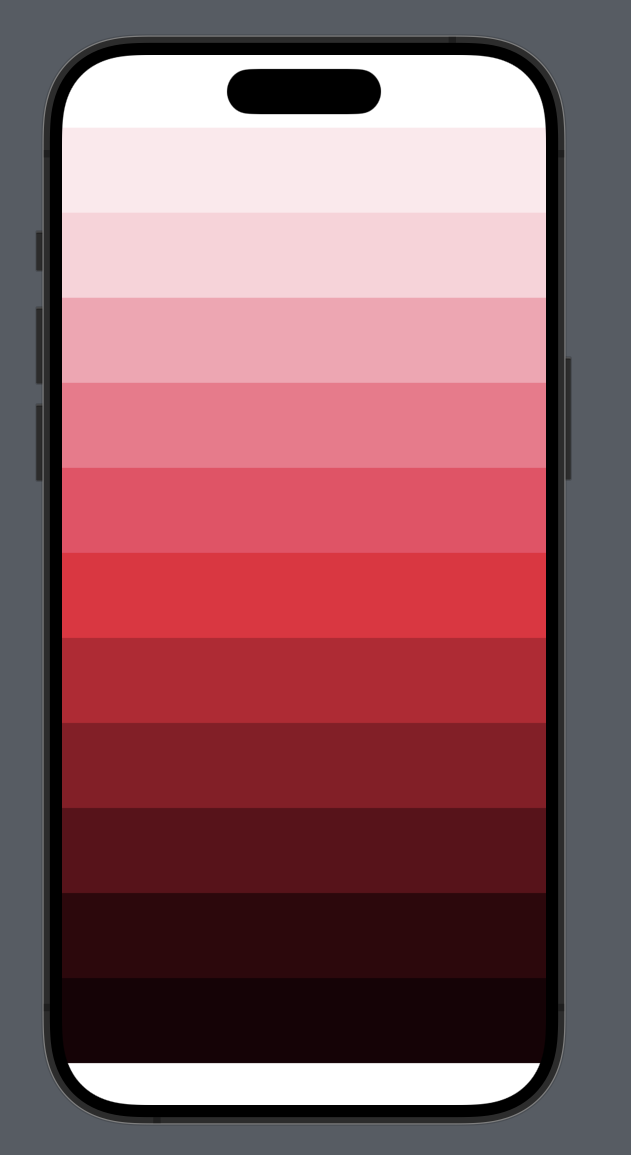
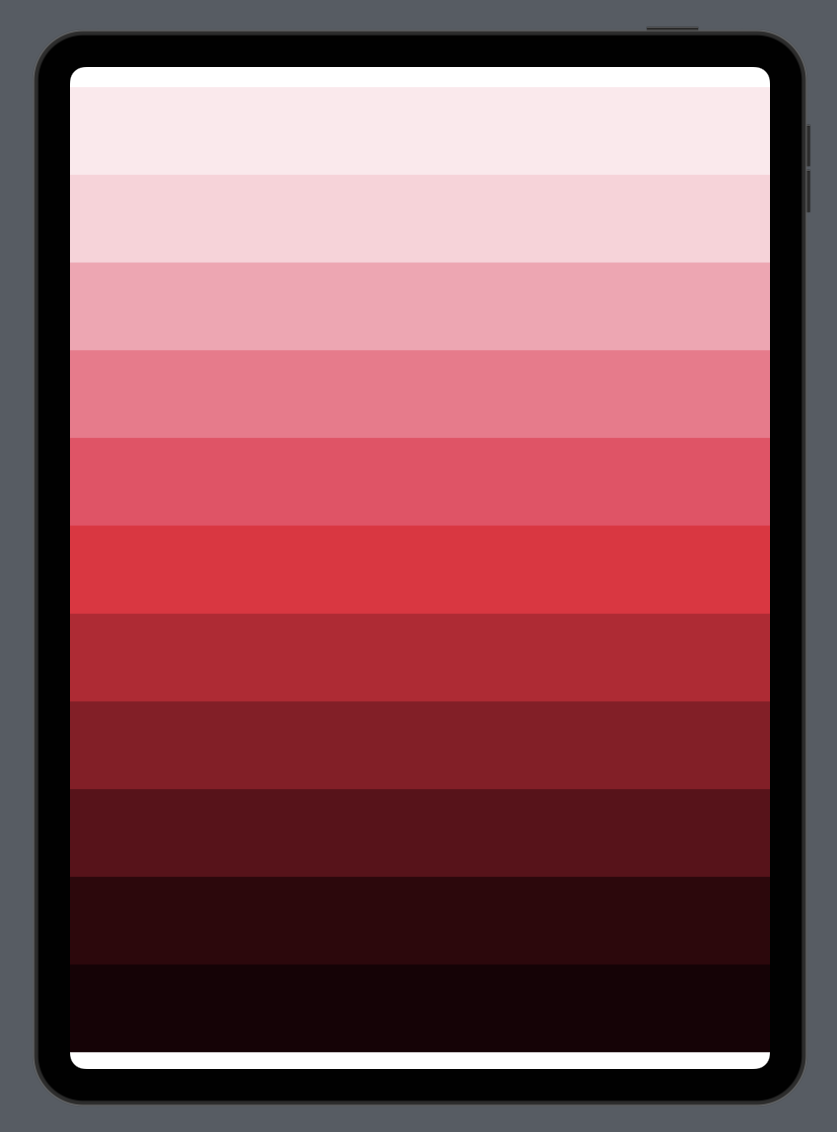
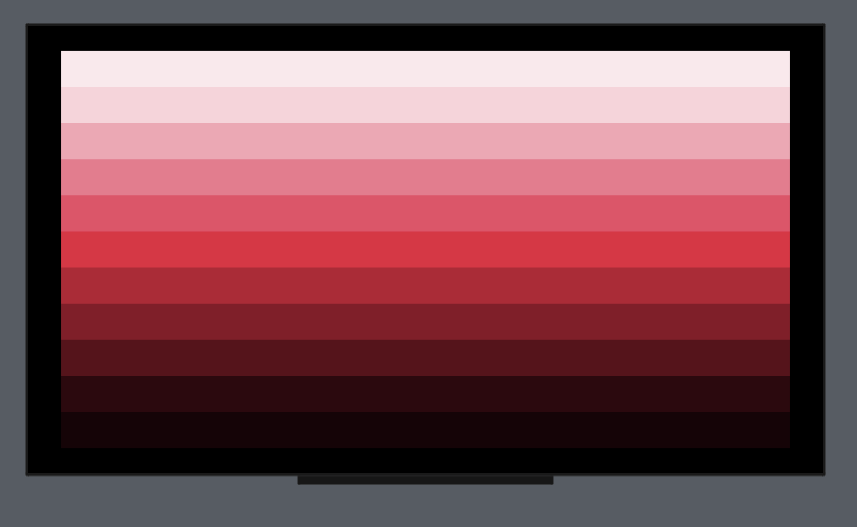
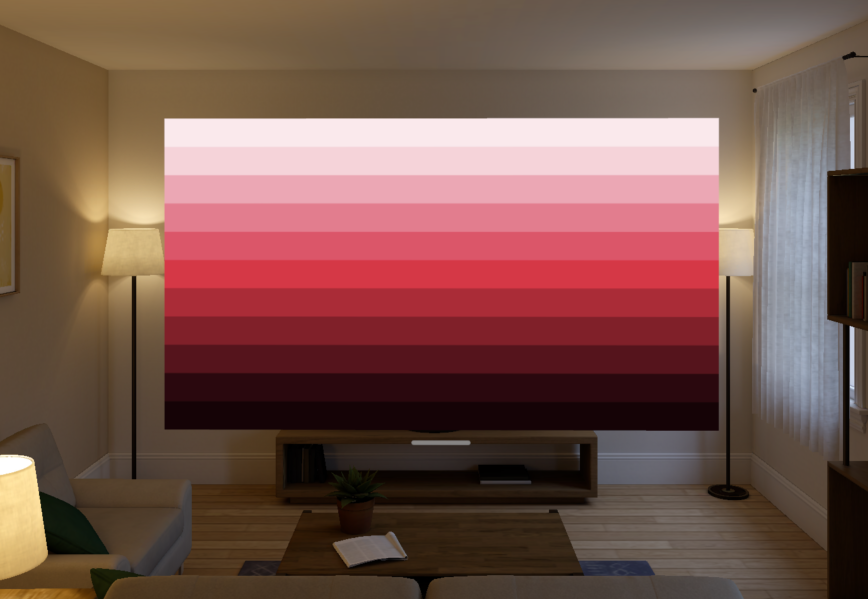
let darkShade = brand.level(.level300, for: .dark) // ColorThe PreviewTesting file is designed exclusively for debugging and visual inspection purposes during development.
It allows developers to quickly view and evaluate the contrast levels and colour shades generated by the library directly within the SwiftUI Preview environment.
The Example+SwiftUI file provides three preview views:
StandardShadeView — shades fixed to light mode, with contrast info displayed over each cell.
EnvironmentShadeView — shades resolved against the current environment colour scheme (using level(_:for:)), with contrast info.
AdaptiveShadeView — demonstrates the simplified API. Uses level(_:) and the shorthand properties directly with no @Environment needed, showing how ColorLevelStyle adapts automatically.
To use this file effectively:
- Open your Xcode project containing ContrastKit.
- Navigate to the
PreviewTestingorExample+SwiftUIfile. - Ensure your environment is set to Debug mode to activate the
#if DEBUGcondition. - Open the SwiftUI Preview pane to see the results.
Caution
These helpers live in the package source tree, but are guarded by #if DEBUG. They are available for Debug builds and are excluded from Release builds.
It provides a straightforward and effective way to visually inspect the accessibility features provided by ContrastKit, ensuring that the colour contrasts meet the required standards before the application is deployed.
The PreviewTesting file demonstrates the integration of ContrastKit with SwiftUI, showing how easily developers can implement and test colour contrasts in their UI designs.
By modifying the baseColor or the ColorLevel, developers can experiment with different combinations to find the optimal settings for their specific needs.
- Immediate Feedback: Allows developers to see how changes in colour levels affect accessibility and readability in real-time.
- Accessibility Testing: Helps in ensuring that the UI meets accessibility standards, particularly when creating inclusive applications.
- Ease of Use: Simplifies the process of testing multiple colour schemes without needing to deploy the app or navigate through different screens.
The PreviewTesting file is a crucial tool for developers who are serious about integrating effective contrast handling in their applications, making ContrastKit a practical choice for enhancing UI accessibility.
| iOS | iPadOS |
|---|---|
 |
 |
| tvOS | visionOS |
|---|---|
 |
 |
Contributions are highly encouraged, as they help make ContrastKit even more useful to the developer community. Feel free to fork the project, submit pull requests, or send suggestions via GitHub issues.
ContrastKit is available under the MIT license, allowing for widespread use and modification in both personal and commercial projects. See the LICENSE file included in the repository for full details.