


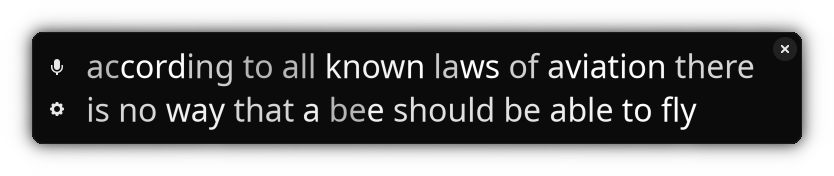
Live Captions is an application that provides live captioning for the Linux desktop.

Join the Discord Chat if you're interested in keeping in touch.
Only the English language is supported currently. Other languages may produce gibberish or a bad phonetic translation.
Features:
- Simple interface
- Caption desktop/mic audio locally, audio is never sent anywhere
- Does not rely on any proprietary services/libraries
- Adjust font, font size, and text casing
- Optional token-level confidence text fading
Running this requires a somewhat-decent CPU that can perform realtime captioning, especially if you want to be doing other tasks (such as video decode) while running Live Captions. It has been tested working on:
- Intel i7-2670QM (2011)
- Intel i7-7820HQ (2017)
- Intel i5-8265U (2018)
- AMD Ryzen 5 1600 (2017)
- Steam Deck
GPU is not required or used.
The live captions may not be accurate. It may make mistakes, including when it comes to numbers. Please do not rely on the results for anything critical or important.
More models may be trained and released in the future with better and more robust accuracy.
This application is built using aprilasr, a new library for realtime speech recognition.
Thanks to Fangjun Kuang for the pretrained model, and thanks to the icefall contributors for creating the model recipes.
You must make sure to do a recursive clone to get dependencies:
$ git clone --recursive https://github.com/abb128/LiveCaptions.git
If you forgot, you can initialize submodules like so:
$ git submodule update --init --recursive
You need GTK 4.12 or newer and libadwaita 1.5 or newer. Ubuntu 22.04 and other older releases are too old; use Nix (Option 2) there.
Arch Linux:
$ sudo pacman -S --needed base-devel git meson ninja cmake pkgconf gtk4 libadwaita libpulse libx11 gettext glib2 desktop-file-utils curl pipewire-pulse
Ubuntu 24.04 or newer, Debian 13 or newer:
$ sudo apt install build-essential git meson ninja-build cmake pkg-config libgtk-4-dev libadwaita-1-dev libpulse-dev libx11-dev gettext libglib2.0-bin desktop-file-utils curl
Fedora:
$ sudo dnf install gcc gcc-c++ git meson ninja-build cmake pkgconf-pkg-config gtk4-devel libadwaita-devel pulseaudio-libs-devel libX11-devel gettext glib2-devel desktop-file-utils curl
Live Captions records audio through the PulseAudio interface. On PipeWire desktops this is provided by pipewire-pulse, which most distributions install by default.
$ ./setup.sh
This builds into builddir/ and downloads the speech model (about 320 MB). If your distribution packages ONNX Runtime, the system copy is used; otherwise the official ONNX Runtime SDK is downloaded into subprojects/april-asr/lib. To use another SDK, set ONNX_ROOT to its directory before running setup.sh. Run ./setup.sh again after git pull.
$ ./run.sh
On first launch, a short benchmark checks that your computer can caption in real time. It needs a result of at least 1.2.
Recognition uses 2 CPU threads by default. To try another number, set APRIL_ENCODER_THREADS, for example APRIL_ENCODER_THREADS=4 ./run.sh, then re-run the benchmark from the settings window to compare. To use a different model, set APRIL_MODEL_PATH to its file.
The flake pins a nixpkgs revision that provides GTK 4.22 and libadwaita 1.9, and downloads the default model. It builds the april-asr submodule from the checkout, which requires Nix 2.27 or newer:
$ nix build
$ ./result/bin/livecaptions
With flatpak-builder installed and the Flathub remote added:
$ flatpak install --user flathub org.gnome.Sdk//50 org.gnome.Platform//50
$ flatpak-builder --user --install --force-clean build-dir build-aux/flatpak/net.sapples.LiveCaptions.json
$ flatpak run net.sapples.LiveCaptions
The manifest builds this checkout, and bundles ONNX Runtime and the default model.
You can build this with GNOME Builder. After cloning, open the project directory in GNOME Builder, download the SDK if it asks you, and click the play button to build and run.
If you are using Flatpak GNOME Builder and experience issues running this (for example, some cryptic X Window System error), please try using your distro's native packaged version of GNOME Builder instead of Flatpak (e.g. sudo apt install gnome-builder).
setup.sh downloads ONNX Runtime for Linux only. Download ONNX Runtime for macOS, extract it, and point ONNX_ROOT at it. Install the other dependencies with Homebrew (gtk4 libadwaita pulseaudio meson ninja cmake pkg-config) and register PulseAudio as a background service with brew services restart pulseaudio. Then:
$ export ONNX_ROOT=/path/to/onnxruntime-osx-arm64-1.30.0
$ cp $ONNX_ROOT/lib/libonnxruntime*.dylib /usr/local/lib/
$ ./setup.sh
$ ./run.sh
The first time, confirm the security prompt that asks to allow libonnxruntime.