
A simple macOS menu bar app to manage your external drives.



Install via Homebrew:
brew install mountmateOr download the latest .dmg and drag MountMate.app into your Applications folder.
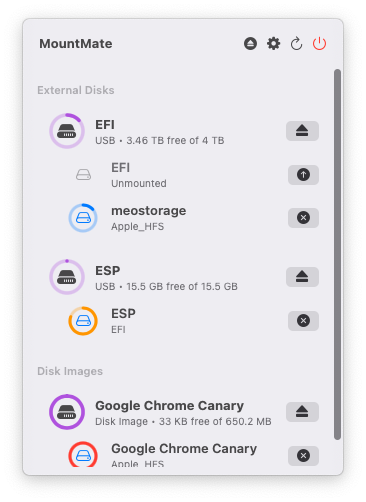
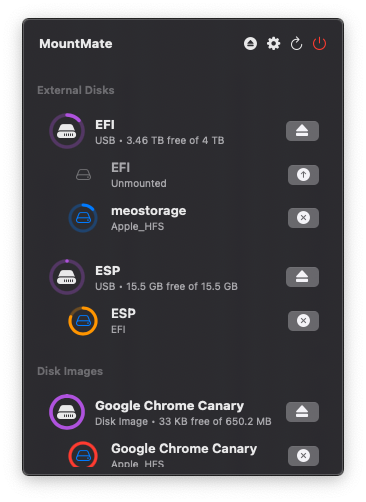
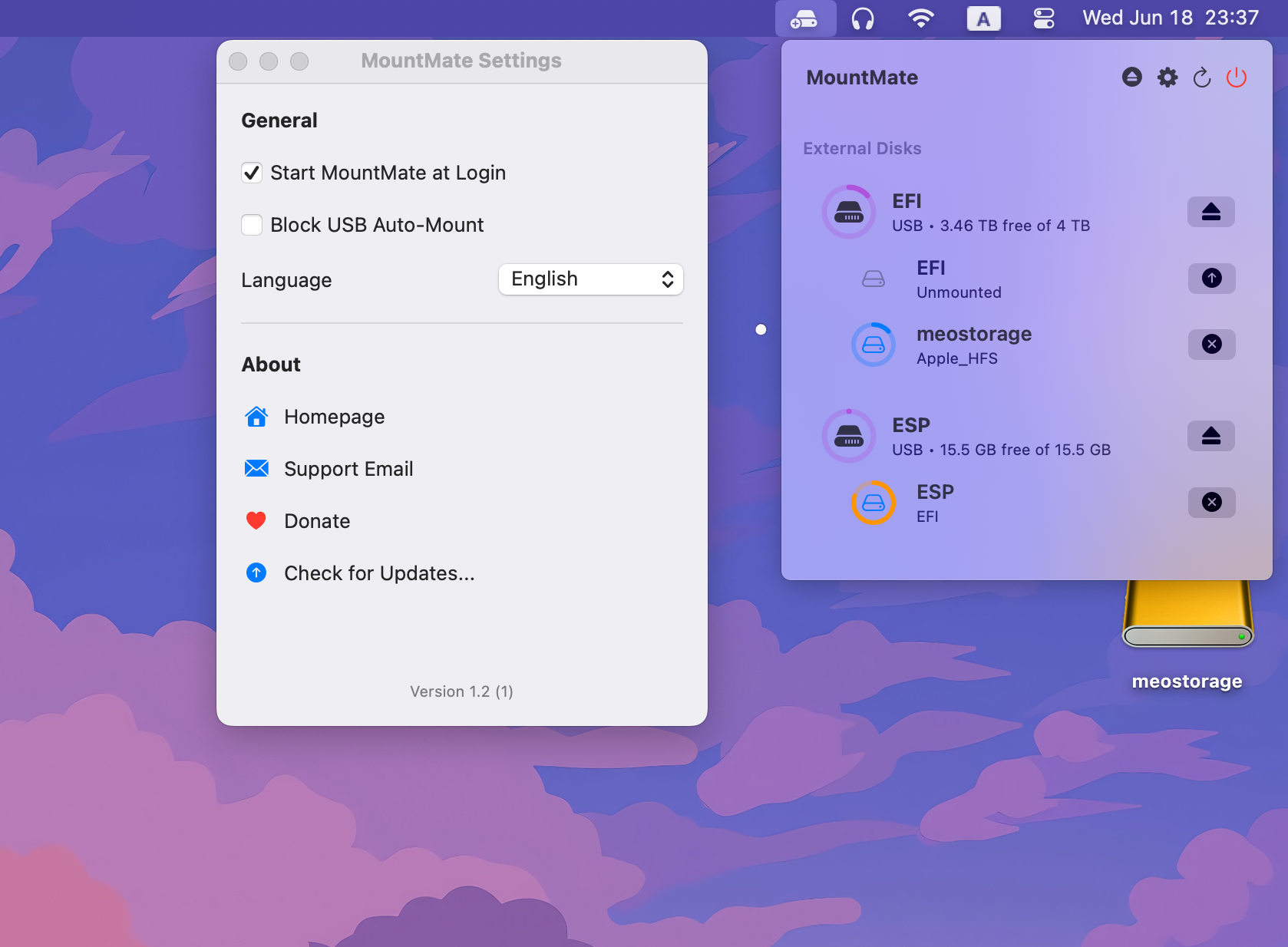
- Mount, unmount, mount read-only and force eject any external drive from the menu bar with one click.
- See free space for drives and mounted network shares at a glance.
- Unmount All, Mount All and Eject All External Disks from the popover or with global keyboard shortcuts, and Mount or Unmount All Network Shares with their own shortcuts.
- Unmount disks when the Mac sleeps, when the screen locks or after they sit idle, and mount them again on wake or unlock.
- Stop USB disks from auto-mounting at plug-in or login, optionally also at startup (
/etc/fstab). - Mount a volume or network share at a mount point you choose.
- Unlock encrypted APFS volumes, with the password saved in the Keychain if you want.
- Auto-mount SMB, NFS and WebDAV (Nextcloud, Synology) shares at login (existing AFP shares supported with deprecation notice), and let Keep Alive reconnect them when they drop.
- Get "Almost full" and SMART warnings, plus optional notifications.
- Ignore, Protect or Pin volumes, show Apple RAID as one disk, and tune what the popover lists.
- Automate it with thirteen Shortcuts actions (Spotlight, Siri and Automator too) that hand mount points and mount state to the next step.
- Fully native (no Electron), localized in 7 languages, with keyboard and VoiceOver support; the only dependency is Sparkle for updates.
See FEATURES.md for what each one does.
MountMate is a lightweight macOS menu bar utility that lets you mount and unmount external drives with a single click – no Terminal, no Disk Utility, no hassle.
Whether you're dealing with a noisy spinning HDD or want finer control over when your drives are active, MountMate gives you a clean, no-nonsense solution right from your menu bar.
I have a 4TB external HDD plugged into my Mac mini 24/7. Since it's a spinning drive, macOS constantly spins it up – just for trivial things like opening Finder or running Spotlight. That meant:
- Unwanted noise
- System slowdowns
- Wasted energy
I tried:
- Disk Utility – too slow and clunky
- Custom shell scripts – too technical
- Existing third-party apps – too bloated or didn’t work right
So I built MountMate.
macOS automatically mounts drives when they’re plugged in – but gives you no easy way to remount them later unless you use Terminal or Disk Utility. MountMate is perfect for:
- External HDDs you don’t always need
- Drives used only for backup
- Reducing wear and tear or noise
- Improving system responsiveness
- Network shares that silently drop and need reconnecting
MountMate runs entirely offline, using native macOS APIs and command-line tools. It:
- Does not track anything
- Does not need the internet, except to check for updates (Sparkle)
- Does not access your files
- Does not run as root: it asks for your admin password only to write
/etc/fstab(custom mount points of volumes, Block at Startup)
Just a clean utility that does one job well.
- macOS 13 Ventura or later
- Download the latest
.dmgrelease - Open the
.dmgfile - Drag
MountMate.appinto the Applications folder - Eject the installer disk image
- Launch MountMate from Applications
If you have Homebrew installed, you can install MountMate directly from this repository:
brew install mountmate- If macOS warns about an app from an unidentified developer, go to System Settings → Privacy & Security → Open Anyway.
- Stay online so macOS can verify the app; later updates are downloaded by Sparkle (Settings → About & Updates).
- Some features need extra permission: MountMate asks for your administrator password only to edit
/etc/fstab("Also Block at Startup", custom mount points), and Full Disk Access (System Settings → Privacy & Security) lets it read volumes in protected folders.
Build, tests, architecture and releases: see DEVELOPMENT.md. Conventions: CONTRIBUTING.md.
When an SMB or AFP share fails to mount, MountMate names the cause and what to check, followed by the original error code (for example Error code: 80 (EAUTH)). Please include that line when you report a problem.
- Authentication failed (
EAUTH): wrong username or password. For a Windows domain account, enter the username asDOMAIN\useroruser@domain(DOMAIN;userworks too). - Access denied (
EACCES): the server accepted the connection but refused this account for the share. Check the account's permissions; if it started after a server update, ask the administrator whether the server still accepts SMB 2/3 with NTLMv2 sign-in. - Password expired, policy, account restricted (
ENETFSPWDNEEDSCHANGE,ENETFSPWDPOLICY,ENETFSACCOUNTRESTRICTED): the account must be fixed on the server side. - No supported sign-in method or protocol version (
ENETFSNOAUTHMECHSUPP,ENETFSNOPROTOVERSSUPP): the server must allow NTLMv2/Kerberos and SMB 2 or 3. - Share not found (
ENOENT), connection refused (ECONNREFUSED), server unreachable (EHOSTUNREACH): check the share name, that file sharing is on, and the network.
When you report a problem (for example a network share that will not mount), logs help a lot. MountMate writes to the macOS unified log under the subsystem com.homielab.mountmate, with one category per area (drive, network, keepAlive, persistence, mounter, hotkey, shell, app).
Easiest: reproduce the problem, open Settings → General → Logs and click Copy Diagnostics, then paste the result into your issue. The report has the MountMate and macOS versions, your on/off settings and the last hour of MountMate's log. It has no passwords, paths, or disk and share names (only counts: disks by connection and file system, disks reporting a failing SMART status, volumes almost full).
Fallback: run this in Terminal and attach mountmate.log to your issue:
log show --predicate 'subsystem == "com.homielab.mountmate"' --last 1h --info > ~/Desktop/mountmate.logTo watch live while you mount or unmount: log stream --predicate 'subsystem == "com.homielab.mountmate"' --level info. You can also filter on the same subsystem in Console.app. Passwords are never logged; share names, volume names, paths and error details appear as <private>.
MountMate was built to solve my personal workflow issue, but I’d love to improve it for others too. Feel free to open an issue (the form asks for the error code and a log) or suggest improvements! Pull requests are welcome too: see CONTRIBUTING.md.
If you found MountMate helpful, please consider supporting its development:
