



Invisible Hand (IVH) is a toolset that turns common microcontrollers (MCUs) — such as those in the ESP32 family — into programmable keyboards and mice. Depending on the capability of the MCU, this can be achieved over Bluetooth or USB.
For detailed documentation, check out the wiki.
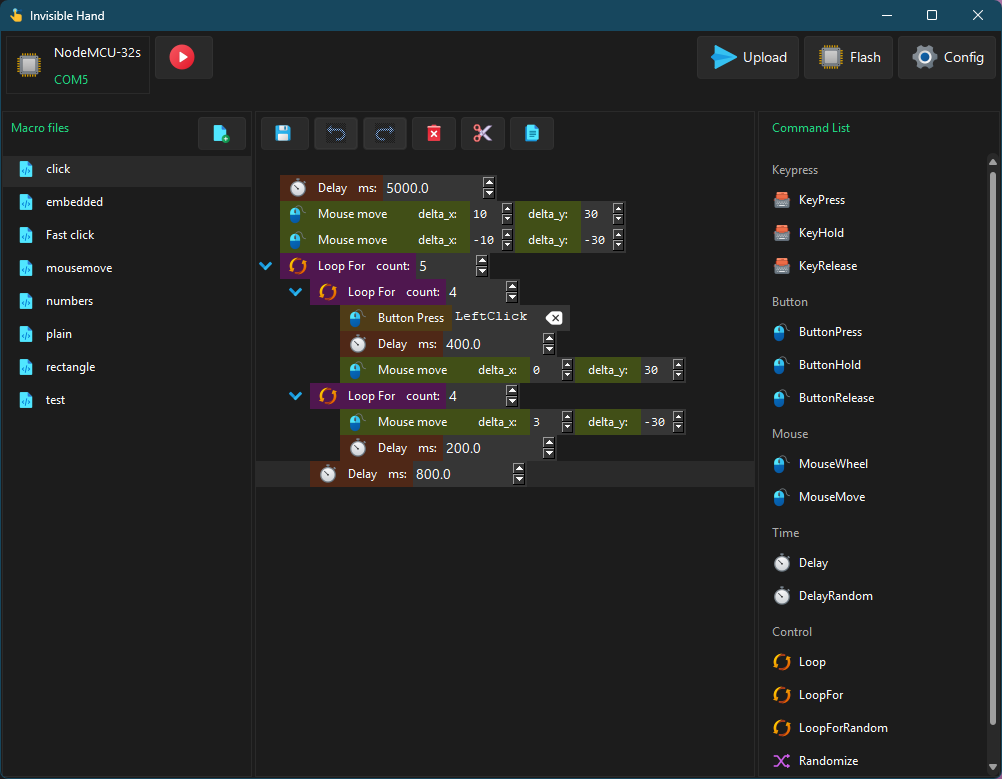
Download the Windows installer from the releases page and run it. This includes start menu and desktop shortcuts.
You can also install the Python package directly. Note that this method does not create start menu or desktop shortcuts.
pip install ivh
ivh startThe only supported installation method on Linux is via the Python package. This requires Python 3.10 or later.
pip install ivh
ivh start
The desktop interface requires the tk and imagetk libraries. On Debian-based distros (Ubuntu, Mint, etc.), install them with:
sudo apt update
sudo apt install python3-tk python3-pil.imagetk
⚠️ macOS is not officially supported. Installing the Python package may work, but is untested.
Make sure Python 3.10+ is installed, then run:
pip install ivh
ivh startYou will need:
- An ESP32 board with onboard Bluetooth support
- A data-capable USB cable to connect your board to your PC (not a charge-only cable)
On Windows, you may need to install a driver to enable serial communication with your board. The chip used varies by board model — check the small IC near the USB port and install the appropriate driver:
| Chip | Driver |
|---|---|
| CP210x | Installation guide — Random Nerd Tutorials |
| CH34X | Installation guide — Adafruit |
| FTDI | VCP drivers — ftdichip.com |
Not sure which chip you have? Check your board's documentation or look for a small square IC labelled with one of the chip names above near the USB connector.
For Invisible Hand (IVH) to access your PC's serial ports on Linux, you may need to add the necessary permissions to your user account as follows:
sudo usermod -aG dialout $USERsudo usermod -aG dialout $USERsudo usermod -aG uucp $USERAfter running the command, you may need to log out and log back in, or reboot your system, for the permission changes to take effect.
For Invisible Hand to communicate with your board, the Invisible Hand firmware must be installed on it. To do this:
-
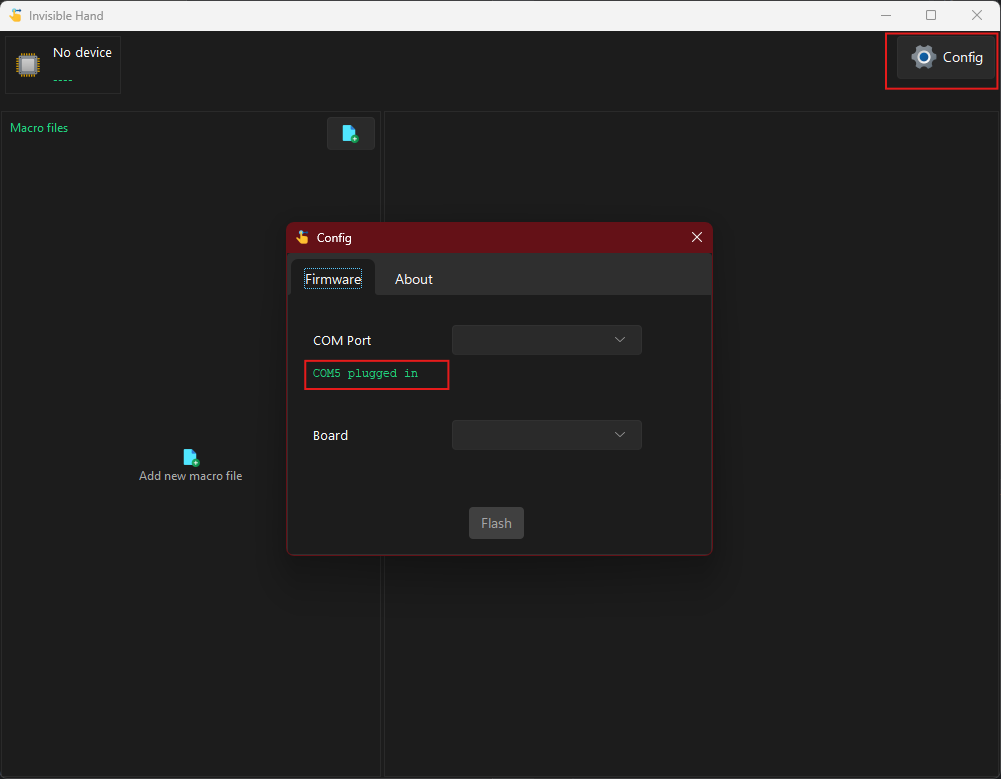
Open the Invisible Hand configuration dialog by clicking the "Config" button.
-
To figure out which port your board is connected to, unplug it and plug it back in. An advisory message will appear under the port selection, indicating which port was most recently connected. Select the reported port. If the advisory message doesn't change when you (un)plug the board, make sure the required drivers are installed and that you're using a cable capable of data transfer.
-
Select your board from the dropdown.
-
Click "Flash" and wait for the firmware upload to complete.
-
Close all dialog windows.
-
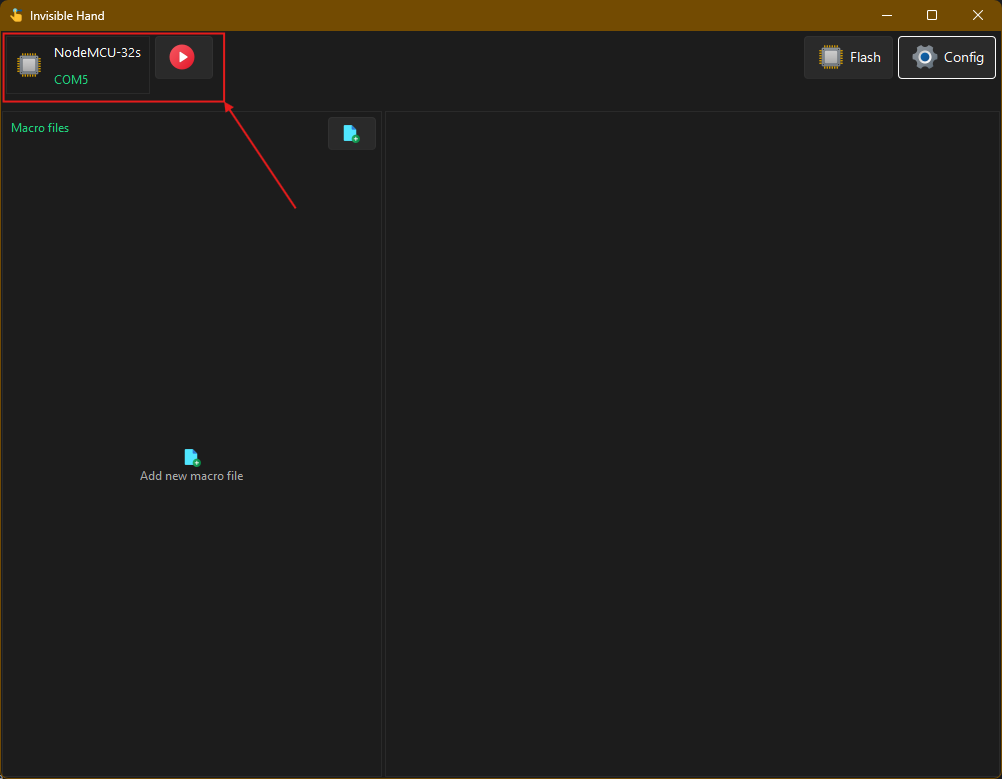
Unplug your board, then plug it back in. It should now appear selected in the device selection dropdown.
-
If your board uses Bluetooth HID (most ESP32 boards do), open your computer's Bluetooth settings and pair with the board, which will appear under the name "Hand."
-
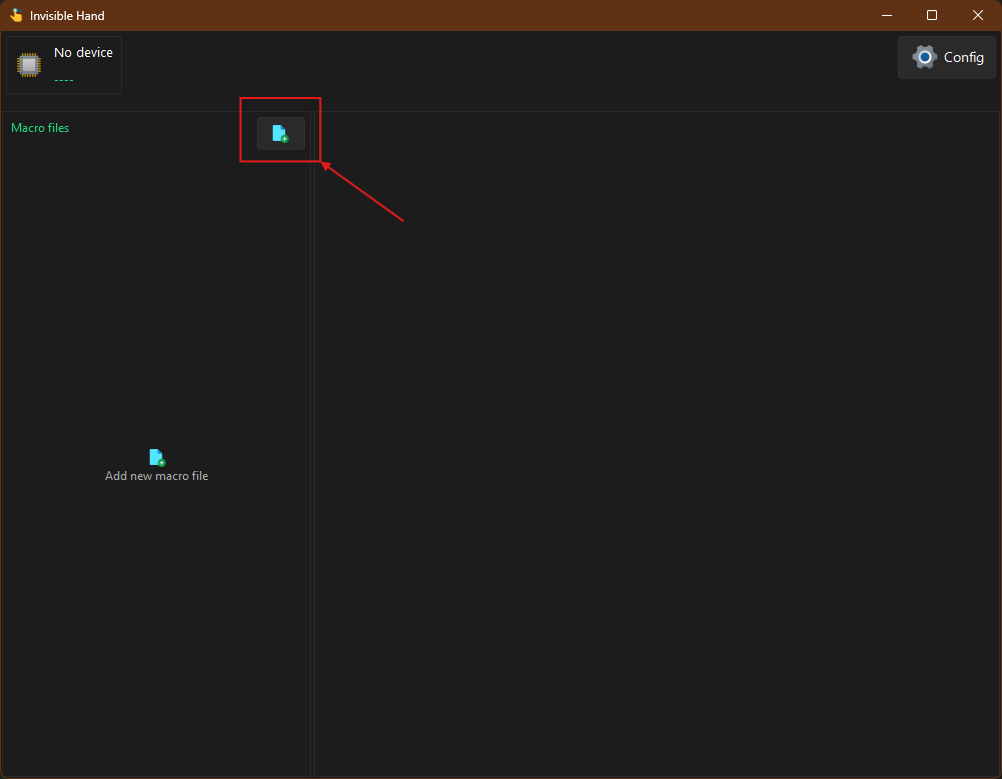
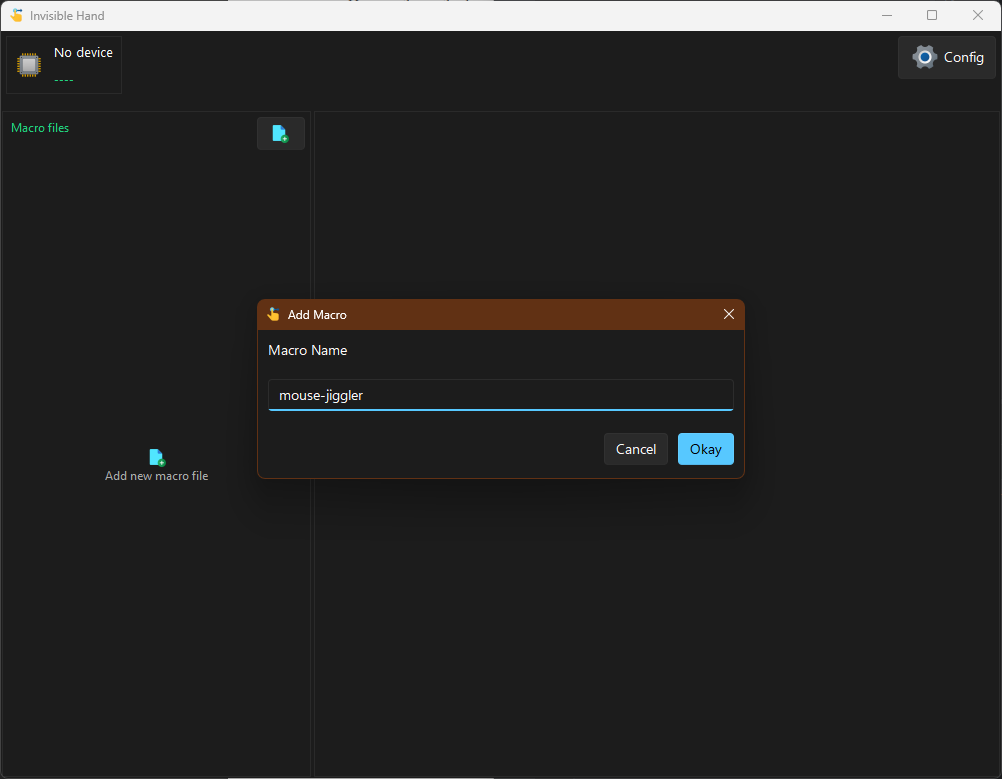
Click the "Add Macro" button in the "Macro files" pane.
-
A dialog will open. Enter the name of your new macro and click "Okay."
-
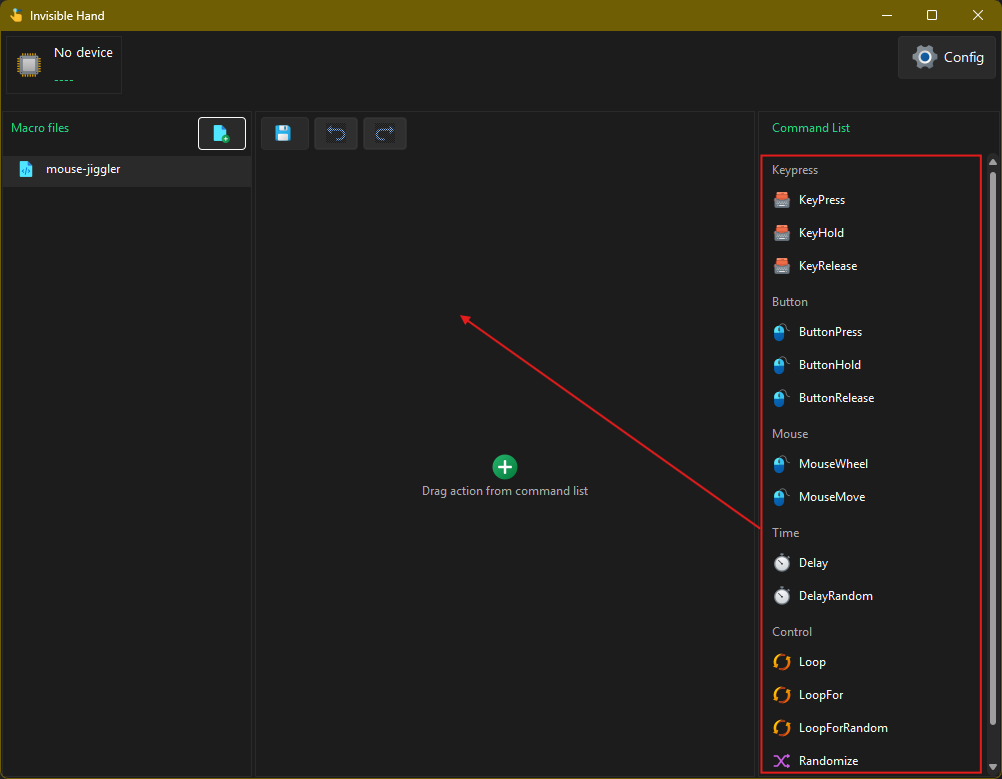
A command list will appear on the right. You can drag commands into the macro body area. The commands are simple and include keyboard actions, mouse actions, delays, and looping and randomization controls. Commands in the "Control" section are block commands, so you can drag other commands into them to create a hierarchy.
-
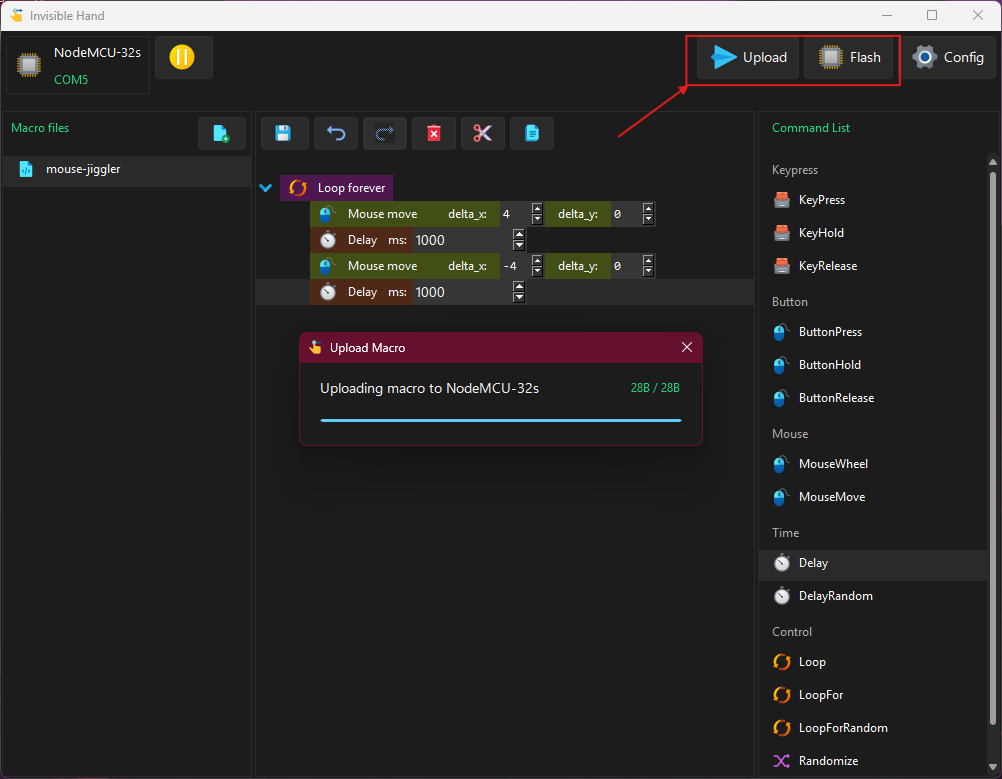
Once you've finished creating your macro, plug in your board and click "Upload." This uploads the macro to the board.
-
If the board is properly paired (via Bluetooth or USB), the macro should start executing immediately.
-
You can pause the macro using the play/pause button next to the board name in the top left. You can also toggle play/pause using the Caps Lock key on another keyboard connected to your PC.
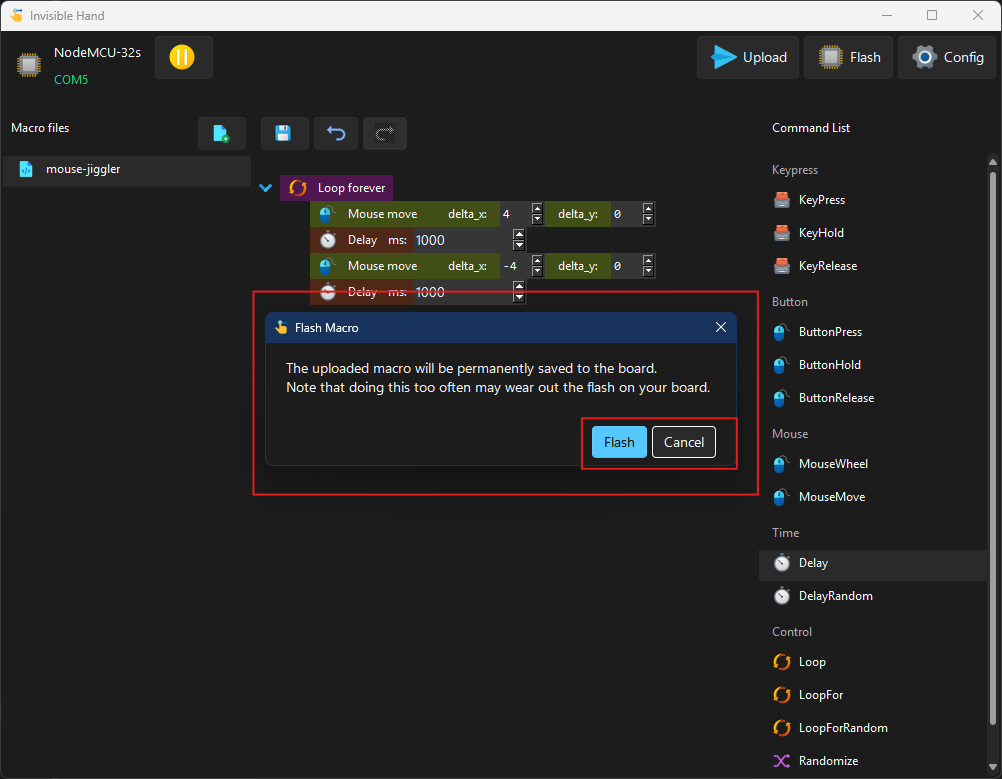
The macro you uploaded previously will disappear once you unplug your board from power. Once a macro has been uploaded at least once, a "Flash" button will appear in the top right. To permanently store that macro on the board:
- Click the "Flash" button.
- A dialog will appear asking you to confirm. Click "Flash" in the dialog to write the macro to the board.
- Once flashing is complete, click "Finish" to close the dialog.
- You can now unplug your board and plug it back in. The flashed macro should start immediately.
⚠️ Only flash the final version of your macro, as flash storage can wear out permanently with repeated writes.