Repository navigation
Tutorial 5: Changing Location
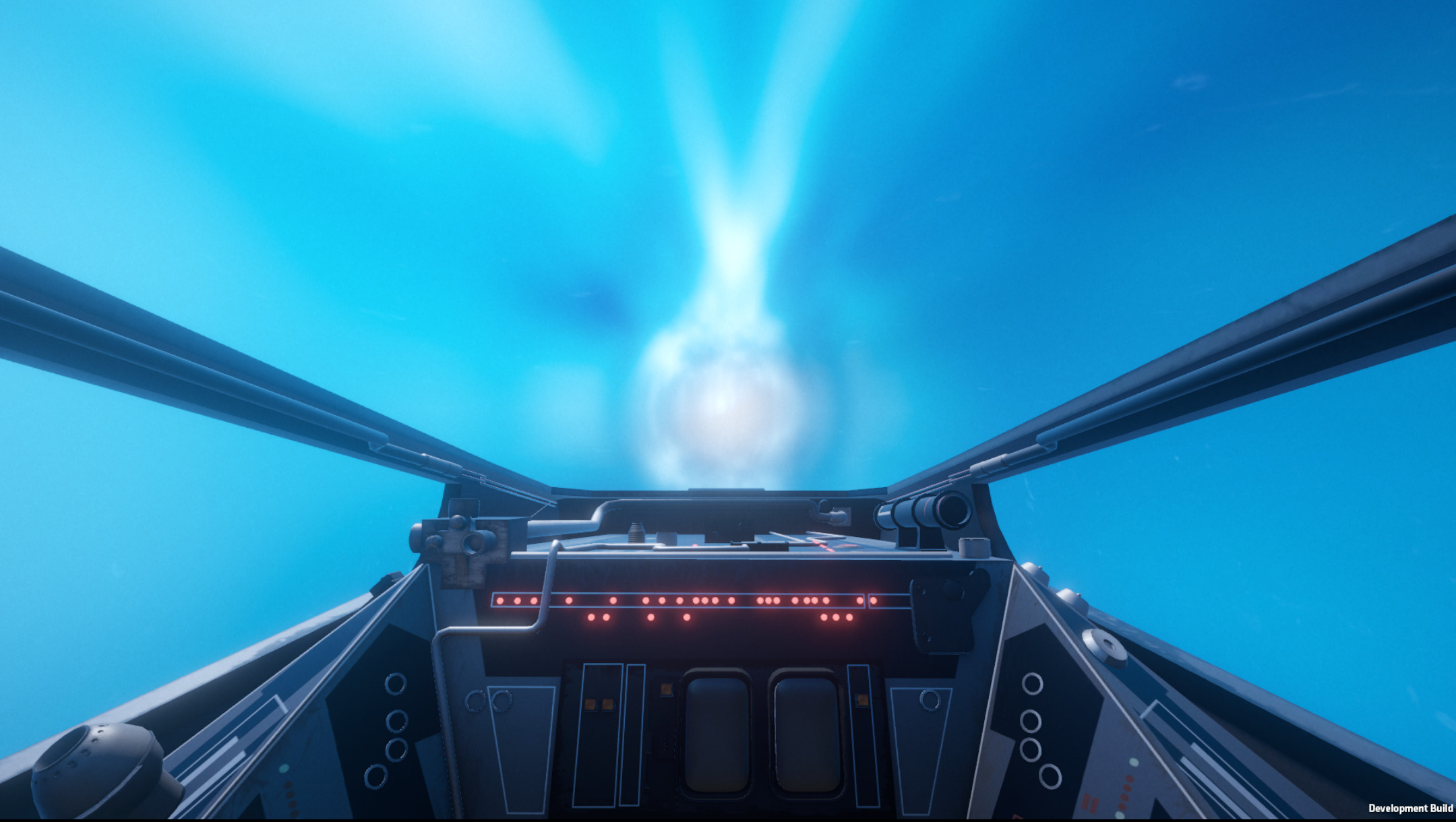
In this tutorial we'll get the player ship to jump from one location to another.
In this tutorial we'll learn how to:
- Create a new mission
- Create two locations
- Preload the skybox and planets for two different locations
- Preload asteroids (Optional)
- Preload the player ship and nav buoys
- Check distance between two objects
- Make the player ship jump from one location to another
A. For this tutorial we're going to make a new mission, if you already have a mission open in the mission editor, you can select file -> new to create a fresh graph, otherwise if you've just opened the mission editor it should already be blank.
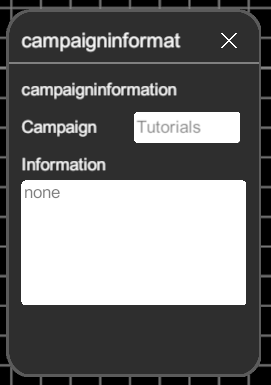
B. Add the campaigninformation node and fill in the following information
- Campaign: Tutorials
A. Now we want to make two locations for the mission, so add two createlocation nodes. Make the first location Tatooine and the second location Alderaan
- Location: Tatooine
- Start Here: true
- Location: Alderaan
- Start Here: false
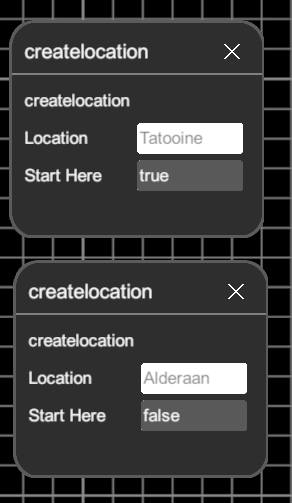
B. If you haven't already set the Start Here settings on the Tatooine node to true.
By setting Start Here to true on Tatooine we're telling the game we want the player to start in this location.
Note: There always needs to be one createlocation in a mission file that has Start Here set to true for the mission to run.
A. Now we want the skybox to look different in both locations so add two preload setskybox nodes. And input the following details
- Location: Tatooine
- mode: space_nebula01
- stars: true
- Location: Alderaan
- mode: space_nebula02
- stars: true
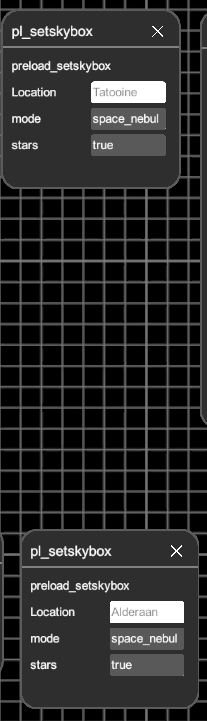
Note: A preload function always loads before the player enters that location. You tend to use preload functions for any static objects that help set the scene (skybox, planets, buoys) or ships that will always be present in a location and won't be destroyed. It is also used for loading the player ship.
B. Now we want two planets in both locations that are different. So add two preload planet nodes. And then input the following details:
- Location: Tatooine
- distance: 50
- planet: Desert01 (or whatever you want)
- clouds: none
- atmosphere: orange01
- rings: none
- Location: Alderaan
- distance: 50
- planet: habitable01 (or whatever you want)
- clouds: clouds01
- atmosphere: blue01
- rings: none
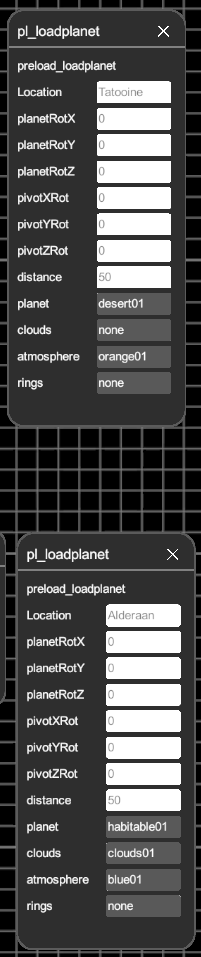
You can load planets and asteroid fields at the same time. But for movie authenticity it might be fun to replace the planet Alderaan with an asteroid field.
A. Remove the preload loadplanet node for Alderaan and create instead a preload asteroidfield node. And then fill in the details as follows.
- Location: Alderaan
- number: 1000
- preference: large
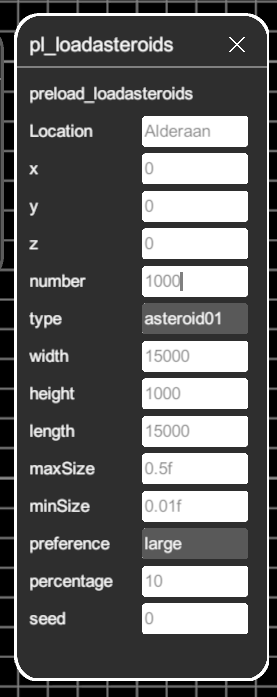
Now you will have an asteroid field where there should have been a planet!
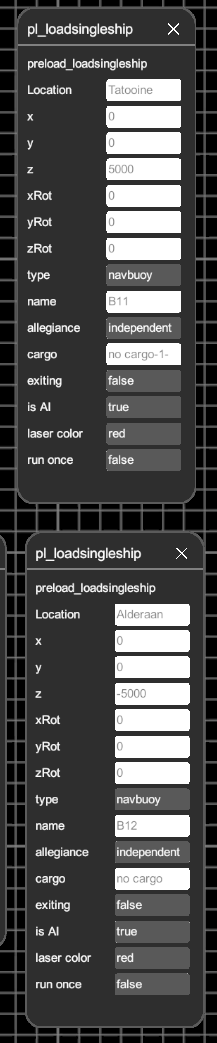
A. Now we need to create two nav buoys, one for Alderaan and on for Tatooine, so add two preload loadsingleship nodes. And fill in the details as follows:
- Location: Tatooine
- z: 5000
- type: navbuoy
- name: b11
- allegiance: independent
- exiting: false
- isAI: true
- run once: false
- Location: Alderaan
- z: -5000
- type: navbuoy
- name: b12
- allegiance: independent
- exiting: false
- isAI: true
- run once: false
B. Now we need to create the player ship. So add another preload loadsingleship node.
- Location: Tatooine
- type: z95headhunter
- name: Alpha01
- allegiance: rebel
- exiting: false
- isAI: false
- run once: true
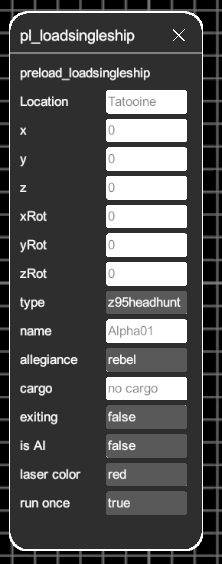
Note: For the player you need to set the run once setting to true. This tells the game that if the player comes back to this location after jumping to another location not to load ANOTHER player. Preload functions load every time a location is loaded, unless you set run once to true.
Now we want to repeatedly check the distance between the player and the navbuoy. And when the player is within less than 1000 metres we want the ship to jump from Tatooine to Alderaan. To do this we need to run a check.
A. So first of all, add a starteventseries node. And then add a ifshipislessthandistancetoothership node. And link them together. Then fill in the details as follows.
- Time: 2
- Location: Tatooine
- shipA: Alpha01
- shipB: B11
- is less than: 1000
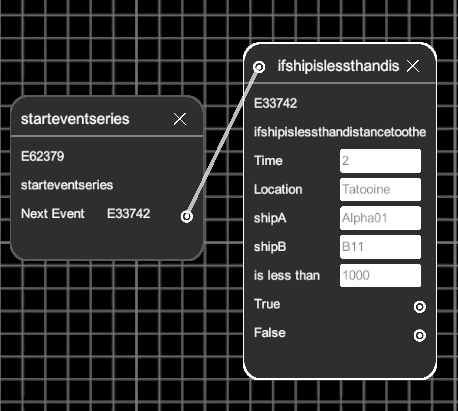
B. Now if our is not less than 1000 meters to the buoy we want it to run the check again, and again, repeatedly until it is. So drag the false output back to the node's input like this:
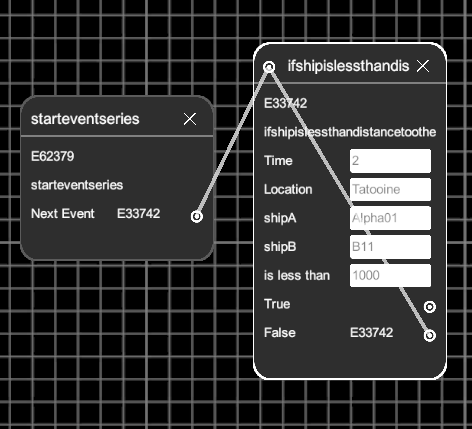
Note: We don't want the game to run the check every frame (that's a waste of processing power that will hurt the games performance), just every few seconds or so. So that's why we've set the time to 2. This ensure the node will only run once every 2 seconds. As opposed to 120 times or something like that.
A. Add a changelocation node and link it to the true output of the ifshipislessthan node. And then fill in the details as follows.
- Time: 0
- Location: Tatooine
- Jump to: Alderaan
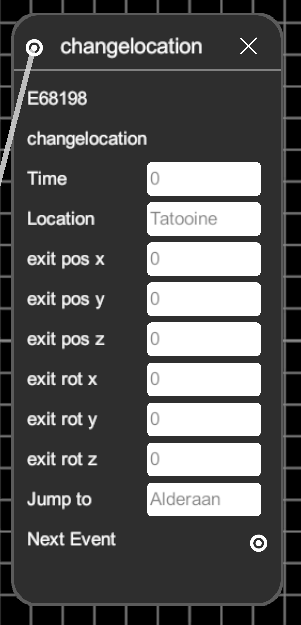
Note: You can also define the rotation and position of the ship when it comes out of hyperspace.
Note: This node is only for the player ship, it does not affect non-player ships. If you want a non-player ship to jump out of the system use the activatehyperspace node. Note this will cause the ship to jump and then it will simply be removed from the scene. If you want the non-player ship to then appear in another location you will need to load is using the loadsingleship node.
You can now save you mission as Tutorial02 and play it. You should be able to fly your ship towards the buoy, and when you are within 1000m you ship will jump from Tatooine to Alderaan.
You may now also like add some other features to you mission that we learnt in previous tutorials such as automatically selecting the buoy for the player.