
Turn any image into a "draw itself" animation in Flutter.
Give Sketchify a logo, icon, illustration or photo. It draws the outlines like a pen sketch, then fills them in, and ends on your exact original image, pixel for pixel.


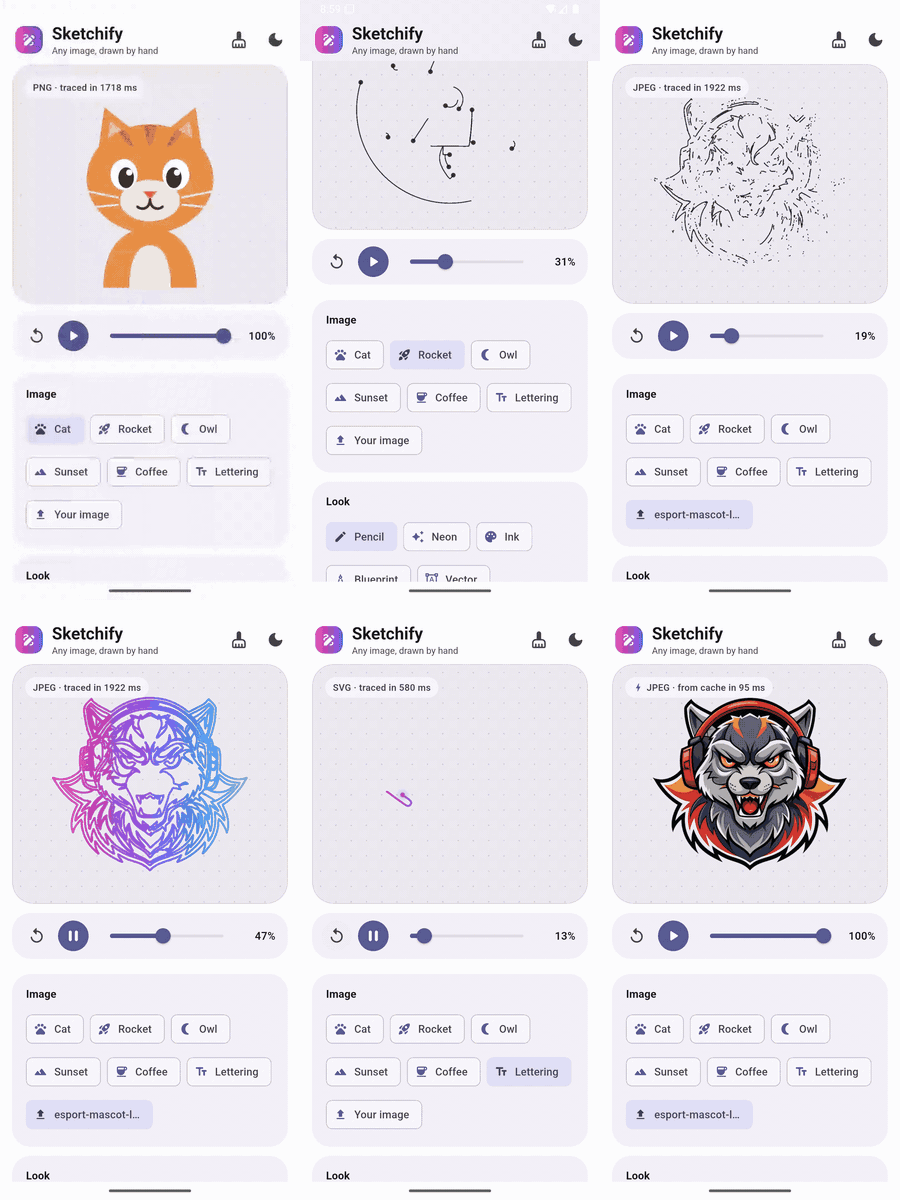
#Flutter #Dart #FlutterDev #Animation #SketchAnimation #DrawingAnimation #LogoAnimation #SplashScreen #ImageTracing #Vectorize #SVG #CustomPainter #UIUX #MobileDev #OpenSource
- What is Sketchify?
- Features
- Where to use it
- Requirements and support
- Installation
- Quick start
- Complete example
- The five building blocks
- Playback: speed, looping and control
- Style: how the drawing looks
- Recipes
- Tracing options
- Caching: trace once, reuse forever
- Reading the result
- Drawing it yourself with SketchPainter
- Image formats and errors
- Letting users pick an image
- Accuracy
- Performance tips
- How it works
- Troubleshooting and FAQ
- Limitations
- Example app
- Links and support
- Licence
Sketchify does two things:
- It traces your image. It finds the colours and shapes in the picture and turns each shape's edge into a smooth vector outline.
- It animates the result. The outlines draw in, like someone sketching with a pen. Then the picture appears: either your real image, or the traced colour shapes.
You don't draw anything by hand and you don't need an SVG of your logo. Any normal image file works.
your image ──► Sketchify.trace() ──► Sketch ──► SketchAnimation ──► ✏️ draws itself on screen
- 🖼️ Any image. PNG, JPEG, WebP, GIF, BMP, WBMP, ICO, HEIC and SVG. The format is detected automatically.
- 🎯 Exact ending. The last frame is your original pixels (with
SketchFill.image, the default). - ✂️ Background removal. A solid background is cut out with clean, fringe-free edges. Images that are already transparent stay transparent.
- 🔵 Smooth small details. Circles and ellipses come out perfectly round, and thin lines stay in one piece in their real colour.
- 🎨 Fully customisable. Line colour or gradient, each shape's own colour, line width, pen dot with glow, drawing order and six reveal styles.
- ⏯️ Full playback control. Speed, easing, play once, loop or back-and-forth, plus pause, resume, seek and replay.
- ⚡ Built-in cache. The same image is traced only once: results are kept on disk (IndexedDB on the web) with no setup, so they load almost instantly even after the app restarts.
- 🧵 Smooth UI. Tracing runs in a background isolate, so the app doesn't freeze.
- 📦 Lightweight. Pure Dart, offline, no network calls. Dependencies:
flutter_svg(to read SVG),path_provider(where to keep the cache) andweb(the cache on the web). - 🪪 MIT licence. Free for personal and commercial apps.
- Splash screens: your logo draws itself while the app starts.
- Onboarding and empty states: illustrations that come alive.
- Loading screens: loop the drawing while something loads.
- Brand moments: "About", success and celebration screens.
- Creative apps: turn a user's photo or drawing into an animated sketch.
- Education: show how a shape or diagram is drawn, step by step.
| Requirement | Version |
|---|---|
| Flutter | 3.35 or newer |
| Dart | 3.9 or newer |
| Platform | Supported | Notes |
|---|---|---|
| Android | ✅ | HEIC needs Android 9+ |
| iOS | ✅ | |
| Web | ✅ | No HEIC. Tracing runs on the main thread on web, so it may pause the UI briefly for big images. |
| macOS | ✅ | |
| Windows | ✅ | No HEIC |
| Linux | ✅ | No HEIC |
Step 1. Add the package:
flutter pub add sketchifyOr add it to your pubspec.yaml yourself and run flutter pub get:
dependencies:
  sketchify: ^1.0.0
Step 2. Import it wherever you use it:
import 'package:sketchify/sketchify.dart';That's all. Sketchify itself needs no permissions and no platform setup. If you let users pick photos, the picker package may need some; see section 16.
It takes two steps: trace the image once, then show it.
// 1. Trace (do this once; it returns a Sketch)
final Sketch sketch = await Sketchify.traceAsset('assets/logo.png');

// 2. Show it (it draws itself in automatically)
SketchAnimation(sketch: sketch)
Tracing is asynchronous (it returns a Future), so in a real app you'll trace inside initState or a FutureBuilder. The next section shows a complete, copy-paste example.
A full app that animates a logo from your assets. First, add the image to pubspec.yaml:
flutter:
  assets:
    - assets/logo.png
Then lib/main.dart:
import 'package:flutter/material.dart';
import 'package:sketchify/sketchify.dart';

void main() => runApp(const MaterialApp(home: LogoScreen()));

class LogoScreen extends StatefulWidget {
  const LogoScreen({super.key});

  @override
  State<LogoScreen> createState() => _LogoScreenState();
}

class _LogoScreenState extends State<LogoScreen> {
  final _animationKey = GlobalKey<SketchAnimationState>();
  Sketch? _sketch;

  @override
  void initState() {
    super.initState();
    _load();
  }

  Future<void> _load() async {
    final sketch = await Sketchify.traceAsset('assets/logo.png');
    if (!mounted) {
      sketch.dispose();
      return;
    }
    setState(() => _sketch = sketch);
  }

  @override
  void dispose() {
    _sketch?.dispose(); // frees the image memory
    super.dispose();
  }

  @override
  Widget build(BuildContext context) {
    final sketch = _sketch;
    return Scaffold(
      body: Center(
        child: sketch == null
            ? const CircularProgressIndicator()
            : Padding(
                padding: const EdgeInsets.all(32),
                child: SketchAnimation(key: _animationKey, sketch: sketch),
              ),
      ),
      floatingActionButton: FloatingActionButton(
        onPressed: () => _animationKey.currentState?.replay(),
        child: const Icon(Icons.replay),
      ),
    );
  }
}
Run the app. You'll see the outline draw in, then your logo fade in. Tap the button to watch it again.
| Name | What it is | You use it to… |
|---|---|---|
Sketchify |
The tracer | Turn image bytes, an asset or SVG text into a Sketch |
Sketch |
The traced result | Hold the outlines, colours and final image; pass it to the widget |
SketchAnimation |
The widget | Show the drawing animation on screen |
SketchStyle |
Look settings | Choose line colour, pen, order, fill and reveal |
SketchOptions |
Tracing settings | Fine-tune how the image is traced (optional) |
There's also SketchPainter for drawing inside your own CustomPaint (section 14).
// From bytes: a file picker, the network, a database…
final Sketch a = await Sketchify.trace(bytes);

// From an asset bundled with your app
final Sketch b = await Sketchify.traceAsset('assets/logo.svg');

// From SVG markup in a string
final Sketch c = await Sketchify.traceSvgString(
  '<svg viewBox="0 0 10 10"><circle cx="5" cy="5" r="4" fill="#4699D1"/></svg>',
);
All three accept options: SketchOptions(...) (section 12).
Remember: call
sketch.dispose()when you no longer need a sketch. It frees the decoded image.
These are parameters of the SketchAnimation widget:
| Option | Default | What it does |
|---|---|---|
sketch |
required | The traced image to animate |
style |
SketchStyle() |
How it looks (section 10) |
duration |
4.5 seconds | Length of one run at normal speed |
speed |
1.0 |
Speed multiplier: 2.0 is twice as fast, 0.5 is half speed |
curve |
Curves.easeInOut |
Easing over the whole run (try Curves.linear or Curves.easeOutCubic) |
playMode |
SketchPlayMode.once |
once stops at the end, loop starts over, pingPong draws in and then undraws |
repeatPause |
0.8 seconds | Pause between runs when looping |
delay |
none | Wait before the first run starts |
autoPlay |
true |
false shows the finished picture until you call replay() |
width |
fills the space | A fixed width; the height follows the image's shape |
onCompleted |
— | Called each time a run finishes drawing |
onProgress |
— | Called every frame with the progress, from 0 to 1 |
You can change speed and playMode while the animation is running. It carries on from where it is.
Give the widget a GlobalKey, then call methods on its state:
final key = GlobalKey<SketchAnimationState>();

SketchAnimation(key: key, sketch: sketch);

key.currentState?.replay();    // start again from the beginning
key.currentState?.pause();     // freeze where it is
key.currentState?.resume();    // continue after pause or seek
key.currentState?.seek(0.5);   // jump to the middle (and pause there)
key.currentState?.progress;    // where it is now, 0–1
key.currentState?.isPlaying;   // true while moving
key.currentState?.isPaused;    // true after pause() or seek()
seek never calls onCompleted and never starts the next run, even when you seek to the end. Call resume() to carry on from there.
Pass a SketchStyle to style:. Every field has a default, so set only what you want to change:
SketchAnimation(
  sketch: sketch,
  style: const SketchStyle(
    lineColor: Colors.indigo,
    lineWidth: 2.5,
    showPen: true,
    order: SketchOrder.staggered,
    reveal: SketchReveal.wipeDown,
  ),
)| Option | Default | What it does |
|---|---|---|
lineColor |
Color(0xFF2C2C2C) |
Colour of the drawing lines |
lineGradient |
none | Paint the lines with a gradient across the artwork (overrides lineColor) |
useShapeColors |
false |
Draw each outline in its own shape's colour |
lineWidth |
1.5 |
Line thickness in logical pixels; stays the same at any size |
lineCap |
StrokeCap.round |
Shape of line ends |
lineJoin |
StrokeJoin.round |
Shape of line corners |
keepLines |
false |
Keep the outlines on top of the finished picture instead of fading them out |
| Option | Default | What it does |
|---|---|---|
showPen |
false |
Show a dot at the tip of every line while it draws |
penColor |
line colour | Colour of the pen dot (with lineGradient, the gradient's colour at the tip) |
penRadius |
3.0 |
Pen dot size in logical pixels |
penGlow |
true |
Soft glow around the pen dot |
| Option | Default | What it does |
|---|---|---|
order |
SketchOrder.together |
together: all lines at once. staggered: each starts a little after the previous one. sequential: one shape after another. |
drawPortion |
0.6 |
Share of each run spent drawing lines (0.05–0.95). The rest reveals the fill. |
| Option | Default | What it does |
|---|---|---|
fill |
SketchFill.image |
image: your exact original. vector: the traced colour shapes. none: stays as line art. |
reveal |
SketchReveal.fade |
How the fill appears: fade, wipeDown, wipeUp, wipeRight, wipeLeft or circle |
SketchStyle has copyWith, so you can keep one base style and change a single thing:
const base = SketchStyle(lineWidth: 2, showPen: true);
final pinkVersion = base.copyWith(lineColor: Colors.pink);Copy-paste starting points.
✏️ Classic pencil sketch
SketchAnimation(
  sketch: sketch,
  style: const SketchStyle(lineColor: Color(0xFF333333), lineWidth: 1.2, showPen: true),
)
🌈 Gradient lines, then wipe in
SketchAnimation(
  sketch: sketch,
  style: const SketchStyle(
    lineGradient: LinearGradient(colors: [Colors.pink, Colors.indigo]),
    lineWidth: 2.5,
    reveal: SketchReveal.wipeRight,
  ),
)
🎨 Outlines in the image's own colours
SketchAnimation(sketch: sketch, style: const SketchStyle(useShapeColors: true, lineWidth: 2))🖋️ Line art only (no fill)
SketchAnimation(sketch: sketch, style: const SketchStyle(fill: SketchFill.none, lineWidth: 2))🚀 Fast splash logo that tells you when it's done
SketchAnimation(
  sketch: sketch,
  speed: 2.0,
  width: 200,
  onCompleted: () => Navigator.of(context).pushReplacementNamed('/home'),
)
🔁 Looping loader
SketchAnimation(
  sketch: sketch,
  playMode: SketchPlayMode.pingPong,
  repeatPause: const Duration(milliseconds: 300),
  style: const SketchStyle(fill: SketchFill.none, showPen: true),
)
🧩 Draw one piece at a time, then grow in from the centre
SketchAnimation(
  sketch: sketch,
  duration: const Duration(seconds: 6),
  style: const SketchStyle(order: SketchOrder.sequential, reveal: SketchReveal.circle, drawPortion: 0.75),
)
🖼️ Show the finished image only (no animation)
SketchAnimation(sketch: sketch, autoPlay: false)Most apps never need these; the defaults work well. Change them only to tune results.
final sketch = await Sketchify.trace(
  bytes,
  options: const SketchOptions(
    removeBackground: true,
    removeEnclosedBackground: true,
    maxTraceSize: 800,
    svgRenderSize: 2048,
    maxColors: 16,
    colorTolerance: 26,
    curveTolerance: 0.9,
    minShapeFraction: 0.00003,
  ),
);| Option | Default | What it does | When to change it |
|---|---|---|---|
removeBackground |
true |
Cuts out a solid background found around the image's edges | Set false to keep the background as part of the drawing |
removeEnclosedBackground |
true |
Also cuts out areas of the background colour inside the artwork, such as the hole in an "o" | Set false to remove only the background that touches the border, for example to keep white eyes on a white background |
maxTraceSize |
800 |
Traces at most this many pixels on the longest side (the final frame stays full resolution) | Raise it (e.g. 1200) for very detailed images; lower it (e.g. 500) to trace faster |
svgRenderSize |
2048 |
Pixel size of the longest side when rendering an SVG | Raise it for huge displays; lower it to save memory |
maxColors |
16 |
Most colour layers to find (1–250) | Raise it for colourful illustrations; lower it for a simpler look |
colorTolerance |
26 |
How different two colours must be to count as separate (RGB distance, 0–441) | Lower it if similar colours get merged; raise it for noisy JPEGs |
curveTolerance |
0.9 |
How closely curves follow the edge, in pixels | Lower it for tighter outlines; raise it for smoother, simpler curves |
minShapeFraction |
0.00003 |
Shapes smaller than this fraction of the image are merged into their neighbours | Raise it to remove more specks |
SketchOptions also has copyWith and ==. Values out of range throw an ArgumentError from Sketchify.trace (and trip an assert in debug builds).
Tracing takes a moment (often a few hundred milliseconds). Sketchify remembers every result, on disk, with no setup, so the same image with the same options is almost instant the next time, even after the app restarts:
final a = await Sketchify.traceAsset('assets/logo.png'); // first time ever: traced, ~400 ms
// ...close the app, open it again tomorrow...
final b = await Sketchify.traceAsset('assets/logo.png'); // from cache, ~20–50 ms
print(b.fromCache); // true
Where results are kept, and for how long
| Platform | Stored in | Kept until |
|---|---|---|
| Android | the app's cache directory | the user taps Clear cache or Clear data, or uninstalls the app |
| iOS, macOS | the app's Caches directory |
the app is deleted, or the system frees space when storage runs very low |
| Windows, Linux | the app's cache directory | the folder is deleted or the app is uninstalled |
| Web | the browser's IndexedDB | the user clears the site's data |
Results are also kept in memory while the app runs (up to 32 MB), so switching back to an image is instant. On disk, at most 100 MB is used; the least recently used results go first.
Clearing it yourself
await Sketchify.cache?.clear(); // memory and diskHow it recognises an image. By its contents (a fast hash of the bytes) plus every option that changes the result. An edited image, or different SketchOptions, is traced afresh, so you never get a stale result. To skip hashing very large files, name the image yourself; the key must change whenever the image does:
Sketchify.trace(bytes, cacheKey: 'avatar-${user.id}-${user.avatarVersion}');What is stored. The traced outlines and colours, plus a compressed PNG of the final image when a background was cut out. Never decoded images, so sketch.dispose() still frees memory, and each Sketch owns its own image.
Changing the defaults. Set Sketchify.cache once, before you trace:
// Bigger limits.
Sketchify.cache = SketchCache(
  maxMemoryBytes: 64 * 1024 * 1024,
  store: SketchCacheStore.platformDefault(maxBytes: 500 * 1024 * 1024),
);

// A directory you choose, e.g. app support, which the system never clears on its own
// (with package:path_provider).
final dir = await getApplicationSupportDirectory();
Sketchify.cache = SketchCache(store: SketchCacheStore.directory('${dir.path}/sketchify'));

// Memory only (forgotten when the app stops), or no caching at all.
Sketchify.cache = SketchCache();
Sketchify.cache = null;| API | What it does |
|---|---|
Sketchify.cache |
The cache in use. By default memory plus SketchCacheStore.platformDefault(). null turns caching off. |
SketchCache(maxMemoryBytes:, store:) |
A cache with your own memory limit and persistent store (none = memory only) |
SketchCacheStore.platformDefault(maxBytes:) |
The app's own storage on every platform (see the table above) |
SketchCacheStore.directory(path, maxBytes:) |
Files in a directory you choose (not on web) |
trace(..., useCache: false) |
Skip the cache for one call |
trace(..., cacheKey: '...') |
Name the image instead of hashing its bytes |
sketch.fromCache |
Whether a result came from the cache |
cache.clear() / cache.clearMemory() |
Forget everything, or just what is in memory |
cache.flush() |
Wait until results still being saved (in the background) are saved |
A cache that fails (a full disk, a corrupted file, private browsing) never breaks tracing: Sketchify just traces the image again.
A Sketch tells you what was found:
| Property | Type | Meaning |
|---|---|---|
shapes |
List<SketchShape> |
The traced layers, bottom to top |
palette |
List<Color> |
Colours found, most common first |
image |
ui.Image |
The exact final frame (background removed if it was) |
removedBackground |
Color? |
The background colour that was removed, or null |
format |
SketchImageFormat |
The file format detected |
size |
Size |
Size of the traced artwork (the shapes use these coordinates) |
aspectRatio |
double |
Width divided by height |
elapsed |
Duration |
How long tracing took |
fromCache |
bool |
Whether it came from the cache (section 13) |
Each SketchShape has a path (a Flutter Path) and a color.
print('Found ${sketch.palette.length} colours and ${sketch.shapes.length} shapes '
'in ${sketch.elapsed.inMilliseconds} ms (${sketch.format.name})');For full control, for example scrubbing the animation with a slider, use SketchPainter in a CustomPaint. progress goes from 0.0 (nothing drawn) to 1.0 (finished):
double progress = 0.5;

CustomPaint(
  size: const Size(300, 300),
  painter: SketchPainter(sketch: sketch, progress: progress, style: const SketchStyle()),
)

Slider(value: progress, onChanged: (v) => setState(() => progress = v))
The painter scales the artwork to fit the given size and centres it.
The format is detected from the file's contents, not its name, so a file with the wrong extension still works.
| Format | Notes |
|---|---|
| PNG, JPEG, WebP, GIF, BMP, WBMP, ICO | Every platform. Animated GIF and WebP use the first frame. |
| HEIC / HEIF (iPhone photos) | iOS, macOS and Android 9+. Not on web, Windows or Linux. |
| AVIF | Recognised (SketchImageFormat.avif) so the error message is clear, but Flutter can't decode it on most platforms. Convert to PNG, JPEG or WebP. |
| SVG | Rendered at svgRenderSize, then traced. A transparent SVG background stays transparent. |
If a file can't be read, Sketchify throws UnsupportedImageException. Its message explains why and lists what's supported:
try {
  final sketch = await Sketchify.trace(bytes);
  // show it…
} on UnsupportedImageException catch (e) {
  ScaffoldMessenger.of(context).showSnackBar(SnackBar(content: Text(e.message)));
}
e.format tells you what the file looked like (SketchImageFormat.unknown if it isn't an image at all).
Sketchify works with any picker that gives you the file's bytes. Two common choices:
From the photo gallery (using image_picker):
final file = await ImagePicker().pickImage(source: ImageSource.gallery);
if (file != null) {
  final sketch = await Sketchify.trace(await file.readAsBytes());
}
From files, including SVG (using file_selector):
final file = await openFile(acceptedTypeGroups: [
  XTypeGroup(
    label: 'Images',
    extensions: SketchImageFormat.allExtensions,   // png, jpg, …, svg
    mimeTypes: SketchImageFormat.allMimeTypes,      // image/png, …, image/svg+xml
    uniformTypeIdentifiers: const ['public.image', 'public.svg-image'],
  ),
]);
if (file != null) {
  final sketch = await Sketchify.trace(await file.readAsBytes());
}
Photo galleries don't list SVG files, so use a file picker for those.
Picker setup (for the picker packages, not for Sketchify):
| Platform | What to add |
|---|---|
| iOS | NSPhotoLibraryUsageDescription in ios/Runner/Info.plist (for the gallery) |
| macOS | com.apple.security.files.user-selected.read-only = true in both .entitlements files |
| Android | Nothing extra; modern pickers need no storage permission |
- The finished frame is exact. With
SketchFill.image(the default), the last frame is your image's own pixels. When a solid background is removed, each edge pixel is split into foreground colour plus transparency, so there's no coloured halo. Placed back on the original background, the cut-out matches the original to within 0.1 out of 255 on average. - The outlines and vector colours are traced, so they're very close but not exact. On flat-colour logos,
SketchFill.vectorstays within about 1 out of 255 of the original on average. - Small details stay smooth. Edges are placed to a fraction of a pixel. Circles and ellipses are drawn as exact ones, so even a 4 px dot stays round. Lines 2 px thick or more keep their colour and stay in one piece, including line art drawn in a single ink.
- Photos and gradients are simplified into colour areas for the outlines, but they still end on the exact image.
- Let the cache work. Repeat traces of the same image are almost instant, also after a restart (section 13).
- Trace once, show many times. Tracing is the slow part (about 0.4 s for a 1200×1200 illustration on a laptop; phones are slower). Keep the
Sketchand reuse it instead of tracing inbuild(). - Trace early. Start tracing during a splash screen or before navigating, so the animation is ready when needed.
- Lower
maxTraceSize(for example to 500) for faster tracing of big photos. The final frame stays full quality. - Dispose sketches you no longer show:
sketch.dispose(). - Very complex images (photos with thousands of shapes) animate more slowly. For those,
SketchFill.imagewithorder: SketchOrder.togetheris the lightest combination.
For the curious. You don't need this to use the package.
- Read the pixels. A copy at most
maxTraceSizepixels is used for tracing; the full image is kept for the final frame. - Find the background. Real transparency, or the main colour around the border.
- Find the colours. Only from flat, solid areas first, so the soft blended pixels along edges don't become fake colours. Colours that only appear in thin lines are then found separately.
- Clean up edges. Each blended edge pixel is given the real colour it belongs to. Small 1–2 pixel gaps in thin lines are closed, and specks are merged away.
- Find the shapes and their order. Each colour is split into connected shapes. A shape inside another shape's hole is drawn after it, so layers stack correctly.
- Trace the outlines. Each edge is placed to a fraction of a pixel using its anti-aliasing. Circles and ellipses are made exact. Everything else becomes smooth Bézier curves with sharp corners kept sharp.
- Animate. The outlines draw in your chosen order and style, then the fill is revealed: your exact image, or the vector shapes.
The animation doesn't start.
Check that autoPlay isn't false, and that you're not tracing again on every build() (each new Sketch restarts the animation).
My logo's background didn't disappear.
Background removal works on a solid colour around the edges. A gradient or textured background is kept. You can turn removal off with removeBackground: false.
Parts of my image that match the background turned transparent.
By default, every area of the background colour is removed, including enclosed ones such as the inside of an "o". To keep enclosed areas (for example, white eyes on a white background), use SketchOptions(removeEnclosedBackground: false).
Two similar colours became one.
Lower colorTolerance, for example to 18.
There are tiny specks or too many shapes.
Raise minShapeFraction (for example to 0.0001), or raise colorTolerance for noisy JPEGs.
Fine details look simplified.
Raise maxTraceSize (for example to 1200) and lower curveTolerance (for example to 0.6).
HEIC photos fail on web, Windows or Linux. Those platforms have no HEIC decoder. Convert the photo to JPEG or PNG first.
The UI pauses briefly while tracing on web.
Web has no background isolates. Lower maxTraceSize or trace before the screen appears.
My SVG fails with "has no size".
Give the SVG a viewBox, or a width and height.
Can I export the traced shapes?
Yes, each SketchShape has a standard Flutter Path and a color that you can draw anywhere.
- Animated GIF and WebP use only their first frame.
- Gradients and photos are traced as flat colour areas (the final frame is still exact with
SketchFill.image). - Lines thinner than about 2 px, especially dark ones next to a similar colour, may split into a few pieces in the outline drawing.
- Background removal needs a solid background colour.
- AVIF images can't be decoded on most platforms.
The example/ folder contains a showcase app. You can pick one of the sample illustrations (a cat, rocket, owl, sunset, coffee cup and lettering) or your own image, switch between looks (Pencil, Neon, Ink, Blueprint and Vector), change the speed and play mode, scrub the timeline, fine-tune every style option, and see the palette that was found.
cd example
flutter run- 📦 Package: pub.dev/packages/sketchify
- 💻 Source code: github.com/ImDarkSoull/sketchify
- 🐞 Found a bug or have an idea? Open an issue
- 📖 API reference: pub.dev/documentation/sketchify
- ⭐ If Sketchify helps you, a star on GitHub or a like on pub.dev is much appreciated.
Pull requests are welcome. Please run flutter analyze and flutter test before sending one.
MIT. See LICENSE. Free to use in personal and commercial apps.
The tracer is written from scratch and contains no GPL code. Its dependencies, flutter_svg, path_provider and web, are BSD-licensed.
Made with Flutter 💙
#Flutter #Dart #FlutterDev #FlutterPackage #Animation #SketchAnimation #DrawingAnimation #LineArt #LogoAnimation #SplashScreen #Onboarding #ImageTracing #Vectorize #SVG #CustomPainter #UIUX #MobileDev #OpenSource