
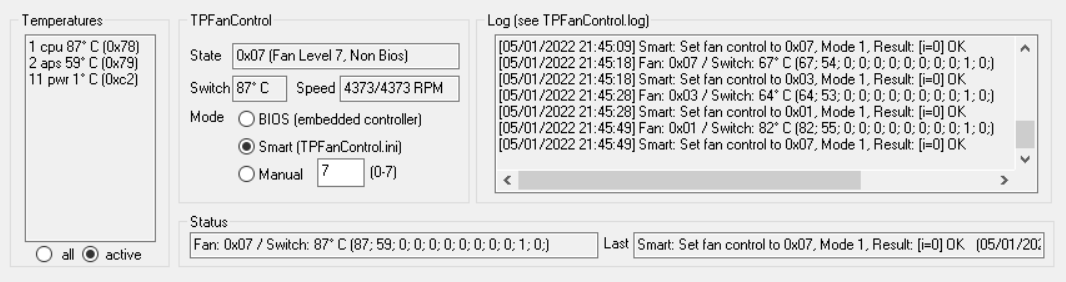
ThinkPad Fan Control 2, a fan control utility for ThinkPad users running Windows 10/11
This is a fork of the original TPFC, and is based on
byrnes' dual fan mod.
It's updated it to work with two fan devices. The default fan profile prioritizes fan noise, with fans only turning on at 60C. This can be changed by editing
tpfancontrol.ini.
Visual Studio 2022 Community was used to build and debug.
Important: This software is released as a public domain software, there is no warranty or promise of bug fixes. The binaries and its source code are provided "as is", and should be used at your own risk. For more information, please refer to http://unlicense.org/.
Please note that I'm very busy with other work for the time being so it'll take a while for me to get to new issues, however please feel free to create pull requests, I will review those as soon as possible.
To avoid errors, either install tvicport manually or install the original version of TPFanControl found here (source code here), and run the dual-fan version instead of the original version.
Administration permission is required for the program to be able to control system fan speed.
Windows 10 or 11 is required to run the program. Windows XP, Vista, 7, and 8 may work, but are untested and should not be expected to.
You can configure the behaviour of the program by editing the values inside the TPFanControl.ini file that comes with the program,
The TPFanControl.ini file should always be in the same directory as the fancontrol.exe executable file.
Example of configurable parameters:
- Temperature refresh cycle time
- Start minimized in the taskbar tray
- Max read errors before the program auto shuts down
- Log program log to file & log data to CSV file
- Configure the fan curve in smart mode
- Configure a second smart mode that is accessable in the tray
- Temperature threshold to exit the manual mode
| Normal: | Advanced: |
|---|---|
| 0 - Off | 0 - Off |
| 1 - 30% | 50 - 40% |
| 2 - 40% | 60 - 60% |
| 3 - 45% | 70 - 100% |
| 4 - 50% | 80 - 100% |
| 5 - 60% | |
| 6 - 65% | |
| 7 - 65% |
Advanced level value is converted into hex before being read by the EC, the value above is a rough estimate of what to expect
The 0-7 range is intended to be used as the fan levels intended by the manufacture (7 being the highest that the laptop BIOS can go), and to take full advantage of the fan you'll need to enter 0-128 in hex (for example, 128 in hex is 0x80, which is entered as 80).
You can find additional information here on the ThinkPad Wiki: https://thinkwiki.de/TPFanControl.
Building this program requires Microsoft Visual Studio 2022 Community
The project should have the correct configuration upon opening the project file fancontrol.sln, though you might have to manually copy and paste the .ini file into
the Debug folder to test the built program
The project currently builds with the configuration: Debug Win32 (You will need admin permission to run the built program)
Do not build the project without TPFCIcon and TPFCIcon_noballons, they are necessary parts of the application and the main fan control software will not function without them
The source code of spinoff releases of the program (i.e. 2.1.5 B) for different machines are stored within the archive direcotry, you can build them by subsituting the main fancontrol directory with the fancontrol directory of the desiered version. Note that TPFCIcon and TPFCIcon_noballons should stay the same for every release.
If you get Linker Tools Error LNK2026: module unsafe for SAFESEH image when building:
- Go to Project properties -> Configuration Properties -> Linker -> Advanced
- Disable option
Image has Safe Exception Handlers(No (/SAFESEH:NO)
Right-click the tray icon and select Start with Windows. Selecting it again turns it off.
Two things get set up, because neither works on its own:
- The
TPFanControlservice, the same one-iinstalls. It runs asNT AUTHORITY\SYSTEMand controls the fans from the moment Windows starts, before anyone logs on. - A
Runentry, so a window opens in whichever session logs on, and you get the tray icon.
A shortcut in shell:startup is not an alternative, and neither is the Run entry on its own, because reaching the port
driver needs admin permission and Windows will not silently elevate a startup entry. It simply refuses to run it. The
service holds the hardware instead, so the window that opens at logon does not need admin at all and you get no prompt.
With this enabled you will see two TPFanControl.exe in Task Manager, one as SYSTEM and one as you. That is expected.
The one running as SYSTEM owns the fan. The one running as you is only the window: it never opens the port driver, so
it cannot write the fan register no matter what it is asked to do. It draws what the service publishes, and mode changes
you make are handed to the service, which applies them and publishes the result back. The log tab tells you which is
which, a window attached to a service says so on its first line.
Two processes are unavoidable here. A service runs in session 0 and cannot show a user interface, and a tray icon has to live in your session, so no single process can do both.
If you would rather have no tray icon at all, run TPFanControl.exe -i from an admin prompt instead of using the toggle.
That installs the service and nothing else, and -u removes it. A headless install stays headless, the toggle is the
only thing that touches the Run entry.
If "Run this program as an administrator" was ever ticked on the exe, Windows silently skips the Run entry at logon.
Installing the service clears that.
Delete the folder containing the program and the ini file.
That's it, there's no residual files.
If you enabled Start with Windows, turn it off first, or run TPFanControl.exe -u to remove the service.
On single-fan devices, the fan speed will sometimes fail to show up. The problem is in the process of being fixed
Sometimes the fans will fail to sync, with one ramping up and the other not. This will usually fix itself, but to fix it manually, switch to BIOS mode, then switch back to the desired mode
It will also sometimes take a longer time for the speed to update and the fans to spin up. This is caused by EC management for the newer ThinkPad BIOS. There is currently no way around it.
P50 Laptop users should use the 2.1.5B release as the fan control parameters are different, but the temperature is currently broken in the build, so it is recommended to use it in manual mode only
Some thinkbook models have different EC address, so the program might not work
FanDjango is currently refactoring, streamlining and cleaning up TPFanControl2, clarifying messages and log texts and also adding some enhancements as requested by users in the issues here in this repo. These are early beta released under FanDjango's V2.3.22 release. When sufficient feedback is received these may be incorporated into the main trunk here.
Confirmed support for: P53, Z13, Z16 Gen 1, Z16 Gen 2, P16 Gen1 AMD, T16 Gen1 AMD, X1 carbon gen12, X230T, P1 Gen7
Please open a pull request and have at lease one review to merge it into main
By doing so, you agree to didicate your contribution to the public domain. In compliance with the Unlicense license, you must agree to the following:
I dedicate any and all copyright interest in this software to the public domain. I make this dedication for the benefit of the public at large and to the detriment of my heirs and successors. I intend this dedication to be an overt act of relinquishment in perpetuity of all present and future rights to this software under copyright law.
For more information, please refer to http://unlicense.org/
This program is under the Unlicense "license"
This means that the software is released into the public domain, and therefore does not technically have a license
The author claims no copyright, copyleft, license or whatsoever for the program itself. You may use, reuse or distribute its binaries or source code in any desired way or form, Useage of binaries or source shall be entirely and without exception at your own risk.