Q – Can I forward the information incoming MQTT messages from the heat pump towards my InfluxDB database?
Details
Yes. There is a separate flow available to download. You can find it in the folder "heishamon2influxdb". It requires an additional contrib (node-red-contrib-influxdb). Install the contrib, download the flow, import it, configure the influxdb and you're set. You do not need Domoticz or Home Assistant for that now.Details
Visit via a browser: http://Your_NodeRed_IP:1880/uiDetails
Yes. If you have both enabled, the CCC function first calculates the setpoint depending on outside temperature. Next the RTC function will correct that CCC-setpoint depending on the room temperature. The only setpoint going to the heat pump will be SP at the end of all the calculations/corrections.Details
No, both will work separately. If you turn the heat pump on/off via the Remote Controller, the pump will just switch on/off.Keep in mind however that when the pump is switched off and a scheduled task in Node-Red is triggered, it can just turn on the pump for that.
This is important to keep in mind when doing maintenance.
Details
The idea behind this function is that when the compressor is just started, the frequency of the compressor goes up to 45+Hz. Well out of the efficient range. This is caused by the inner controller of the heat pump. When turned on, it 'wants' to see the impact of the compressor. It looks at the returning water temperature for this. Only when the water temperature returning towards the heat pump is nearing the target temperature, it will start to lower the compressor frequency and get in a stable/efficient mode. Throttling...This late throttling behavior can be quite energy consuming, it can cause the heat pump to generate too much heat at the start and turn off again.
This SoftStart function, when enabled, looks at the moment the compressor turns on, and lowers the setpoint to just above the temperature of the returning water. This will in theory cause the heat pump to start throttling down a lot quicker.
This function can be useful directly after defrost cycles when the pump starts again, or when the temperature difference between outside/inside is getting smaller.
Details
In the Node-Red Gui (http://Your_NodeRed_IP:1880/ui) you will have to go to the [WP Input] tab;In the square "REQUIRED INPUTS FOR FUNCTIONS" you will have to add a node (left pane under Home Assistant) named "Events: state".
You can drag and drop this in the square mentioned first.
It will replace the "TOP33 - panasonic_heat_pump/main/Room_Thermostat_Temp"-node eventually, which you should disable if not using.
Select the newly created node, then double click to open up the properties window;
Give it a name of your choosing like 'LivingRoom_temperature'
In the Entity box you can try to find your sensor entity (assuming you have already set up the MQTT settings earlier).
Make sure that in the 'Output properties' you have a MSG.PAYLOAD = EVENT STATE
Check the box 'output on connect' and make sure at the bottom, this node is enabled.
Finally press DONE to close the properties dialog and connect your node to the function node 'set.T_woonkamer_BT'

Details
In the Node-Red Gui (http://Your_NodeRed_IP:1880/ui) press the top most right arrow-down sign and select dashboard;Now press the Theme-tab and pick your style.
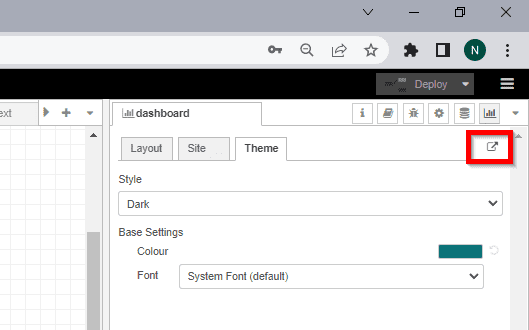
Details
Create a personal tab (WP Personal) and place your inputs here (P1, Temperature sensors)Give each of those input sensors its own [Link Out] node.
Connect those [Link Out] nodes to the already existing [Link In] nodes by double clicking the [Link Out] node and select the corresponding one from the list.
Some images to explain this: